Schemas
The Schemas tab lists the PostgreSQL tables Middleware has collected across your instances, with each table's definition, size, and usage statistics. Use it to check a table's indexes while tuning a slow query, or to compare the same table across databases and hosts.
Schemas are available for PostgreSQL only and require Schema Collection to be turned on. See Set Up PostgreSQL.
The Schemas tab always shows the past day of schema data. The time picker is disabled while this tab is open, and your previous time range comes back when you leave it.
Table List#
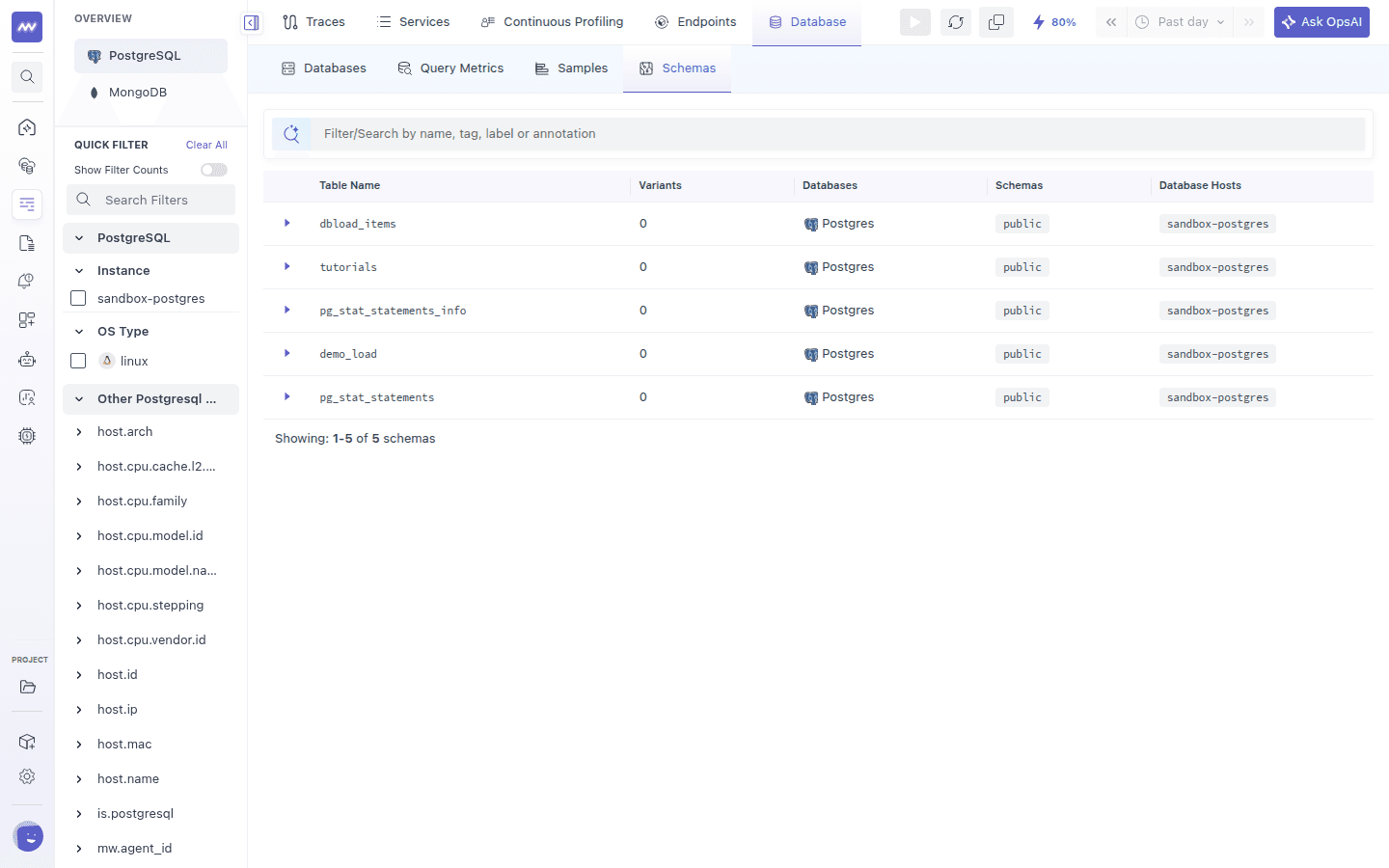
| Column | Description |
|---|---|
| Table Name | Name of the table |
| Variants | Number of different definitions found for this table name, for example when the same table has different columns on two hosts |
| Databases | Database engine |
| Schemas | Schema the table belongs to, such as public |
| Database Hosts | Instances where the table exists |
Search by table name with the search bar. Expand a row with the arrow to list its variants. Click a Variant ID to see that variant's columns and data types.
Table Details#
Click a table to open its details.
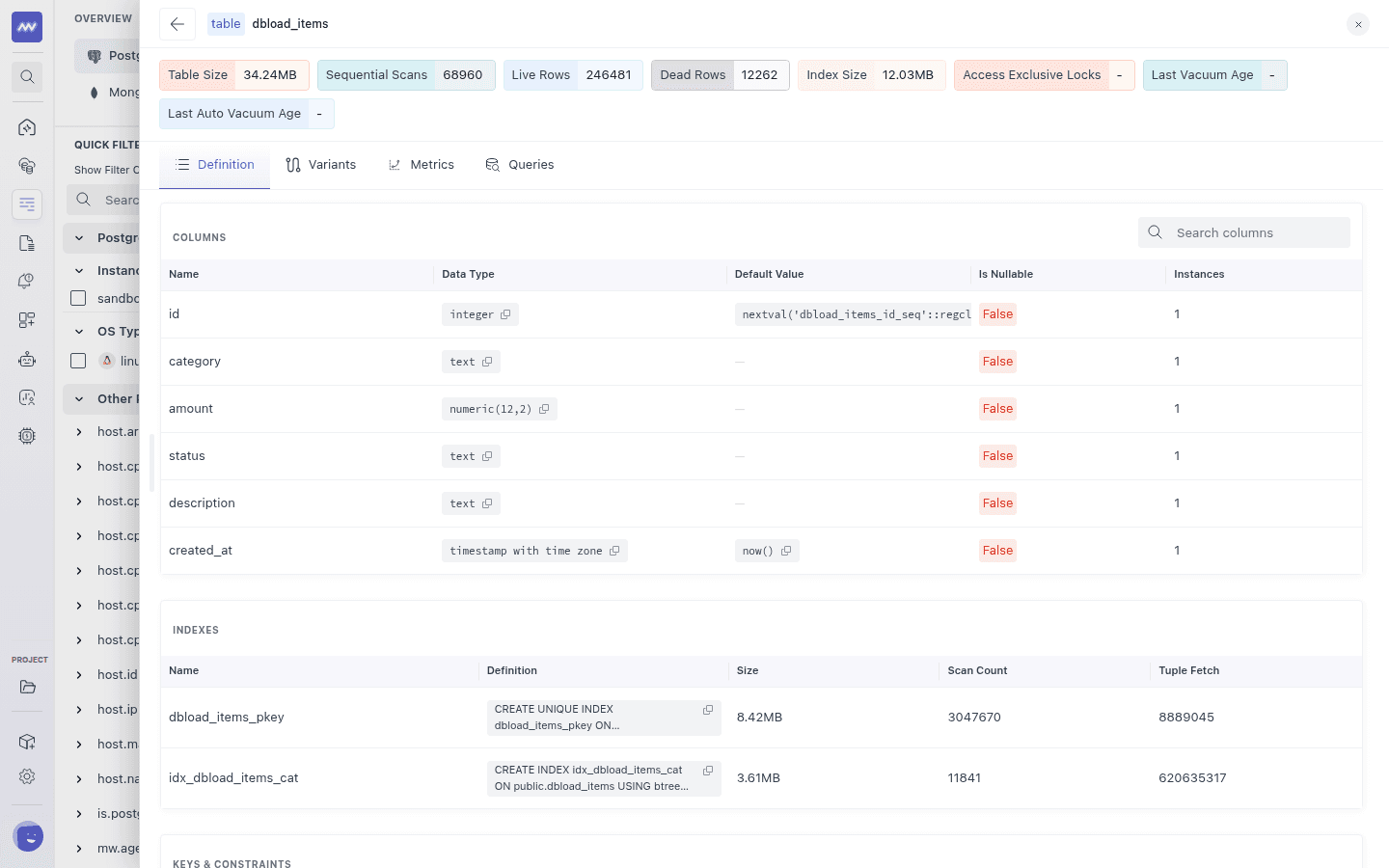
The header shows badges for Table Size, Sequential Scans, Live Rows, Dead Rows, and Index Size. A high sequential scan count on a large table often points to a missing index. Many dead rows compared with live rows can mean autovacuum is falling behind.
| Tab | What it shows |
|---|---|
| Definition | Columns (name, data type, default value, nullable, and the number of instances), Indexes (name, definition, size, scan count, and tuples fetched), and Keys & Constraints |
| Variants | Every variant of this table with its column count |
| Metrics | Table size, sequential scans, live and dead rows, index size, index blocks hit, and last autovacuum and autoanalyze time, over the past day |
| Queries | Query Metrics filtered to the queries that use this table |
Schema Explorer#
Each PostgreSQL instance also has a Schema section on its Summary tab, which shows the schemas of that instance only.
- Pick a database and schema from the tree on the left, or search with Search for schema.
- Choose a table from Select table.
- Review its Columns, Indexes, and Keys & Constraints.
Need assistance or want to learn more about Middleware? Get in touch with us via our Contact Us or join our Slack channel.