Status Badges
Status badges are small, embeddable indicators that show your current page status on external websites, documentation, README files, or internal tools. The badge updates automatically to reflect the live state of your status page.
Generate embed code#
Embed snippets are available on the Settings tab after your status page has a serving domain (hosted slug or custom domain).
- Go to Synthetics → Status Page and open your page
- Select the Settings tab
- Scroll to the Status Badge section
- Copy the snippet for your preferred format
Three formats are provided:
| Format | Use case |
|---|---|
| HTML | Websites, landing pages, footers |
| iframe | Pages where you need an interactive embed |
| Markdown | GitHub READMEs, docs sites, wikis |
Badge states#
The badge reflects your status page's current overall health:
| Badge label | Color | Condition |
|---|---|---|
| All Systems Operational | Green | All services are operational |
| Some Systems Degraded | Amber | At least one service is degraded |
| Some Systems Experiencing Downtime | Red | At least one service is in downtime |
| Status Unknown | Grey | Page not found or domain not configured |
Badge status is resolved with the same priority as the public page banner: downtime takes precedence over degraded, which takes precedence over operational.
HTML image embed#
The HTML snippet uses an <img> tag that links to your status page:
1<a href="https://yourcompany.mwstatus.com">
2  <img
3    src="https://yourcompany.mwstatus.com/api/v1/public/statuspage/badge/yourcompany.mwstatus.com"
4    alt="All Systems Operational"
5  />
6</a>
Replace the domain with your serving domain (hosted slug or custom domain). Clicking the badge takes visitors to your full status page.
iframe embed#
The iframe snippet embeds the badge inline without requiring an image host:
1<iframe
2  src="https://yourcompany.mwstatus.com/api/v1/public/statuspage/badge/yourcompany.mwstatus.com/iframe"
3  width="300"
4  height="36"
5  frameborder="0"
6  scrolling="no"
7  title="All Systems Operational"
8  style="border:none;color-scheme:normal;"
9></iframe>
Markdown badge#
For README files and Markdown-based documentation:
1[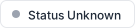](https://yourcompany.mwstatus.com)Dark theme#
Append ?theme=dark to the badge URL for a dark-themed variant:
1https://yourcompany.mwstatus.com/api/v1/public/statuspage/badge/yourcompany.mwstatus.com?theme=darkA Dark badge toggle in the Settings tab previews and generates dark-theme snippets.
Caching and updates#
Badge responses include cache headers so browsers and CDNs can cache the image briefly. The badge updates when your page status changes — typically within minutes of an incident create or resolve action. For the most current status, visitors can click through to the full status page (which supports auto-refresh if enabled).
Best practices#
- Place badges where customers look — website footer, docs header, or support portal
- Link to the full status page — the badge is a summary; the status page has incident timelines and service details
- Use dark theme on dark backgrounds — append
?theme=darkfor better contrast - Publish before embedding — embed code is only generated after your page has a serving domain
Next steps#
- Getting Started — publish your page to generate embed code
- Overview — understand how page status is computed
Need assistance or want to learn more about Middleware? Get in touch with us via our Contact Us or join our Slack channel.