Log Anomaly Detection
Log Anomaly Detection finds unusual behavior in your logs by comparing current activity with historical patterns. It surfaces changes such as unexpected log volume, new log patterns, inactive patterns, and shifts in normal logging behavior across services.
Use it when you want to find abnormal log activity without reading large volumes of logs by hand.
Middleware analyzes ingested logs and groups detected patterns by attributes such as:
- Environment
- Service
- Source
- Severity
These grouped patterns are continuously checked for anomalous behavior.
How anomaly detection works#
Log Anomaly Detection looks at both how often logs occur and what those log messages contain.
It uses two types of analysis:
- Time-based analysis: Detects unusual increases or decreases in log volume over time.
- Content-based analysis: Detects log patterns or message content that differs from previously observed behavior.
An anomaly is triggered when the percentage of anomalous logs in a one-minute window exceeds the configured threshold:
(Anomalous Logs per Minute / Total Logs per Minute) > Threshold
This detects both changes in log volume and changes in log patterns relative to a service's normal behavior.
View log anomalies#
To view log anomalies, go to Log Monitoring → Anomalies.
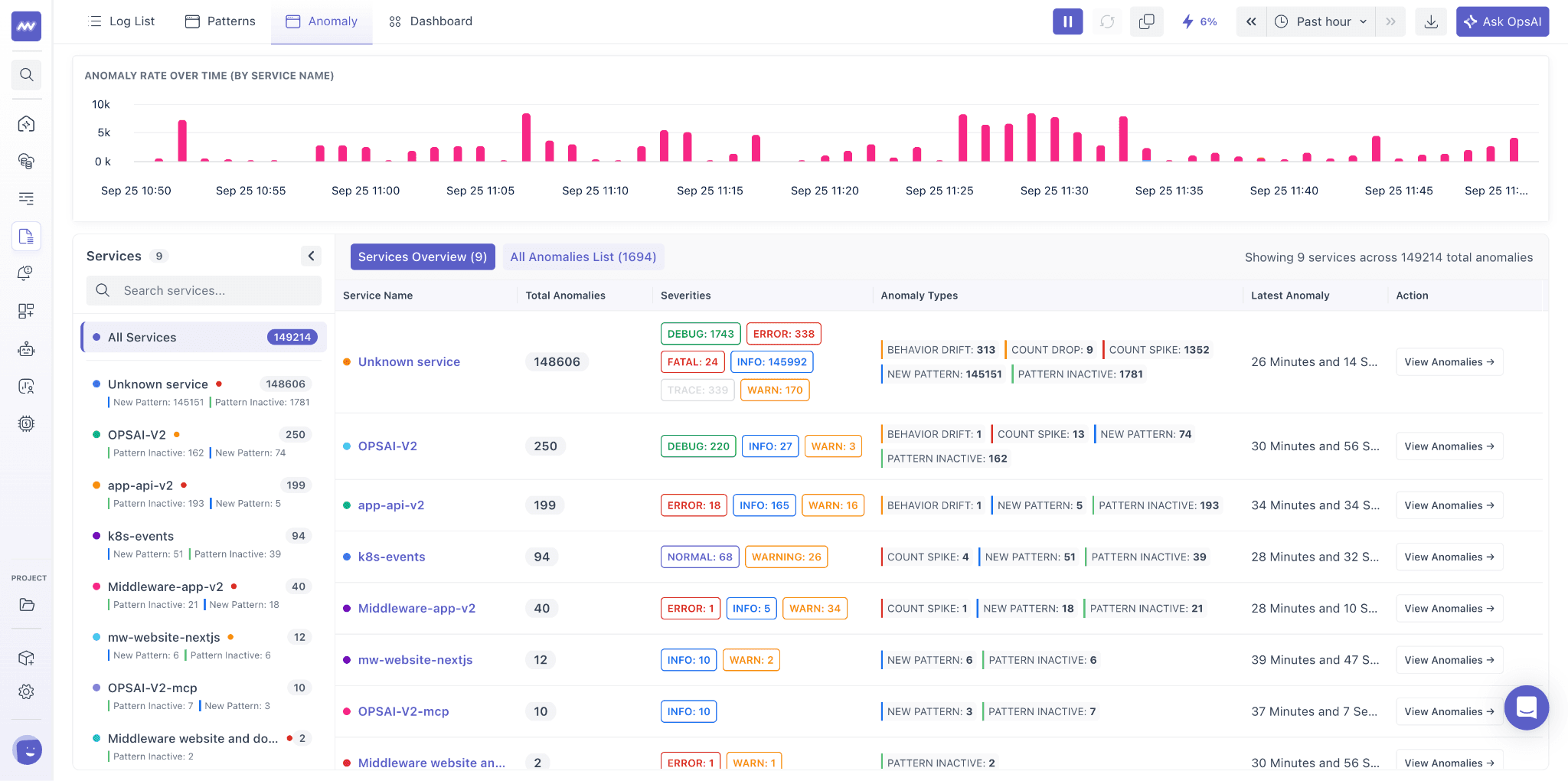
The Anomalies page includes:
- A timeline chart showing detected anomalies over time.
- A table of anomalies grouped by service.
- A service list you can use to filter anomalies for a specific service.
Select a service in the list on the left to see only the anomalies related to that service.
Middleware detects five types of log anomalies:
- Count Spike: Log volume increases significantly compared with the expected level.
- Count Drop: Log volume decreases significantly compared with the expected level.
- New Pattern: A previously unseen log pattern starts appearing.
- Pattern Inactive: A previously active log pattern stops generating logs.
- Behavior Drift: The behavior of an existing log pattern changes significantly from its historical behavior.
Anomaly details#
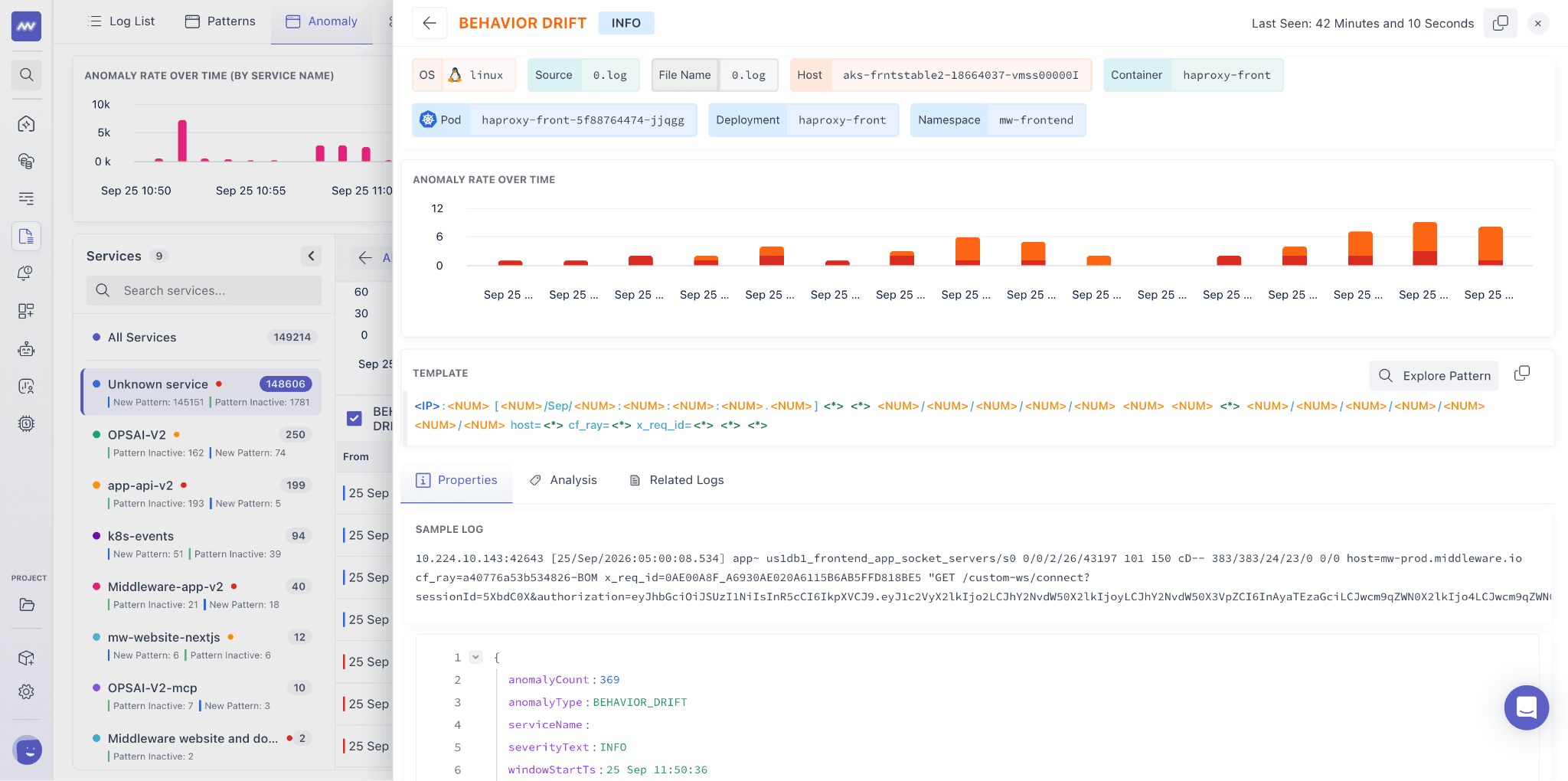
Select an anomaly in the table to open its details in the side panel. The panel includes:
- Log attributes: Key attributes associated with the affected logs.
- Anomaly chart: Shows how the detected behavior changed over time.
- Log pattern: Displays the log pattern associated with the anomaly.
- Log properties: Additional properties of the logs involved in the anomaly.
Use these details to see which service or log pattern changed, and when the change occurred.
Analysis#
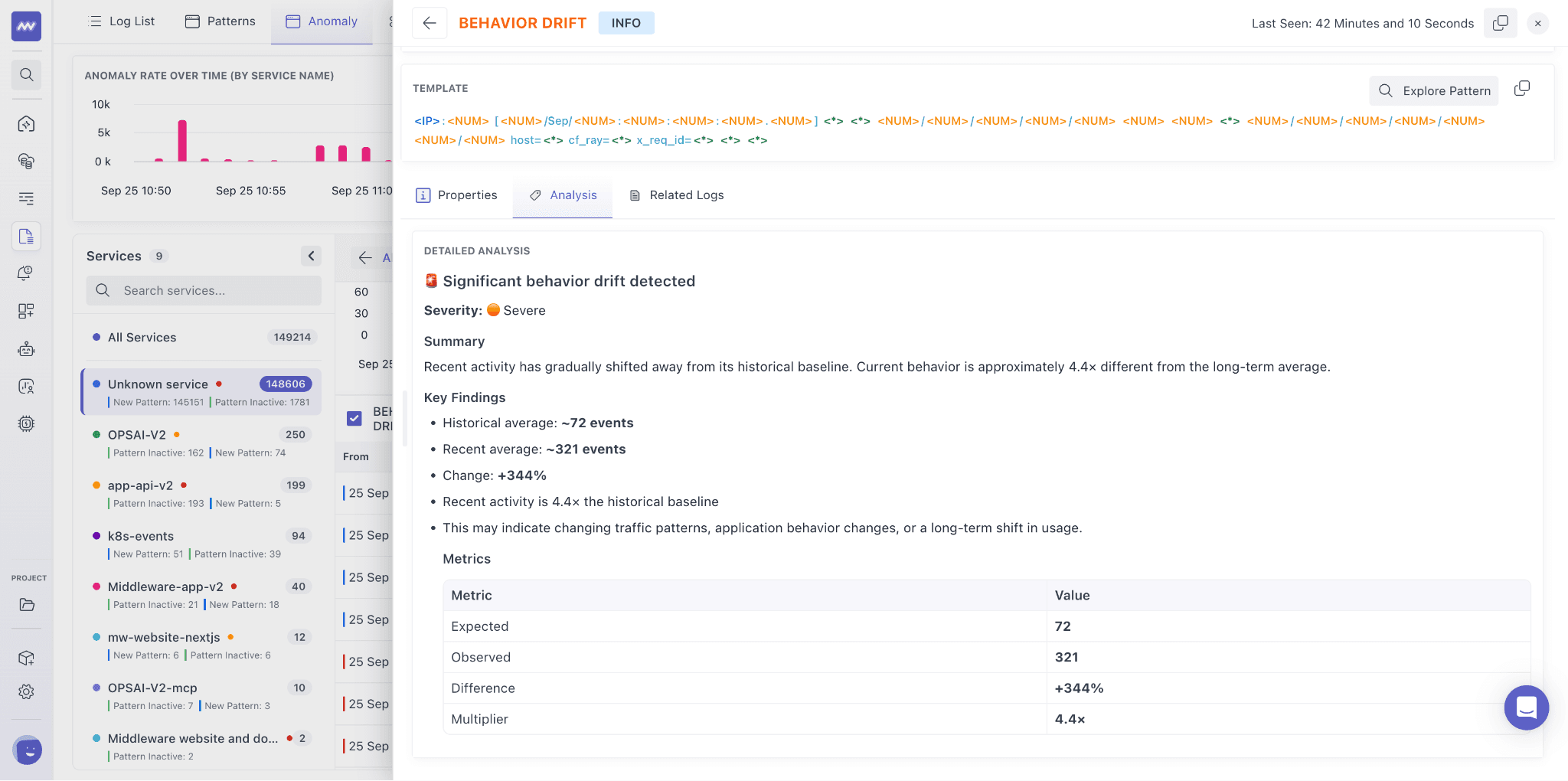
Each detected anomaly can be analyzed by OpsAI. The analysis adds context about the anomaly, including:
- What changed, and why the activity was classified as anomalous.
- The expected value or behavior.
- The actual value or behavior observed.
- Additional information that can help with the investigation.
Use this analysis together with the anomaly chart, log pattern, and log attributes to investigate the affected service.
Next Steps#
Need assistance or want to learn more about Middleware? Get in touch with us via our Contact Us or join our Slack channel.