GCP Cloud SQL for PostgreSQL Integration
GCP Cloud SQL for PostgreSQL monitoring is essential for tracking database performance, query behavior, and resource utilization in cloud environments. This guide explains how to set up Cloud SQL for PostgreSQL monitoring in Middleware using a GCE VM host agent, enabling full observability into queries, metrics, and performance bottlenecks. The agent runs on a GCE VM you control and connects to the managed database over the network—not on the Cloud SQL instance itself.
Prerequisites#
- Middleware Host Agent on GCE VM: Install the Linux Host Agent on a GCE VM that has network connectivity to your Cloud SQL endpoint. Follow Installing the Agent and the Linux Host Agent steps.
- Managed database: Do not attempt to install the Host Agent on Cloud SQL. Cloud SQL is a managed service; integration is always GCE VM (agent) → Cloud SQL for PostgreSQL using a credentials file on the VM and the PostgreSQL integration in Middleware.
Retrieve connection details from GCP#
Gather the following before you configure Middleware:
- Public or private IP and port: In the Google Cloud console, open SQL → your instance → Overview. Copy the Public IP address or Private IP address and Port (PostgreSQL default is
5432). - Database name: The initial database created with the instance, or another database you created.
- Username and password: The
postgresadmin user or a dedicated monitoring user you create in SQL (see Step 3). Store passwords securely (for example in Secret Manager or your team's vault); rotate them according to your policy.
Network connectivity#
- Authorized networks: In the Google Cloud console, go to your Cloud SQL instance → Connections → Networking. Add the public IP of your GCE VM to Authorized networks, or use a private IP if both resources share a VPC.
- Placement: The GCE VM running the agent should be in a VPC that can reach the Cloud SQL endpoint (same VPC is typical for private IP; for public IP, the VM's external IP must be in the authorized networks list).
- Verification: From the GCE VM, test connectivity (for example with
psqlornc -zv <ip> <port>) before relying on the integration.
Setup#
1 Set database flags#
Cloud SQL uses database flags instead of editing postgresql.conf on disk.
- In the Google Cloud console, go to SQL → your instance → Edit → Flags.
- Add or update the following flags:
cloudsql.enable_pg_stat_statements=onpg_stat_statements.track=allpg_stat_statements.max=10000(or your chosen limit)pg_stat_statements.save=ontrack_io_timing=on
- Click Save. Cloud SQL may restart the instance for certain flag changes to take effect.
- Connect to the database (for example with
psqlfrom the GCE VM) and run as a user with sufficient privileges:
1CREATE EXTENSION IF NOT EXISTS pg_stat_statements;
2SELECT calls, query FROM pg_stat_statements LIMIT 1;
You should see a row once statements have executed (your values will differ):
1calls | query
2-------+-------------------------------
3     8 | SELECT * FROM t WHERE field = $1
2 Configure TLS with SSL client certificates#
GCP Cloud SQL is the only major cloud platform that supports SSL client certificates alongside a CA certificate. The TLS setup differs depending on whether you use a public or private IP.
Public IP — resolve the SAN hostname
Cloud SQL's server certificate uses a Subject Alternative Name (SAN) that does not match the instance's public IP. You must resolve this hostname on the GCE VM running the agent.
- Retrieve the SAN DNS name from the Cloud SQL server certificate:
1openssl s_client -connect YOUR_CLOUDSQL_IP:PORT -starttls postgres 2>/dev/null | \
2 openssl x509 -noout -subject -ext subjectAltName- Add an entry in /etc/hosts on the GCE VM so that the SAN hostname resolves to the Cloud SQL public IP:
1sudo sh -c 'echo "YOUR_CLOUDSQL_IP DNS_LISTED_UNDER_SAN" >> /etc/hosts'- Use the SAN DNS name (not the IP) as the host when configuring the PostgreSQL integration in Middleware (i.e.
DNS_NAME:PORTinstead ofIP:PORT).
Download certificates
In the Google Cloud console, go to SQL → your instance → Connections → Security → Manage SSL client certificates:
- Create a client certificate — download the three files:
server-ca.pem(CA certificate)client-cert.pem(client certificate)client-key.pem(client key)
- Place all three files on the GCE VM where the Middleware Host Agent runs (for example in
/etc/mw-certs/).
3 (optional): Create a least-privileged user#
If you do not want to use the admin user for monitoring, create a read-only user with minimal privileges. Run against the Cloud SQL endpoint (for example from the GCE VM using psql):
1CREATE USER lpu WITH PASSWORD 'pass';Verify:
1\duGrant minimal access:
1-- allow connections to the database you'll monitor
2GRANT CONNECT ON DATABASE <your_db_name> TO lpu;
3
4-- permit reading statement stats
5GRANT SELECT ON pg_stat_statements TO lpu;
6
7-- permit reading global stats where needed
8GRANT pg_read_all_stats TO lpu;
Test with the lpu account:
1SELECT calls, query FROM pg_stat_statements LIMIT 1;4 Open the integration in Middleware#
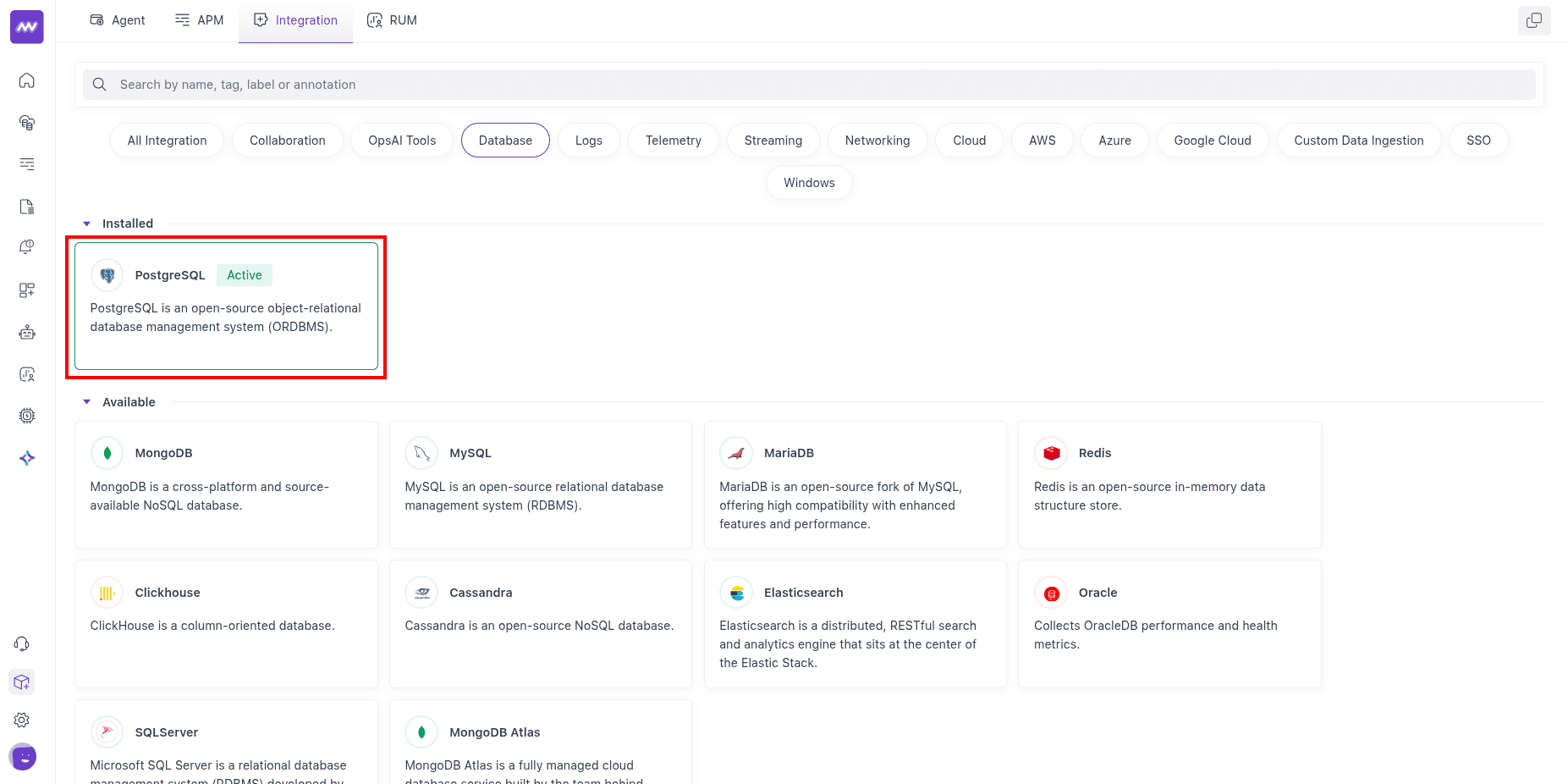
In Middleware, go to Installations → All Integrations → PostgreSQL.
5 Fill the integration form#
In the PostgreSQL integration form:
- Select the GCE VM host (from the dropdown) where the Middleware Host Agent runs.
- Enter the required connection details:
- Database name
- Host — use the SAN DNS name if connecting over public IP (see Step 2), or the private IP if using private connectivity
- Username
- Password
- (Optional) Query Collection:
- Query Sample Collection captures sampled query activity (query text, state, wait events, and client/application details) for troubleshooting.
- Top Query Collection captures aggregated high-impact query metrics (calls, rows, block I/O, and planning/execution timings) from
pg_stat_statements.
- (Optional) Schema Collection captures database schema and table metadata for schema visibility in Middleware.
- TLS Settings:
- Set
Allow InsecuretofalseandSkip Certificate Verificationtofalse. - Provide the paths to the certificate files downloaded in Step 2:
- CA certificate file path — e.g.
/etc/mw-certs/server-ca.pem - Client certificate file path — e.g.
/etc/mw-certs/client-cert.pem - Client key file path — e.g.
/etc/mw-certs/client-key.pem
- CA certificate file path — e.g.
- Set
6 Save and enable the integration#
- Click Save.
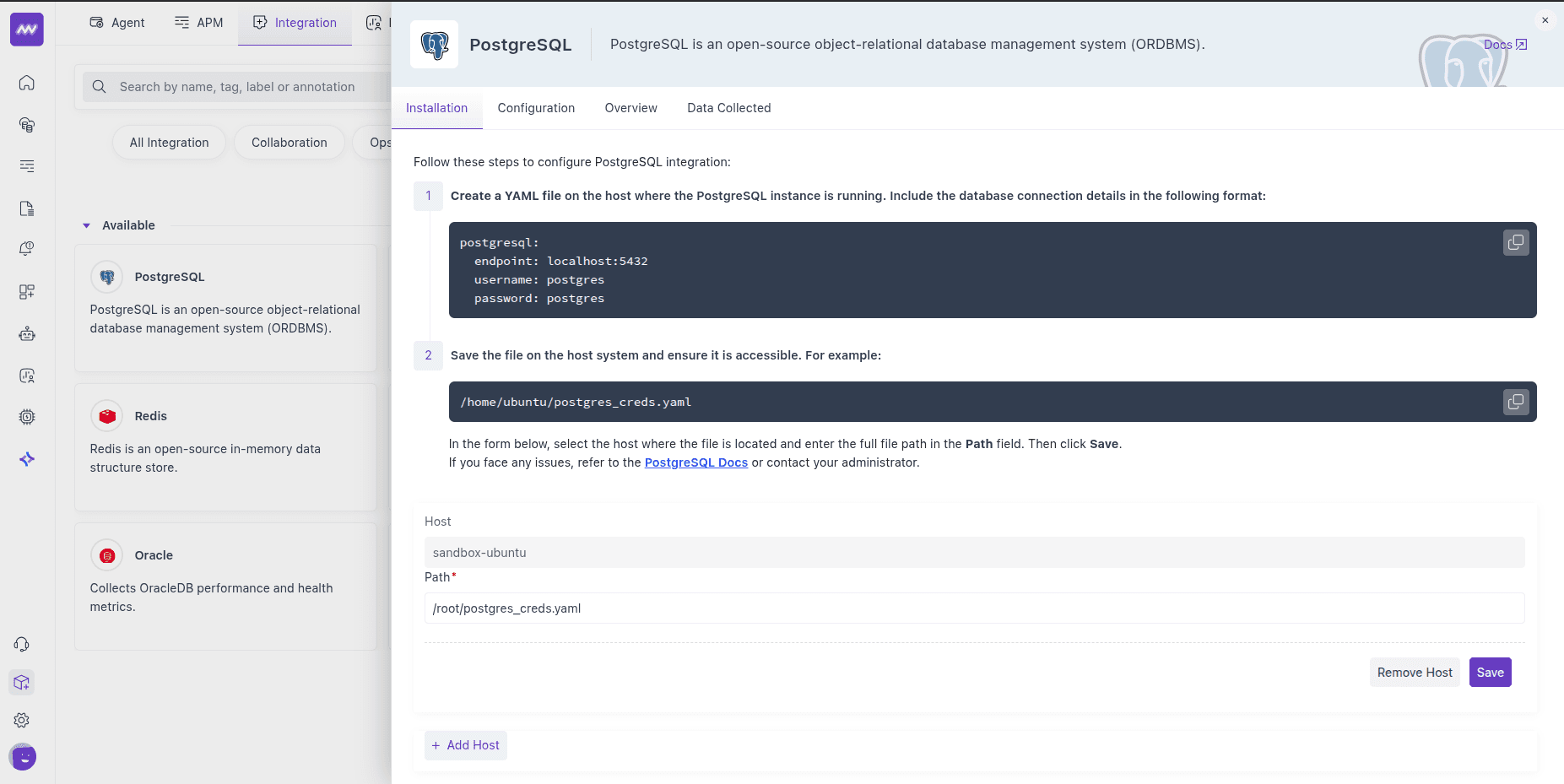
Once saved, the integration starts ingesting metrics from your Cloud SQL for PostgreSQL instance.
Visualise your Data#
Default PostgreSQL dashboard#
After setup, Middleware adds a PostgreSQL dashboard to the Dashboard Builder. Use it as a starting point to explore key DB metrics without building widgets from scratch.
Create custom widgets#
When adding a widget, choose data source postgresql to browse all exposed metrics and craft charts for your SLOs or run-book checks.
Alerts#
You can alert on any PostgreSQL metric. Create a rule using Database as the detection method and PostgreSQL as the database type; the Metrics dropdown then lists all available metrics for this integration. Configure conditions, thresholds, and recipients as usual.
Metrics Collected#
The following metrics are emitted when enabled in the PostgreSQL receiver (names and descriptions align with the integration's metric definitions). Cloud SQL for PostgreSQL uses the same metric set as self-hosted PostgreSQL.
Core Engine & Storage#
| Metric Name | Description |
|---|---|
postgresql.backends | The number of backends. |
postgresql.blocks_read | The number of blocks read (tagged by block read source). |
postgresql.buffer_hit | The number of disk block hits in the buffer cache, thereby avoiding database reads, tagged with database name. |
postgresql.db_size | The database disk usage. |
postgresql.database.count | Number of user databases. |
Tables, Indexes & Maintenance#
| Metric Name | Description |
|---|---|
postgresql.table.count | Number of user tables in a database. |
postgresql.table.size | Disk space used by a table. |
postgresql.table.vacuum.count | Number of times a table has manually been vacuumed. |
postgresql.table_bloat | Estimated table bloat ratio (actual pages / expected pages); 1.0 indicates no bloat. |
postgresql.analyzed | Number of times a table has been manually analyzed. |
postgresql.autoanalyzed | Number of times a table has been automatically analyzed. |
postgresql.autovacuumed | Number of times a table has been automatically vacuumed. |
postgresql.index.scans | The number of index scans on a table. |
postgresql.index.size | The size of the index on disk. |
postgresql.index.blocks_read | The number of disk blocks read by this index (tagged by source). |
postgresql.index.rows_read | The number of index entries returned by scans on this index. |
postgresql.index_bloat | Estimated index bloat ratio (actual pages / expected pages); 1.0 indicates no bloat. |
TOAST#
| Metric Name | Description |
|---|---|
postgresql.toast.blocks_hit | Number of TOAST block hits. |
postgresql.toast.index.blocks_read | Number of TOAST index block reads. |
postgresql.toast.size | Size of TOAST table. |
Transactions & Row Activity#
| Metric Name | Description |
|---|---|
postgresql.commits | The number of commits. |
postgresql.rollbacks | The number of rollbacks. |
postgresql.rows | The number of rows in the database (tagged by row state). |
postgresql.rows_deleted | Rows deleted by queries in this database, tagged with relation name. |
postgresql.rows_fetched | Rows fetched by queries in this database, tagged with relation name. |
postgresql.rows_inserted | Rows inserted by queries in the database, tagged with relation name. |
postgresql.rows_updated | Rows updated by queries in the database, tagged with relation name. |
postgresql.operations | The number of database row operations (tagged by operation: ins, upd, del, hot_upd). |
Checkpointing & Background Writer#
| Metric Name | Description |
|---|---|
postgresql.bgwriter.checkpoint.count | The number of checkpoints performed (tagged by checkpoint type). |
postgresql.bgwriter.duration | Total time spent writing and syncing files to disk by checkpoints (tagged by duration type). |
postgresql.bgwriter.maxwritten | Number of times the background writer stopped a cleaning scan because it had written too many buffers. |
postgresql.bgwriter.buffers.writes | Number of buffers written (tagged by buffer source). |
postgresql.bgwriter.buffers.allocated | Number of buffers allocated. |
Connections & Limits#
| Metric Name | Description |
|---|---|
postgresql.connection.count | The number of active connections to this database; when DBM is enabled, tagged with state, application name, database, and user. |
postgresql.connection.max | Configured maximum number of client connections allowed. |
Statement-level (via pg_stat_statements)#
| Metric Name | Description |
|---|---|
postgresql.query.count | Number of times the statement was executed (tagged with query_text, query_id). |
postgresql.query.total_exec_time | Total wait time of the normalised timed events (nanoseconds; tagged with query_text, query_id). |
Replication & WAL#
| Metric Name | Description |
|---|---|
postgresql.replication.data_delay | The amount of data delayed in replication (tagged with replication client). |
postgresql.wal.age | Age of the oldest WAL file (requires WAL with at least one replica). |
postgresql.wal.count | Number of WAL files. |
postgresql.wal.lag | Time between flushing recent WAL locally and receiving notification that the standby completed an operation (tagged by operation and replication client; requires WAL with at least one replica). |
postgresql.wal.size | Total size of WAL files. |
Live Row Estimates#
| Metric Name | Description |
|---|---|
postgresql.live_rows | The approximate number of live rows, tagged with relation name. |
Active Transaction Duration#
| Metric Name | Description |
|---|---|
postgresql.transactions.duration.max | Max duration of active transactions. |
postgresql.transactions.duration.sum | Sum of duration of active transactions. |
Troubleshooting#
"Integrations" menu not visible
If you do not see Integrations in Middleware, your account probably lacks Installation permissions. Ask an admin to add Installation to your role in Settings.
No metrics or connection failures
- Confirm the GCE VM can reach the Cloud SQL instance (check authorized networks, firewall rules, and VPC configuration).
- Confirm the credentials use the correct host (SAN DNS name for public IP, or private IP) and port reachable from the VM.
- Verify database flags are set and
pg_stat_statementsis enabled, and the database user has the grants from Step 3. - For public IP connections, ensure
/etc/hostsmaps the Cloud SQL IP to the SAN DNS name (see Step 2). - Ensure SSL certificates (
server-ca.pem,client-cert.pem,client-key.pem) are present on the VM and paths are correctly entered in the integration form.
Need assistance or want to learn more about Middleware? Get in touch with us via our Contact Us or join our Slack channel.