GPU Monitoring
GPU Monitoring gives you full visibility into the NVIDIA GPUs powering your LLM and ML workloads — utilization, memory, power, temperature, clock throttling, interconnect traffic, hardware errors, and the processes running on each device. It’s driven by the Middleware GPU OpenTelemetry Collector (otelcol-middleware-gpu), a lightweight collector that scrapes GPU telemetry via NVIDIA DCGM and NVML and streams it to Middleware over OTLP.
Install the collector on each GPU host and its metrics flow straight into LLM Observability → GPU Monitoring, where you can watch the whole fleet at a glance and drill into any single GPU.
What you can monitor#
- Utilization & compute — GPU, SM, pipe, and encoder/decoder utilization and memory bandwidth, so you can see how hard each device is working.
- Memory & power — memory used by state, power draw in watts, temperature, and clock frequency/throttling.
- Errors & health — ECC and XID errors per GPU, so you catch failing hardware before it takes down a training run.
- Per-process usage — which PID, process, and owner is consuming each GPU, with utilization and peak memory.
Before you begin#
You’ll need:
- A Linux GPU host (amd64 or arm64) with systemd, and
root/sudoaccess. - The NVIDIA driver installed — the NVML receiver loads
libnvidia-ml.so. Verify withnvidia-smi. - For DCGM metrics, NVIDIA DCGM (the
datacenter-gpu-managerpackage, which provideslibdcgm.so). - Your Middleware OTLP endpoint (
MW_TARGET, e.g.https://<uid>.middleware.io:443) and your Middleware API key (MW_API_KEY).
The dcgm and nvml receivers load the NVIDIA libraries at runtime. The collector still starts if the driver or DCGM is missing, but those receivers will log scrape errors and you won’t see GPU metrics — install the driver and DCGM first.
Install the collector#
Pick the method that matches your environment — the systemd installer for bare-metal and VM hosts, or the Docker image for containerized hosts. Both read the same MW_TARGET and MW_API_KEY.
The install script downloads the matching release binary, verifies its checksum, installs it to /usr/bin, writes a config and a systemd unit, then enables and starts the service. Run it as root with your endpoint and key:
1sudo MW_TARGET="https://<uid>.middleware.io:443" \
2     MW_API_KEY="<your-api-key>" \
3     bash install-middleware-gpu.sh
Preview without installing, pin a specific version, or remove the collector:
1# Preview the actions only
2sudo bash install-middleware-gpu.sh --dry-run
3
4# Pin a specific release
5sudo MW_TARGET=... MW_API_KEY=... MW_GPU_VERSION=0.1.2 bash install-middleware-gpu.sh
6
7# Uninstall (binary + service; prompts before removing config)
8sudo bash install-middleware-gpu.sh --uninstall
The install places:
| Path | Description |
|---|---|
/usr/bin/otelcol-middleware-gpu | The collector binary |
/etc/otelcol-middleware-gpu/config.yaml | Collector configuration |
/etc/otelcol-middleware-gpu/otelcol-middleware-gpu.conf | Environment file (MW_TARGET / MW_API_KEY) |
/etc/systemd/system/otelcol-middleware-gpu.service | systemd unit |
A multi-arch image is published to GHCR. The container needs GPU access via the NVIDIA Container Toolkit (--gpus all) and a few host-level flags so the DCGM and NVML receivers can read GPU and per-process telemetry. The image ships with the config baked in and reads the same two environment variables:
1sudo docker run --rm \
2  --gpus all \
3  --net=host \
4  --pid=host \
5  --user root \
6  --cap-add SYS_ADMIN \
7  -v /usr/lib/x86_64-linux-gnu/libdcgm.so:/usr/lib/x86_64-linux-gnu/libdcgm.so:ro \
8  -e MW_TARGET="https://<uid>.middleware.io:443" \
9  -e MW_API_KEY="<your-api-key>" \
10  ghcr.io/middleware-labs/otelcol-middleware-gpu:latest
What the extra flags do:
| Flag | Why it’s needed |
|---|---|
--gpus all | Exposes the host GPUs to the container via the NVIDIA Container Toolkit. |
--cap-add SYS_ADMIN | Required by DCGM to read low-level GPU performance counters. |
--pid=host | Lets the NVML receiver see host processes, so per-process GPU usage is attributed correctly. |
--net=host | Reuses the host network (and lets the bundled otlp receiver bind host ports 4317/4318). |
-v .../libdcgm.so:...:ro | Bind-mounts the host’s libdcgm.so so the dcgm receiver can load it. Point this at the path that exists on your host (see the DCGM troubleshooting note). |
If your host has only a versioned libdcgm.so.4 (and no bare libdcgm.so), bind-mount the versioned file onto the unversioned path inside the container, e.g. -v /usr/lib/x86_64-linux-gnu/libdcgm.so.4:/usr/lib/x86_64-linux-gnu/libdcgm.so:ro.
To run with your own configuration, mount it over the baked-in path:
1sudo docker run --rm \
2  --gpus all --net=host --pid=host --user root --cap-add SYS_ADMIN \
3  -v /usr/lib/x86_64-linux-gnu/libdcgm.so:/usr/lib/x86_64-linux-gnu/libdcgm.so:ro \
4  -e MW_TARGET="https://<uid>.middleware.io:443" \
5  -e MW_API_KEY="<your-api-key>" \
6  -v "$PWD/my-config.yaml:/etc/otelcol-middleware-gpu/config.yaml:ro" \
7  ghcr.io/middleware-labs/otelcol-middleware-gpu:latest
Install options (script)#
The install script is configured through environment variables. The common ones:
| Variable | Description |
|---|---|
MW_TARGET | Required. Middleware OTLP endpoint, e.g. https://<uid>.middleware.io:443. |
MW_API_KEY | Required. Middleware API key, sent as the Authorization header. |
MW_GPU_VERSION | Pin a specific release (e.g. 0.1.2); defaults to latest. |
MW_GPU_CONFIG_FILE | Path to a custom config.yaml that overrides the bundled config. |
MW_GPU_INSTALL_ONLY | true to install without enabling/starting the service. |
MW_GPU_AUTO_START | true (default) to start the service after install. |
MW_GPU_SERVICE_USER | User to run the service as (default: root). |
Run bash install-middleware-gpu.sh --help for the full list.
Verify the service#
1systemctl status otelcol-middleware-gpu
2journalctl -u otelcol-middleware-gpu -f
A healthy collector reports the service as active (running) and shows no repeated scrape errors in the logs.
Once the service is running and scraping cleanly, your GPUs will appear in Middleware within ~30 seconds (the default scrape interval).
Configuration#
The bundled config at /etc/otelcol-middleware-gpu/config.yaml works out of the box — MW_TARGET and MW_API_KEY are supplied from the environment, so you usually don’t need to touch it. A few things worth knowing:
- The
dcgmandnvmlreceivers scrape on acollection_intervalof30s. - An
otlpreceiver listens on0.0.0.0:4317(gRPC) and0.0.0.0:4318(HTTP), so other agents or applications on the host can forward telemetry through the same collector. - An existing config is preserved on upgrade — reinstalling won’t overwrite your customizations. Set
MW_GPU_CONFIG_FILEto install your own config instead of the bundled one.
The pipeline also derives a couple of friendlier series for you: GPU power (W) from the cumulative energy counter, and bytes/sec rates for PCIe and NVLink traffic from their cumulative byte counters. These appear alongside the raw counters, so you can chart either.
View your data in Middleware#
Once the collector is running, open LLM Observability → GPU Monitoring. There are three views.
Overview#
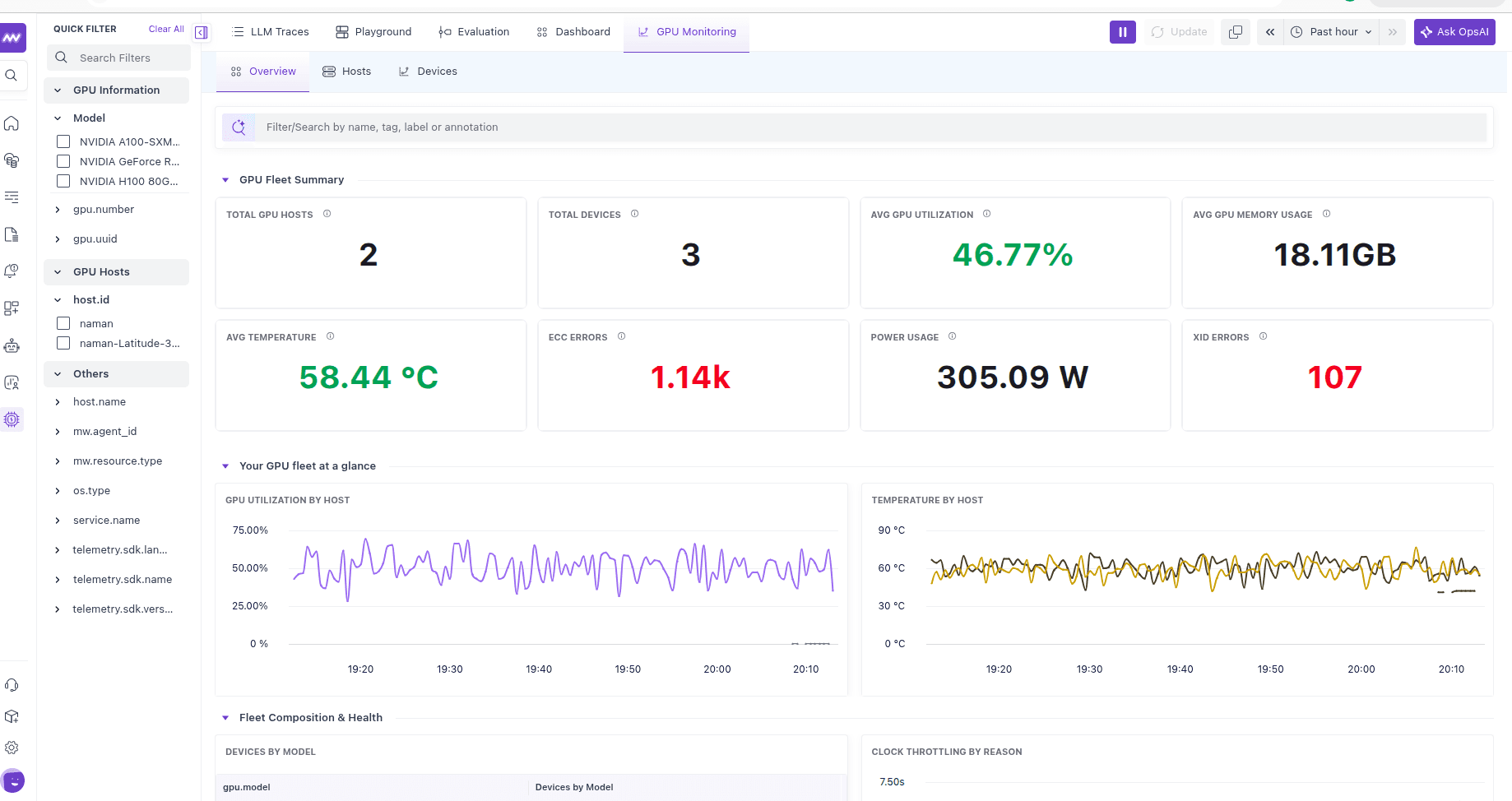
A fleet-wide summary: total GPUs and devices, average utilization, memory usage, temperature, power draw, and error counts — plus GPU utilization and temperature over time and your fleet composition by model. (See the screenshot at the top of this page.)
Devices#
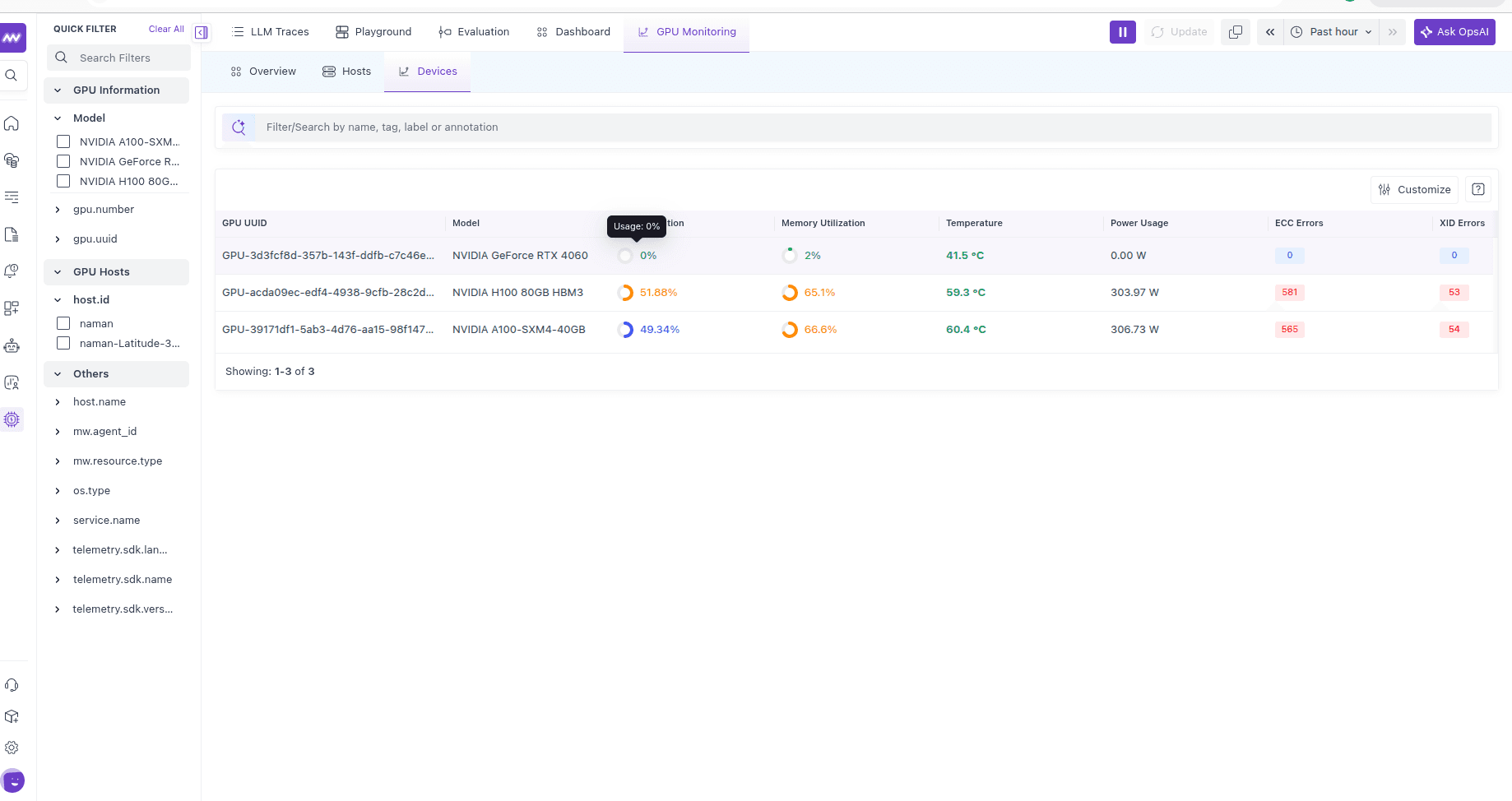
A per-GPU table — UUID, model, utilization, memory utilization, temperature, power usage, and ECC/XID error counts. Use the Quick Filter on the left to narrow by model, gpu.number, gpu.uuid, or host.
Drilling into a GPU#
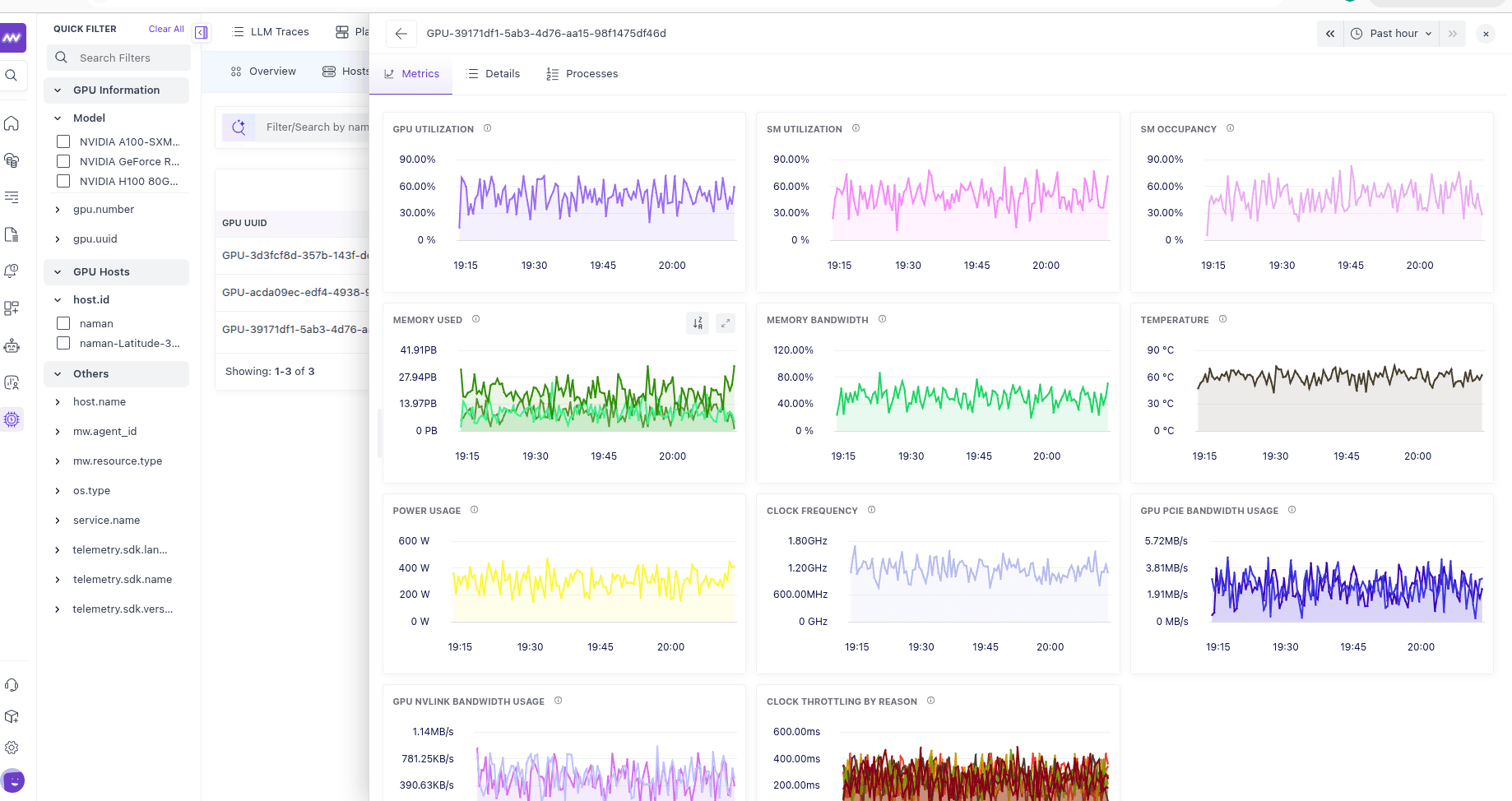
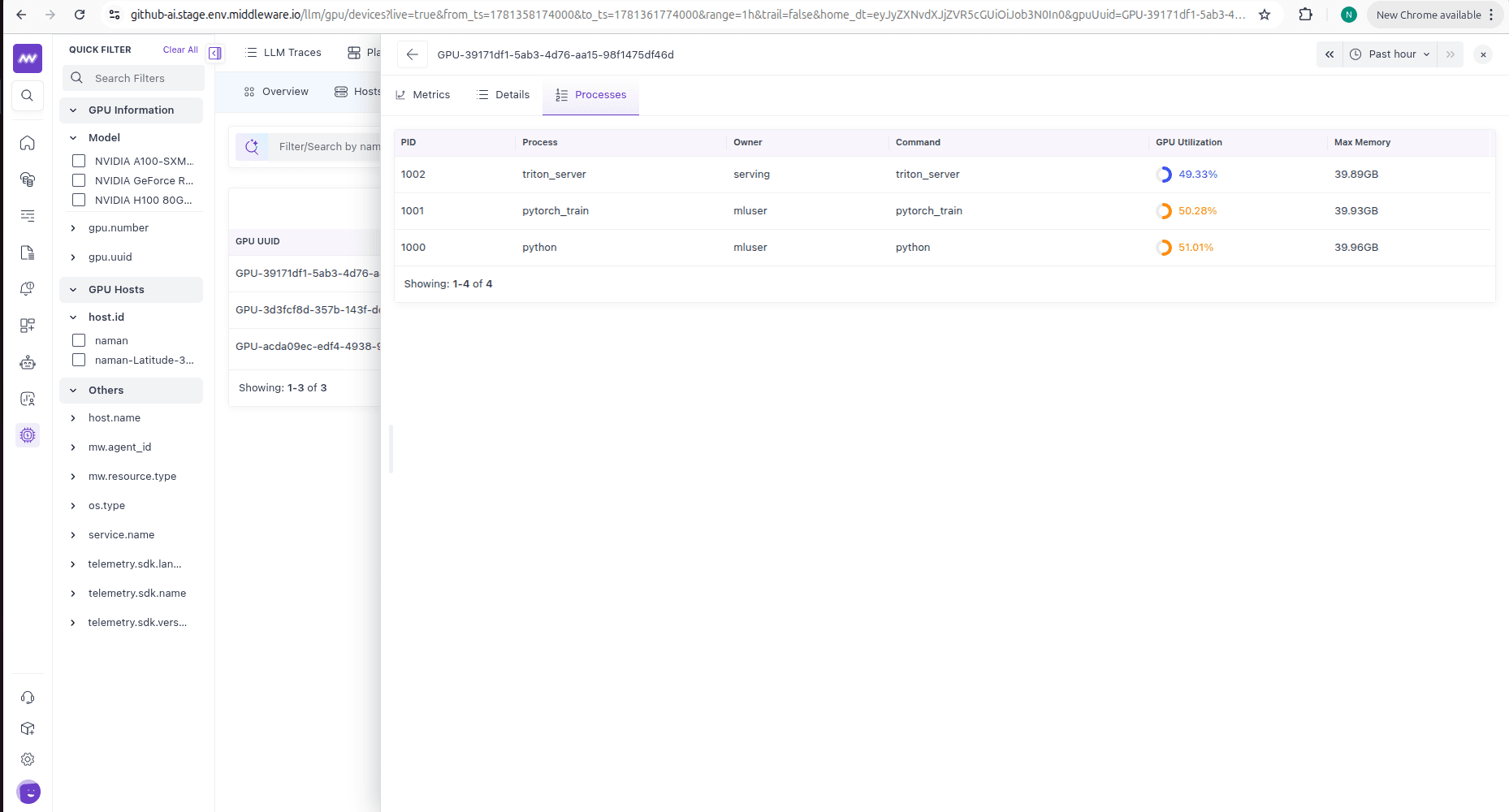
Select any GPU to open its detail view. It has three tabs:
Time-series charts for utilization, memory, bandwidth, temperature, power, clock frequency, throttling, and interconnect throughput — the full history for the selected device.
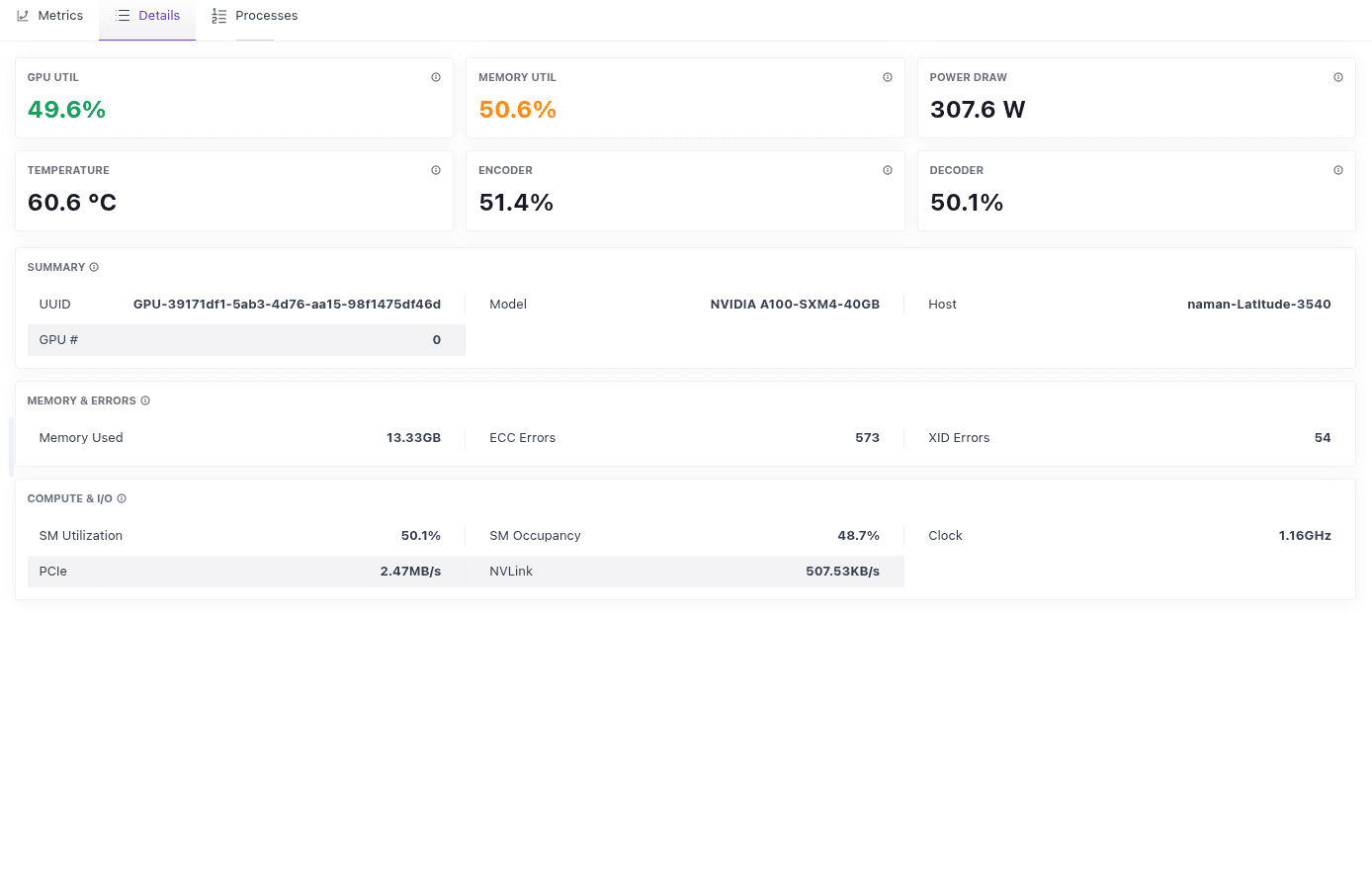
Current values for utilization, memory, power, temperature, and encoder/decoder, plus a Summary (UUID, model, host, GPU index), Memory & Errors (memory used, ECC, XID), and Compute & I/O (SM utilization/occupancy, clock, PCIe, NVLink).
The processes using the GPU, with PID, process name, owner, command, GPU utilization, and max memory used — so you can tie GPU load back to a specific workload.
Metrics reference#
The collector emits the following metrics. Each carries the resource attributes gpu.model, gpu.number, and gpu.uuid, plus the host (host.name / host.id), so metrics are identified per GPU and per host.
DCGM metrics#
| Metric | Description | Unit |
|---|---|---|
gpu.dcgm.utilization | Ratio of time the graphics engine is active. | ratio |
gpu.dcgm.sm.utilization | Fraction of time at least one warp was active on an SM, averaged over all SMs. | ratio |
gpu.dcgm.pipe.utilization | Fraction of cycles the GPU pipe (tensor, fp64, fp32, fp16) was active. | ratio |
gpu.dcgm.memory.bytes_used | GPU memory used, by state (used / free / reserved). | By |
gpu.dcgm.memory.bandwidth_utilization | Fraction of cycles data was being sent to/from GPU memory. | ratio |
gpu.dcgm.temperature | Current device temperature. | °C |
gpu.dcgm.energy_consumption | Total energy consumed since the driver was last reloaded. | J |
gpu.dcgm.power_usage (derived) | Power draw, derived from the energy counter. | W |
gpu.dcgm.clock.frequency | Multiprocessor clock frequency. | Hz |
gpu.dcgm.clock.throttle_duration.time | Time the clock was throttled, by reason. | s |
gpu.dcgm.codec.encoder.utilization | Encoder utilization. | ratio |
gpu.dcgm.codec.decoder.utilization | Decoder utilization. | ratio |
gpu.dcgm.pcie.io | Bytes sent over the PCIe bus, by direction. | By |
gpu.dcgm.nvlink.io | Bytes sent over NVLink, by direction. | By |
gpu.dcgm.ecc_errors | Data corruption (ECC) errors, by type (sbe / dbe). | count |
gpu.dcgm.xid_errors | XID errors, by XID code. | count |
NVML metrics#
| Metric | Description | Unit |
|---|---|---|
nvml.gpu.utilization | Fraction of time the GPU was not idle since the last sample. | ratio |
nvml.gpu.memory.bytes_used | GPU memory used, by state (used / free). | By |
nvml.gpu.processes.utilization | Fraction of time one or more kernels of a process were executing on the GPU. | ratio |
nvml.gpu.processes.max_bytes_used | Maximum GPU memory ever allocated by a process. | By |
Troubleshooting#
Start by tailing the collector logs — almost every problem shows up here as a receiver error:
1journalctl -u otelcol-middleware-gpu -fNo DCGM metrics, or libdcgm.so: cannot open shared object file#
This is the most common issue. The dcgm receiver dlopens the unversioned libdcgm.so, but the datacenter-gpu-manager package often installs only the versioned library (libdcgm.so.4, etc.). Check what’s present:
1sudo find /usr -name "libdcgm.so*" 2>/dev/null
2# /usr/lib/x86_64-linux-gnu/libdcgm.so.4.5.3
3# /usr/lib/x86_64-linux-gnu/libdcgm.so.4
If there’s no bare libdcgm.so, create the symlink (point it at the versioned file you found) and restart the collector:
1sudo ln -sf /usr/lib/x86_64-linux-gnu/libdcgm.so.4 /usr/lib/x86_64-linux-gnu/libdcgm.so
2sudo ldconfig
3sudo systemctl restart otelcol-middleware-gpu
DCGM also needs its service running and reachable. Confirm the GPUs are discoverable:
1dcgmi discovery -l        # lists GPUs DCGM can see
2sudo systemctl status nvidia-dcgm   # or: systemctl status dcgm
If dcgmi isn’t found, install NVIDIA DCGM from the datacenter-gpu-manager package.
No NVML metrics, or libnvidia-ml.so not found#
The nvml receiver needs the NVIDIA driver. Verify the driver and that the kernel module is loaded:
1nvidia-smi                # should list your GPUs
2lsmod | grep nvidia       # the nvidia kernel module should be loaded
3ldconfig -p | grep libnvidia-ml   # the NVML library should be in the linker cache
If nvidia-smi works but ldconfig -p | grep libnvidia-ml is empty, run sudo ldconfig (and ensure libnvidia-ml.so exists, creating the unversioned symlink as above if needed), then restart the collector.
Service running but no data in the UI#
- Confirm
MW_TARGETandMW_API_KEYin/etc/otelcol-middleware-gpu/otelcol-middleware-gpu.confare correct and the host can reach your Middleware endpoint:1curl -sv "$MW_TARGET" 2>&1 | head # or test connectivity to your <uid>.middleware.io:443 - Give it a minute — receivers scrape on a 30s interval, so the first datapoints take up to ~30s to appear after a restart.
Other issues#
- Installer warns about
nvidia-smi/libnvidia-ml.so/libdcgm.so— The corresponding library wasn’t found. Install the NVIDIA driver and thedatacenter-gpu-managerpackage, fix any missing symlinks as above, then reinstall or restart the service. - Unsupported architecture — Only
amd64andarm64binaries are published. - Docker: no GPU access — The container needs
--gpus alland the NVIDIA Container Toolkit installed on the host. Verify the toolkit withdocker run --rm --gpus all nvidia/cuda:12.4.0-base-ubuntu22.04 nvidia-smi. For DCGM/NVML inside the container, also pass--cap-add SYS_ADMIN,--pid=host, and bind-mountlibdcgm.soas shown in the Docker install tab.
Need assistance or want to learn more about Middleware? Get in touch with us via our Contact Us or join our Slack channel.