Datadog
The Datadog integration in Middleware enables users to connect their Datadog account and configure alert ingestion so that whenever an alert is triggered in Datadog, its details are automatically received and displayed in the OpsAI alerts listing. Each alert includes context such as title, source (e.g. Monitor Alert), alert_type, priority, date_happened, tags, and monitor_id, plus links to Datadog (alert_url, monitor_url) so you can jump to the event or monitor in the Datadog site.
Users can open any alert to view a detailed side panel (including the full text body) and initiate investigations, where Middleware's OpsAI securely connects to the integrated Datadog environment to fetch related metrics and insights, analyze the situation, and generate intelligent summaries along with suggested remediation steps.
OpsAI supports both workflows - users can investigate directly from any alert or start a new chat to ask queries, where OpsAI leverages the Datadog integration to provide contextual answers, insights, and guided resolutions within a unified experience.
Prerequisites#
Before connecting Datadog to Middleware, ensure you meet the following requirement:
1 Datadog Account#
You must have an active Datadog account. The integration uses your Datadog API Key and Application Key to securely access monitors, metrics, logs, and other data needed for OpsAI investigation.
Setup#
Follow the steps below to configure the Datadog integration in Middleware.
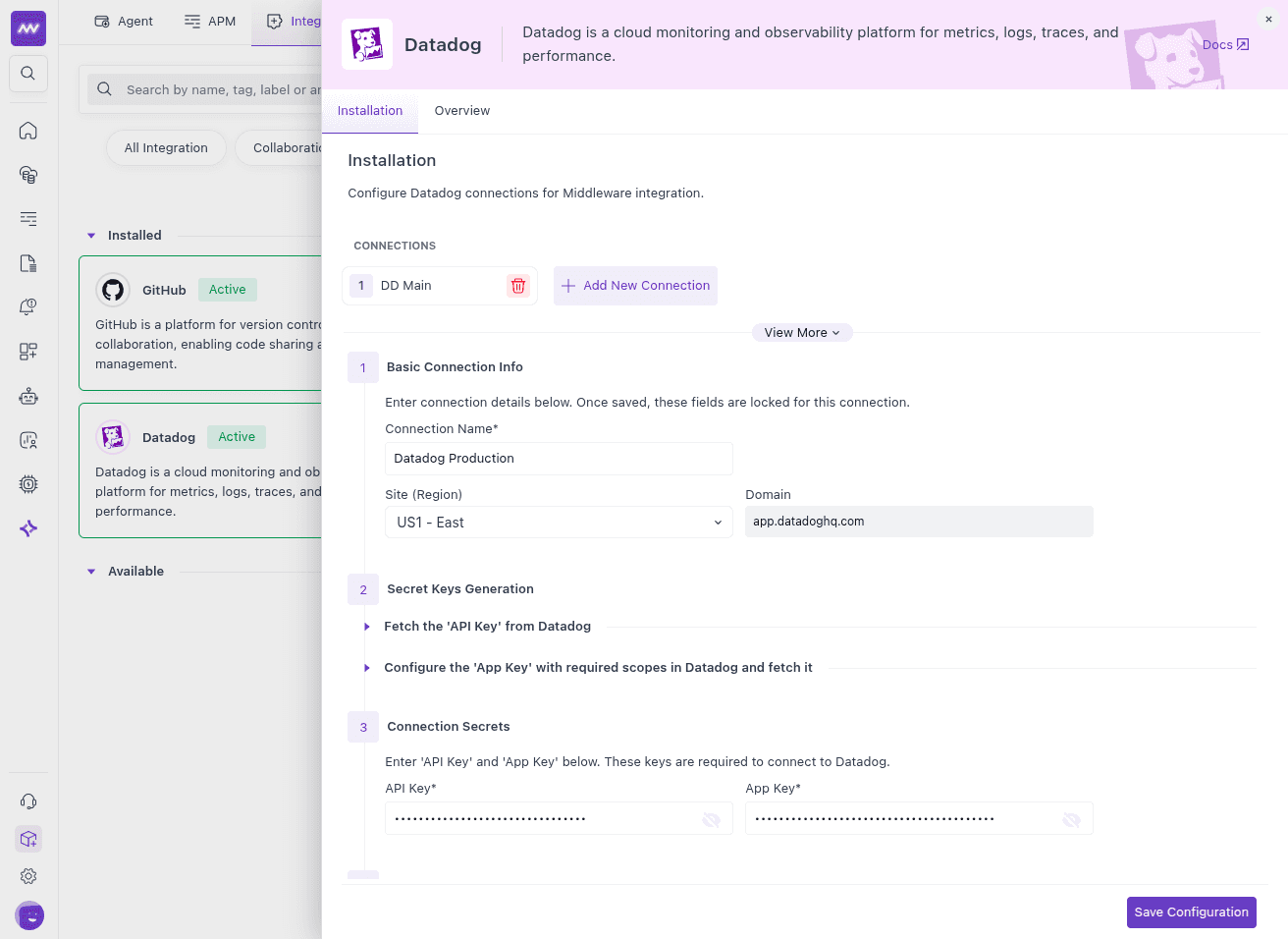
1 Basic Connection Info#
- Navigate to Installation > Integration > Datadog Integration within the Middleware platform.
- Click Add New Connection to start the setup.
- Provide a Connection name for this integration.
- Select the Site / domain where your Datadog account exists (e.g. US1, EU1, US3, etc.).
2 Connection Secrets#
Configure the API Key and Application Key from your Datadog account.
1. Fetch the API Key from Datadog
- In Datadog, go to Organization Settings → API Keys.
- Click New Key, copy the key, and paste it in the API Key field in Middleware.
2. Configure the App Key with required scopes in Datadog
- In Datadog, go to Organization Settings → Application Keys.
- Click New Key and ensure the following scopes are enabled:
- APM:
apm_api_catalog_read,apm_pipelines_read,apm_read,apm_service_catalog_read - Billing and Usage:
usage_read - Cross-Product Features:
hosts_read - Dashboards:
dashboards_read - Events:
events_read - Log Management:
logs_read_data,logs_read_index_data - Metrics:
metrics_read,timeseries_query - Monitors:
monitors_read - Real User Monitoring (RUM):
rum_apps_read - Service Level Objectives (SLOs):
slos_read
- APM:
- Copy the key and paste it in the App Key field in Middleware.
3 Modify Capabilities#
You can enable or disable the following capabilities based on what you want Middleware to use for OpsAI:
- Scrape - When enabled, Middleware scrapes alerts and lists them in the OpsAI alerts listing; you can run investigation (R&D) on them.
- Metrics
- Logs
- RUM (Real User Monitoring)
- Events
- Webhooks
- Dashboards
- Traces
- MCP
- Metrics Cardinality
Based on the capabilities you enable, Middleware's OpsAI will fetch the corresponding data from Datadog and use it during investigation and analysis of alert issues.
Post-Installation#
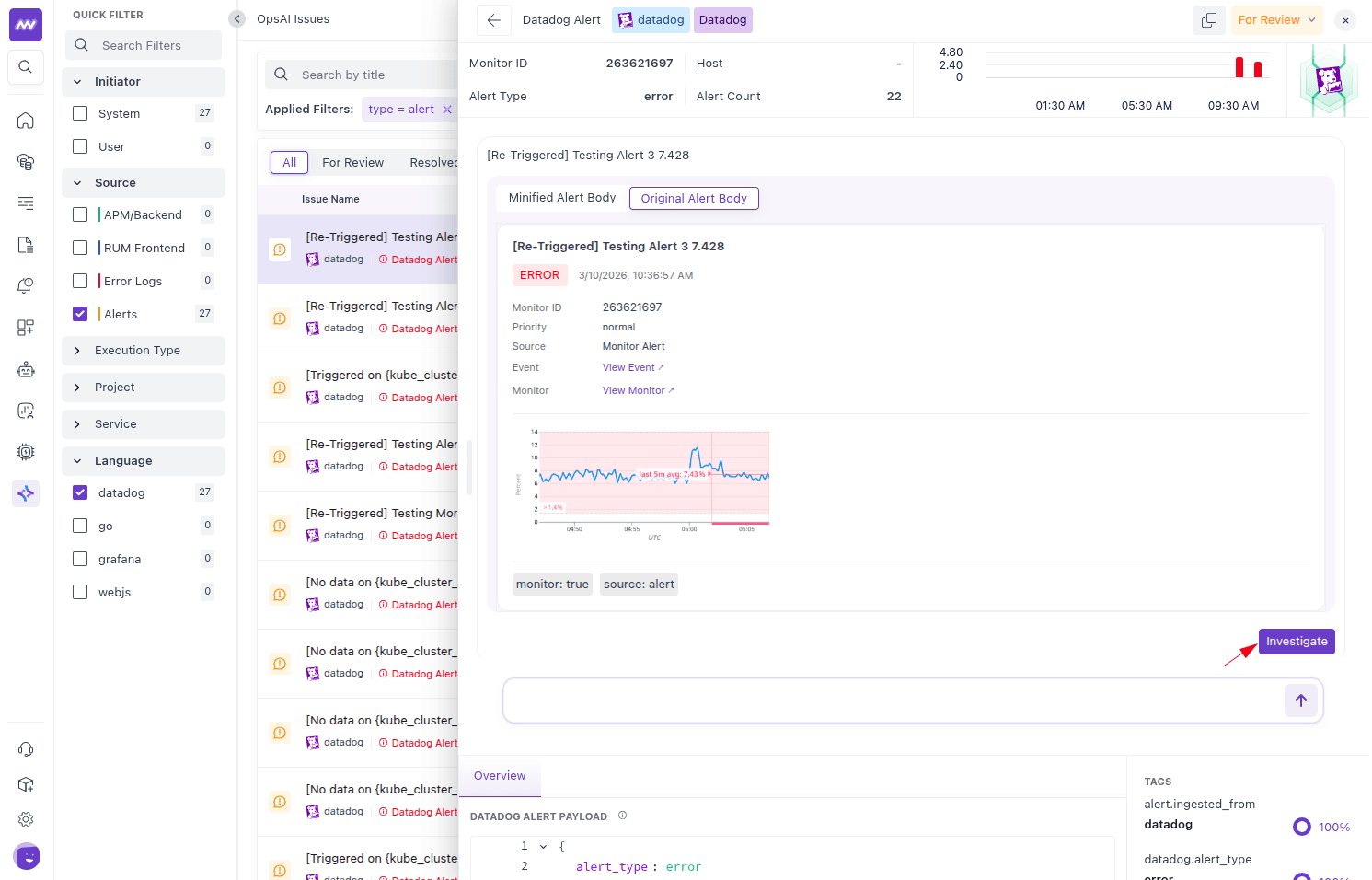
After the integration is installed, Middleware starts polling Monitor alerts and Kubernetes (K8s) alerts from Datadog and lists them in the OpsAI alerts view. You can select any alert from the list; when you click an alert, a detailed view opens in a side panel. From there you can see full alert context and start an OpsAI investigation.
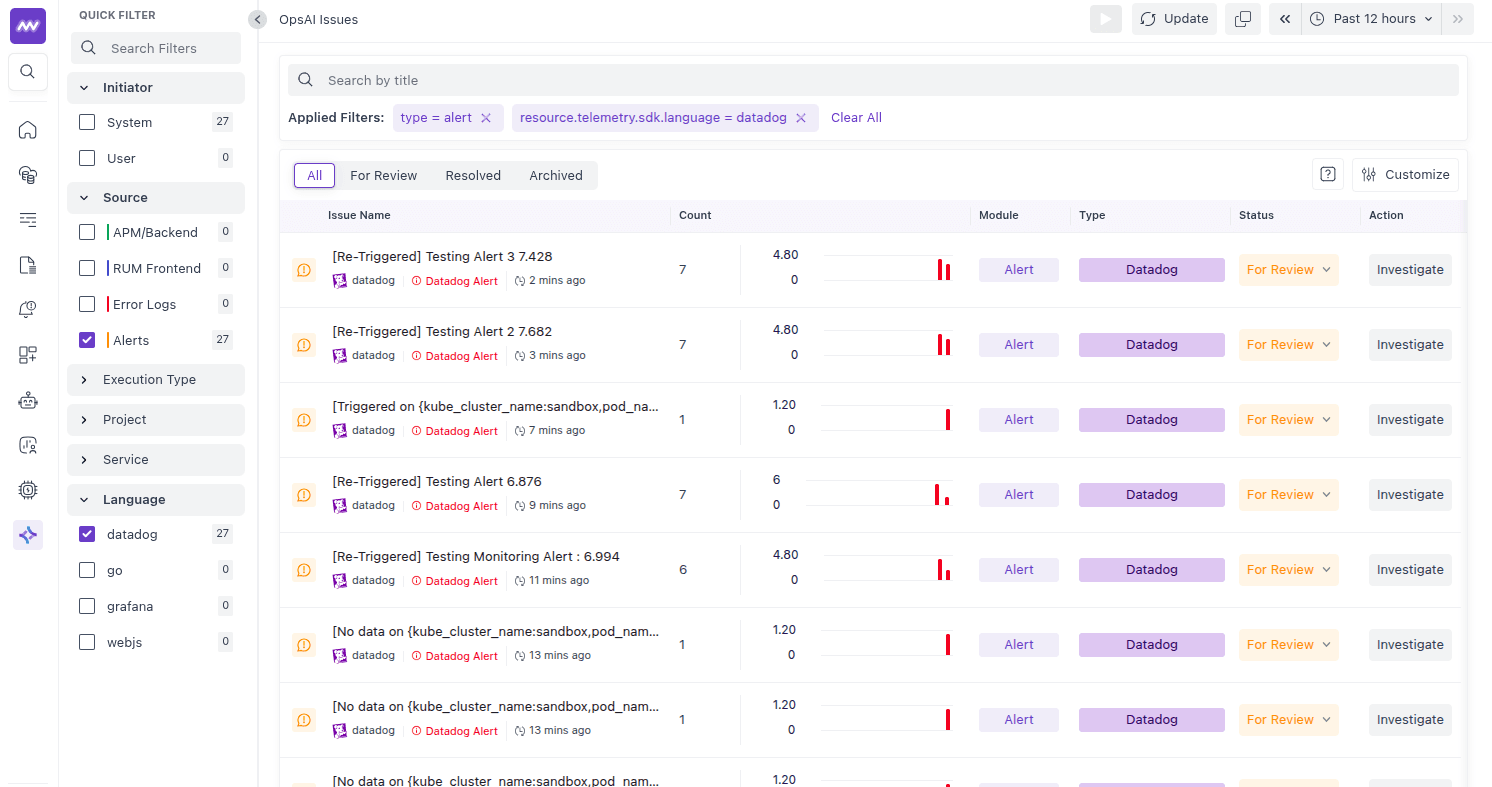
Alert object#
Each alert displayed in OpsAI includes the following key fields (among others):
| Key | Description |
|---|---|
alert_type | Type of alert (e.g. error). |
source | Origin of the alert (e.g. Monitor Alert). |
title | Alert title (e.g. monitor name or re-trigger message). |
text | Full alert message body, including monitor description and links. |
priority | Priority level (e.g. normal). |
date_happened | Unix timestamp when the alert fired. |
tags | Tags associated with the alert (e.g. monitor, source:alert). |
monitor_id | ID of the Datadog monitor that generated the alert. |
monitor_groups | Monitor group(s) (e.g. ["*"]). |
datadog.alert_url | Direct link to the event in the Datadog app. |
datadog.monitor_url | Link to the monitor definition in Datadog. |
datadog.app_base | Base URL of your Datadog site (e.g. https://app.datadoghq.com). |
datadog.resource_url | API URL for the event resource. |
These fields are available in the alert side panel and are used by OpsAI during investigation to fetch context and link back to Datadog.
OpsAI Investigation#
From the alert side panel, you can start an investigation on that alert. OpsAI uses the fetched alert details and your integration configuration (including enabled capabilities) to perform research and analysis. It can scrape multiple data sources (metrics, logs, traces, etc.) according to the capabilities you enabled, identify the root cause, and present a detailed report with findings and suggested remediation. This helps you quickly understand what went wrong and how to fix it, all within the Middleware experience.
You can also start a new OpsAI chat and ask questions; OpsAI will use the Datadog integration to provide contextual answers, insights, and guided resolutions.
Need assistance or want to learn more about Middleware? Get in touch with us via our Contact Us or join our Slack channel.