Setup - Middleware MCP Server
Prerequisites#
Before you start, make sure you have:
- Go 1.23 or later (this project uses Go 1.23.0 with toolchain 1.24.10).
- A Middleware.io account with API access and an API key from Middleware API Keys settings.
- Node.js and npx (optional) if you plan to use MCP Inspector for interactive testing.
Step 1: Generate an API key (and copy your project URL)#
The server authenticates to Middleware using an API key and your project base URL.
1 Log in to your Middleware.io account#
Navigate to Settings → API Keys
2 Click Generate New API Key#
Copy your API key and project URL
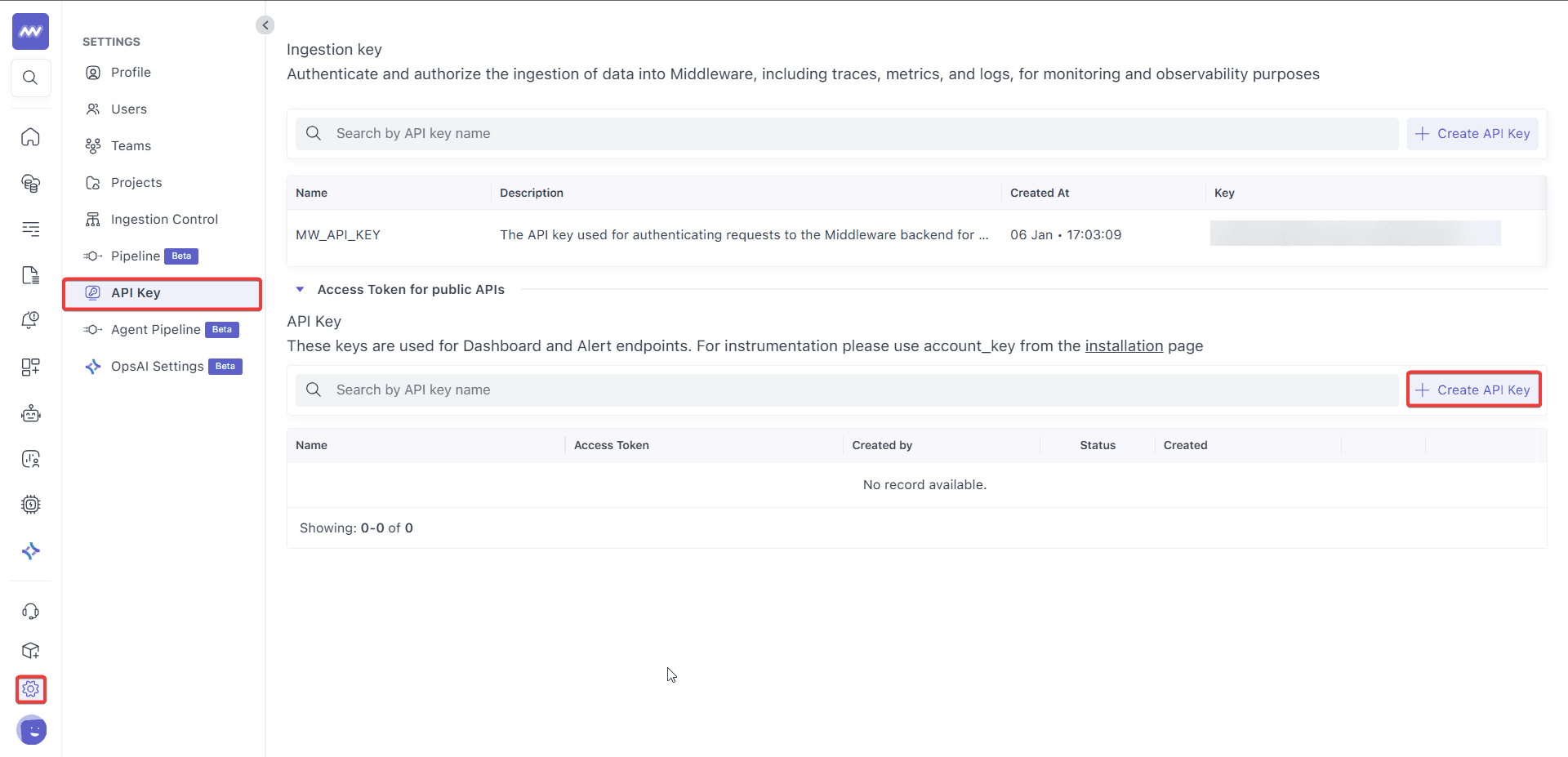
You will use these in MIDDLEWARE_API_KEY and MIDDLEWARE_BASE_URL.
Step 2: Install dependencies and build the binary#
Build produces a local executable that your MCP client (for example, Claude Desktop) will launch.
# Clone the repo
git clone https://github.com/middleware-labs/mcp-middleware.git
# Navigate to the project directory
cd mcp-middleware
# Install dependencies
go mod download
# Build the server
go build -o mcp-middleware .
make install
make build
What's happening here (so it doesn't feel like "just run commands"):
go mod downloadfetches Go module dependencies so the build is reproducible.go build -o mcp-middleware .compiles the MCP server into a binary calledmcp-middleware.make install/make buildare provided as Make targets (useful if your team standardises build steps).
Step 3: Configure environment variables#
Copy the example env file and set your credentials:
cp .env.example .env
MIDDLEWARE_API_KEY=your_api_key_here
MIDDLEWARE_BASE_URL=https://your-project.middleware.io
APP_MODE=stdio
Configuration reference (what each variable controls)#
| Environment variable | Description |
|---|---|
MIDDLEWARE_API_KEY | Your Middleware API key from settings |
MIDDLEWARE_BASE_URL | Your Middleware project URL (for example, https://your-project.middleware.io) |
APP_MODE | Server mode: stdio, http, or sse |
APP_HOST | Server host (used for http / sse modes) |
APP_PORT | Server port (used for http / sse modes) |
EXCLUDED_TOOLS | Comma-separated list of tools to exclude |
Optional: Exclude tools (safer deployments)#
If you want to restrict actions (for example, disable destructive operations), you can exclude tools:
Useful for creating read-only instances or restricting destructive operations.
EXCLUDED_TOOLS=delete_dashboard,delete_widget,create_alertStep 4: Run the server#
Stdio mode (default)#
This is the default mode and is commonly used when an MCP client launches the server as a subprocess and communicates over stdin/stdout.
./mcp-middleware
# Or set explicitly
APP_MODE=stdio ./mcp-middleware
On startup, you should see:
Middleware MCP Server v1.0.0Connected to: https://your-project.middleware.ioStarting MCP server in stdio mode.
To stop the process:
- Press Ctrl+C.
Step 5: Choose a transport mode (stdio, http, sse)#
The server supports three transport modes:
stdio(default): Standard input/output transport for command-line usagehttp: Streamable HTTP transport for web-based clients (usesNewStreamableHTTPServer)sse: Server-Sent Events transport for real-time streaming (usesNewSSEServer)
HTTP mode#
APP_MODE=http APP_HOST=localhost APP_PORT=8080 ./mcp-middlewareThe server will start on http://localhost:8080, and clients can connect using the streamable HTTP transport.
SSE mode#
APP_MODE=sse APP_HOST=localhost APP_PORT=8080 ./mcp-middlewareThe server will start on http://localhost:8080 with SSE support for real-time streaming.
Step 6: Connect to Claude Desktop#
Once the binary works locally, register it in Claude Desktop so Claude can launch it as an MCP server.
1 Open configuration file#
Open ~/.config/Claude/claude_desktop_config.json
2 Add the server configuration#
Add the following configuration:
{
  "mcpServers": {
    "middleware": {
      "command": "/full/path/to/mcp-middleware/mcp-middleware",
      "env": {
        "MIDDLEWARE_API_KEY": "your_api_key",
        "MIDDLEWARE_BASE_URL": "https://your-project.middleware.io"
      }
    }
  }
}
Why the command field matters: Claude Desktop launches your MCP server using this binary path. If the path is wrong, the server won't start and no tools will be available.
Step 7: Test with MCP Inspector (optional, but recommended while integrating)#
Before connecting to Claude, you can test using the MCP Inspector:
It opens an interactive web interface where you can:
- Test all 21 tools
- View server logs in real time
- Debug inputs and outputs
- Verify everything works
# Requires Node.js and npx
make inspect
Step 8: Try it out (sanity checks)#
Once connected, you can ask Claude things like:
- "Can you list all my dashboards in Middleware?"
- "What resources are available in my Middleware account?"
- "Create a new dashboard called 'Production Metrics' with public visibility"
- "Get the data for widget with builder ID 123"
- "List all errors in the system from the last hour"
Need assistance or want to learn more about Middleware? Contact our support team at [email protected] or join our Slack channel.