Dashboard builder
Design rich, reliable dashboards by composing widgets, self‑contained visual blocks that read from your telemetry and present it in the format you choose. This guide walks through the full widget workflow in the exact order you will experience it in the UI: creating a widget, selecting a graph type and time window, organising with groups, building queries and formulas, tuning roll‑ups, applying functions and advanced options (including a comprehensive unit system), and finally finishing the visual and layout polish.
1. Create a Dashboard#
To create a dashboard, go to Dashboard Builder → Create Dashboard → Give name and description. It will open a window giving you multiple widget options.

You can add a widget to an empty or an existing dashboard. On an empty dashboard, select one of the available widget types. The editor opens immediately with that type preselected. On a dashboard that already contains widgets, use "Add Widget" in the top-right corner; you will see the same list of types, and choosing one opens the widget editor.
2. Understand the Widget Editor#
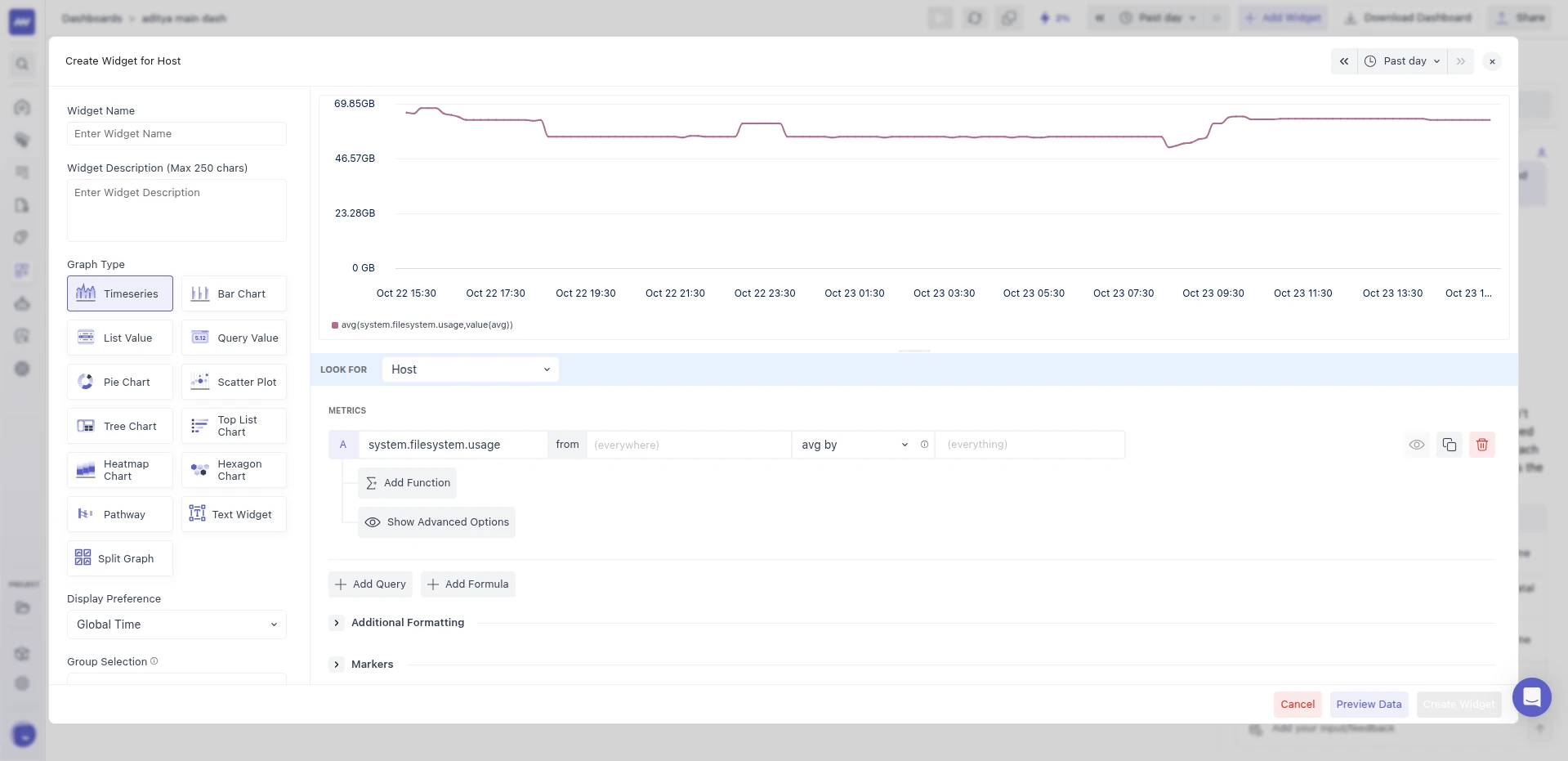
When the editor opens, it is separated into three clear sections so you can set context, data, and visuals without losing your place:
- Top bar: Pick a preview time range so you can see the effect of your configuration on real data while you edit.
- Left panel: Name and describe the widget, optionally assign it to a Group with a Group Order, and choose the Graph Type. Treat this panel as the widget’s metadata and high‑level intent.
- Right panel: At the top, you see the live graph preview; below that, you configure Query Data, Formulas, Functions, and Advanced Options. This is where the widget actually connects to and transforms your data.
3. Choose an Appropriate Graph Type#
Middleware supports multiple visualizations, allowing the same metric to be inspected from different angles: Timeseries, Bar Chart, List Value, Query Value, Pie Chart, Scatter Plot, Tree Chart, Top List Chart, Heatmap Chart, Hexagon Chart, Split Graph, and Text Widget. Pick the type that matches the story you want to tell.
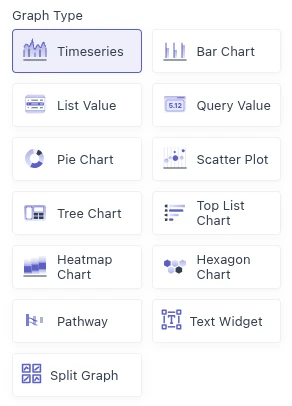
For example, Timeseries for change over time, Bar Chart to compare categories at a glance, Heatmap Chart to see how values spread across many groups over time, Top List Chart to surface the highest/lowest values, and Query Value to emphasise a single computed number.
Graph types fall into two families, and some query controls only appear for one of them:
- Time-based widgets: Timeseries (including Areas), Bar Chart (including Stacked Bars), Heatmap Chart, and Split Graph. These plot values over time.
- Single-value widgets: List Value, Query Value, Pie Chart, Top List Chart, Tree Chart, Scatter Plot, and Hexagon Chart. These show one value per group for the selected time range, and some of them offer Reduce values in timeframe to.
3.1 Display Preference (time window behaviour on the dashboard)#
Decide how the widget obeys time on the dashboard:
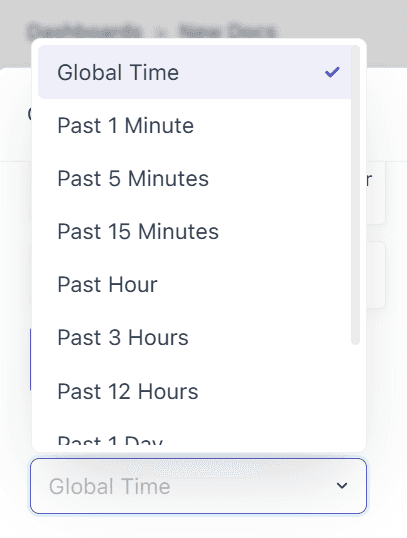
- Global Time (default): The widget inherits the dashboard’s time range so multiple widgets remain comparable.
- Past X: The widget always shows a trailing window you select (e.g., Past 1m/5m/15m/1h/3h/12h/1d/2d/1w), regardless of the dashboard range. Use this when a fixed recent context is essential (e.g., “last 15 minutes of errors”) and cross‑widget alignment is less important.
3.2 Group and Group Order (dashboard organisation)#
Use Group to collect related widgets into labelled sections. Set the Group Order to a number that controls the section's position; lower numbers appear earlier. To keep the group together, reuse the same order number for each widget in that group. Otherwise, widgets may interleave with other groups.
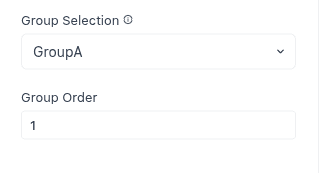
Make sure the group order number is the same for all widgets in that group. Otherwise, the group may not display in the correct order on the dashboard.
4. Build the data layer: Queries, Filters, Aggregation, and Groups#
A widget’s data is defined by one or more Queries and, if needed, one or more Formulas. Add as many as you require.
4.1 Query Data#
You can fill your graph with data using queries and formulas.
- Queries let you pull specific data from your selected resource.
- Formulas allow you to apply calculations or combine results from multiple queries.
You can add as many queries and/or formulas as needed to get the exact data you want to visualize.
Query row layout
Each query is laid out as a set of rows, from top to bottom:
- Query row: Metric picker → field dropdown (HIST and EXP_HIST metrics) → second metric picker (attribute queries only) → from filters → aggregation dropdown → group by → Apply to all → hide / copy / delete.
- Reduce values in timeframe to: Available on some widgets only, such as List Value (see 4.5).
- Functions row: Applied function chips and the Add Function button (see 4.8).
- Show/Hide Advanced Options: Roll Up, Alias Name, Unit and per.
- Metric metadata info bar: Shown in the Dashboard Explorer only.
Below all queries, the widget-level Sort by and Limit controls apply to the whole widget (see 5.4).
4.2 Select the data source (Look For) #
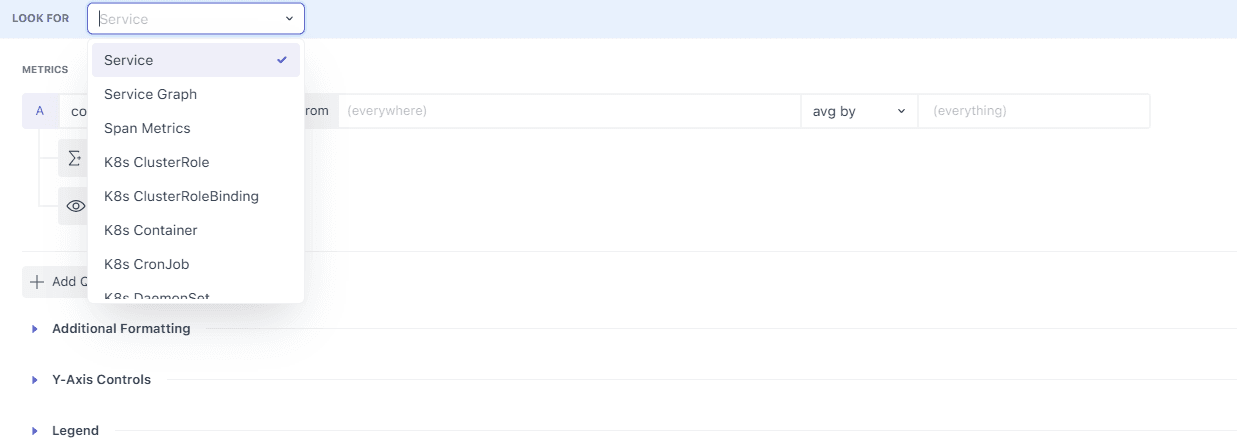
Every piece of OpenTelemetry and monitoring data is attached to a resource such as a host, container, process, or service. Choose the resource that actually emits the metric you need. Look For defaults to All Metrics, which lets you search every metric regardless of resource. Only resources you have integrated are selectable; resources that exist but currently have no data are visible yet disabled to prevent misconfiguration.
4.3 Define the Query (Metric and Filter) #
Metric#
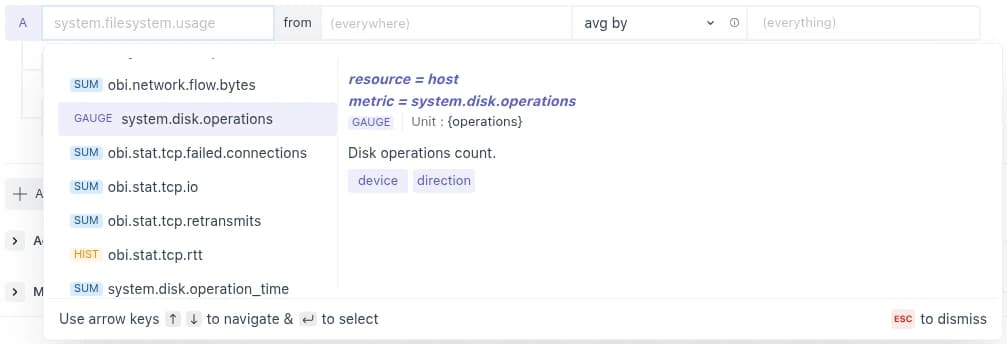
Choose the metric you want to display in the graph from the dropdown list or by searching for it. The list of metrics shown will be related to the resource you selected earlier.
Each metric in the list shows a badge for its instrument type:
- GAUGE: A value sampled at a point in time, such as memory usage or temperature.
- SUM: A running total or counter, such as requests served.
- HIST: A histogram of value distributions, such as request latency.
- SUMMARY: Pre-calculated quantiles reported by the source.
- EXP_HIST: An exponential histogram.
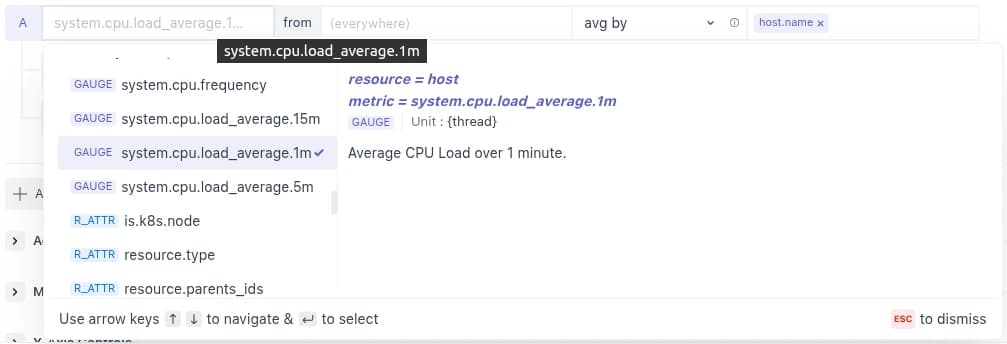
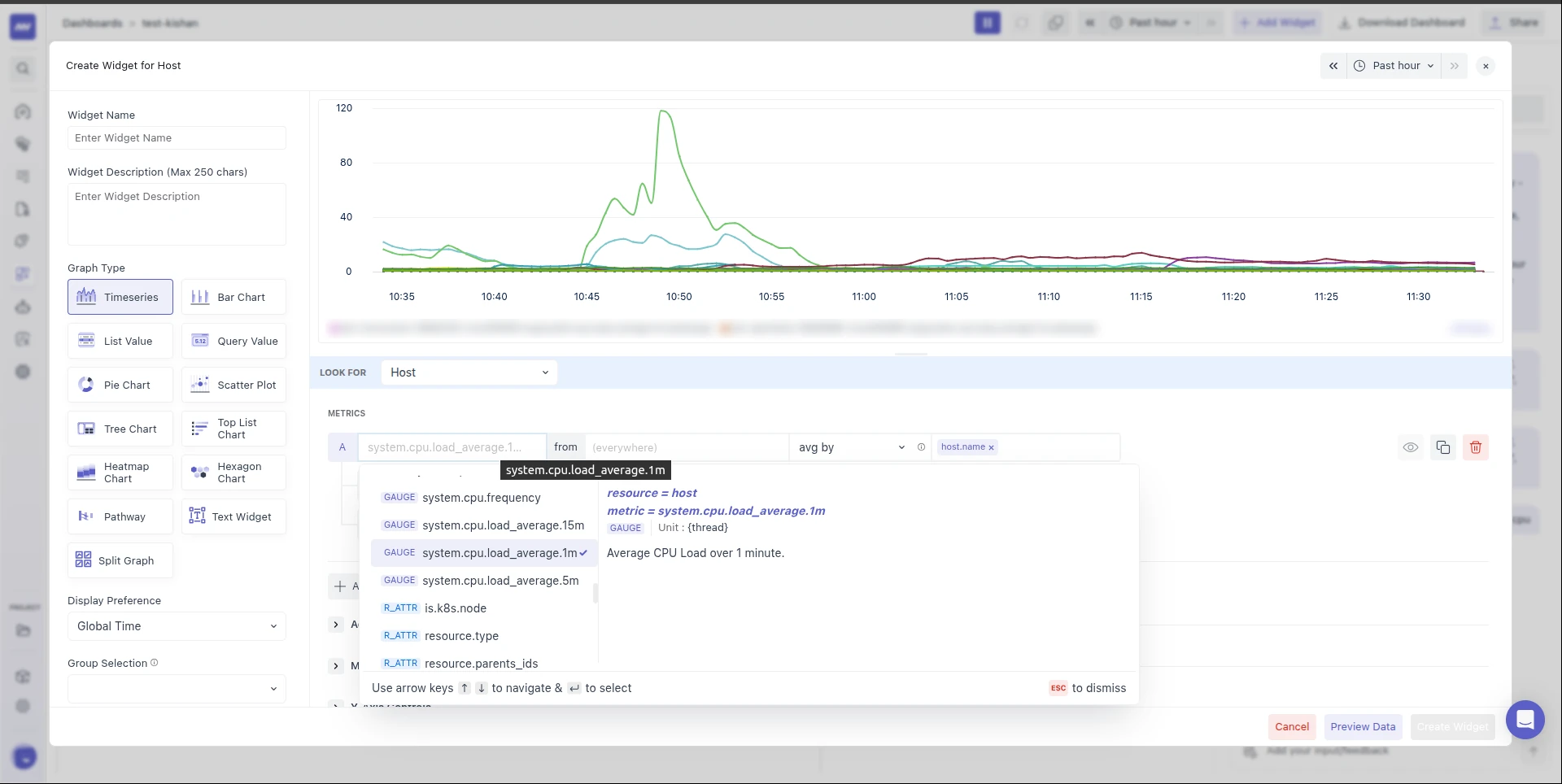
When you hover over an option in the dropdown, a panel on the right shows its resource, metric name, type, Unit, description (when available), and attributes. This helps you understand what each metric represents before selecting it.
If your search matches 100 or more results, Search for more... appears at the end of the list. Refine your search text to narrow the results.
Attribute queries (unique counts)#
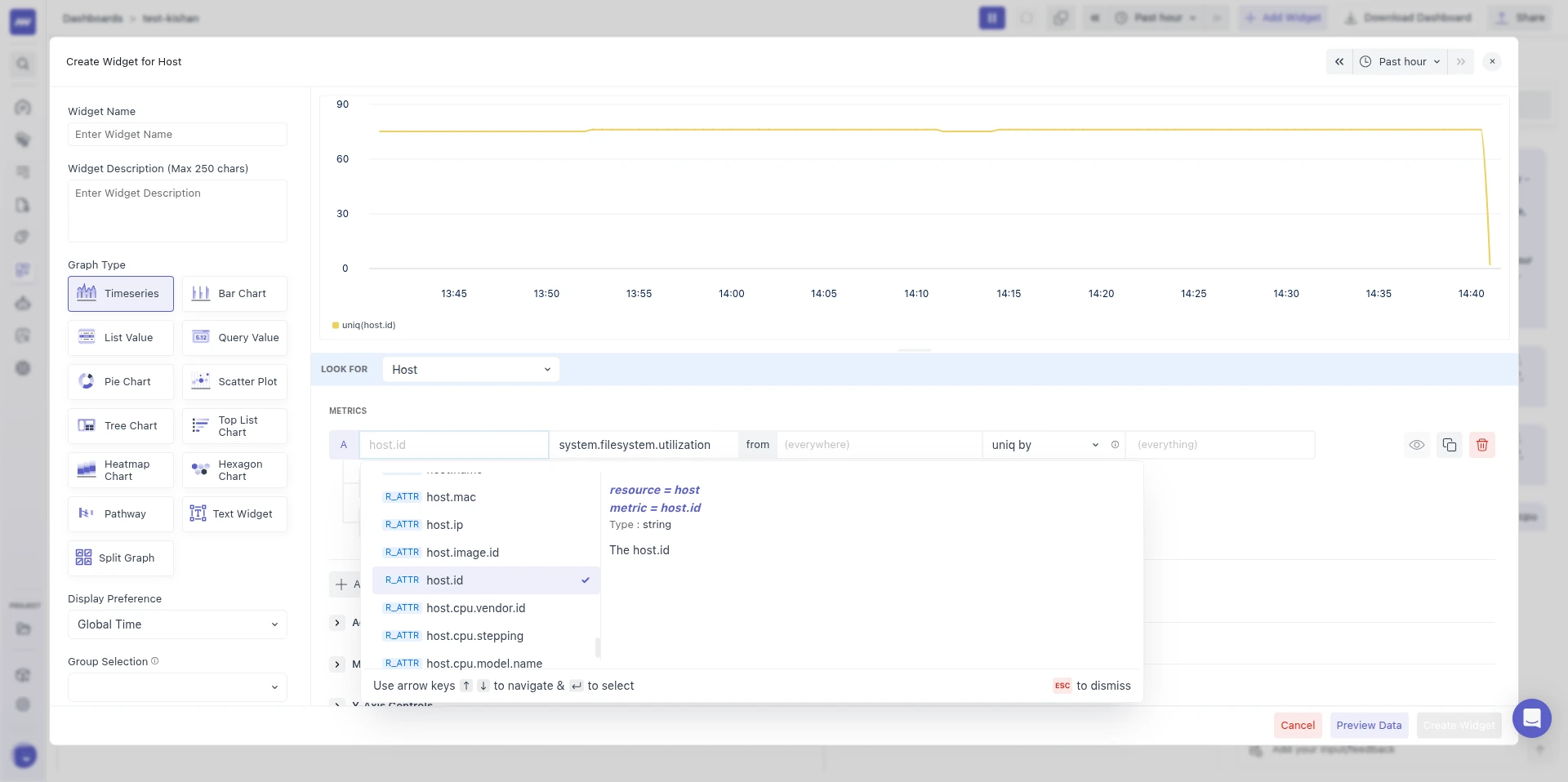
Along with metrics, the metric picker also lists metric attributes (badge M_ATTR) and resource attributes (badge R_ATTR). Pick an attribute when you want to count how many distinct values it has rather than plot a metric.
When you pick an attribute:
- The aggregation is set to uniq.
- A second metric picker appears. Choose which metric's data points the attribute is read from.
For example, pick host.id as the attribute and system.cpu.utilization as the metric to get the unique count of hosts reporting CPU utilization.
Reduce values in timeframe to is available for attribute queries too.
Filter#
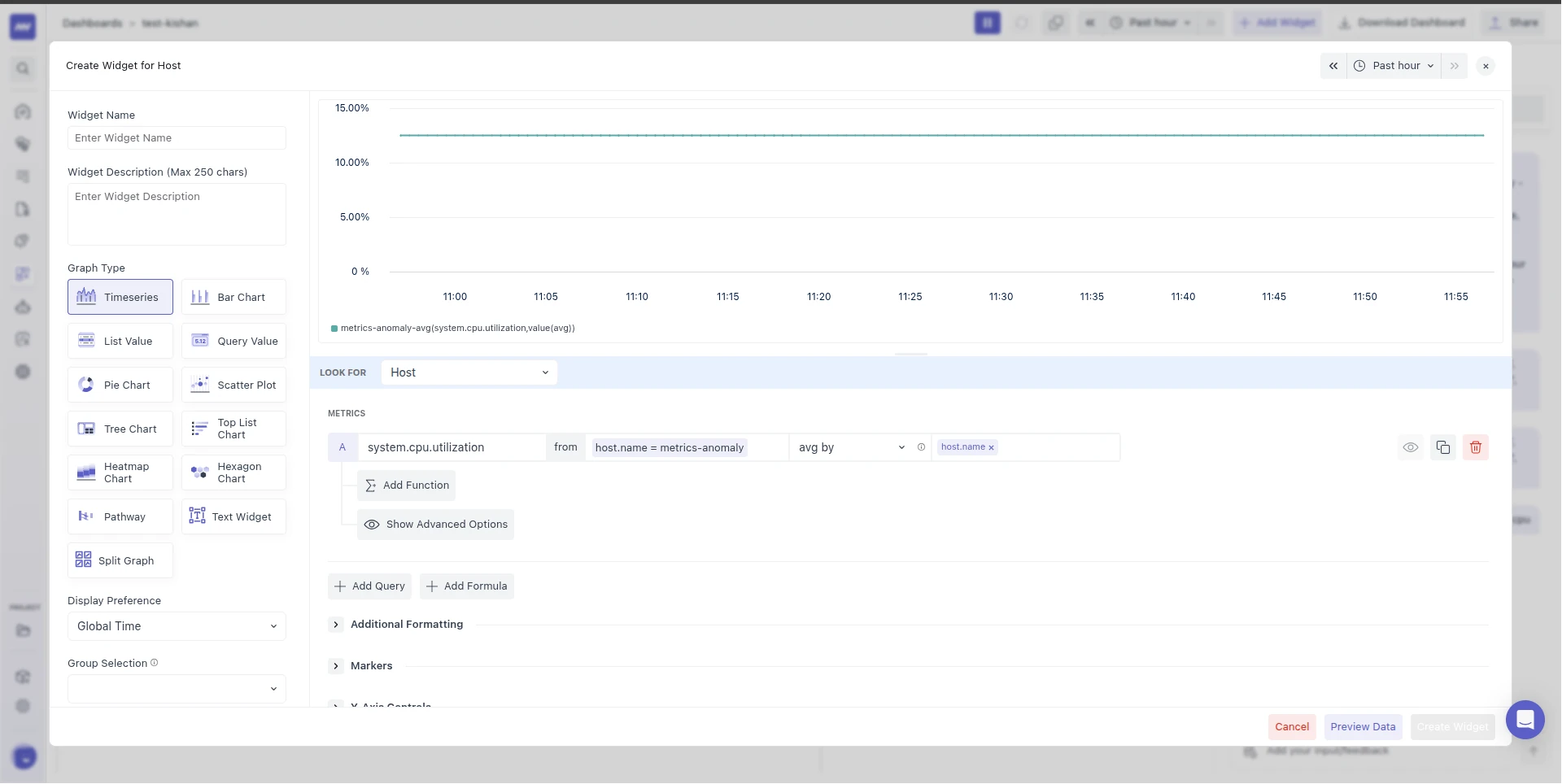
You can filter your metric’s data by attributes or other metrics using the from box (next to the metric selector).
Default Filter: (everywhere), shows combined data from all sources (e.g., hosts, processes, containers).
Custom Filter: Use advanced filtering to narrow results. You can build Boolean expressions in this format: <attribute or metric> <operator> <value>
Example: host.id != prod-machine
How to Use the From Box:#
- Click inside the From box.
- Type the attribute or metric name, or select it from the dropdown.
- Choose an operator (suggestions will appear; you can type or select).
- Enter the value to compare against (type it or pick from the dropdown).
The From box is smart; as you type, it will suggest valid attributes/metrics, operators, and values based on your selection, making filtering faster and easier.
Combining Multiple Filter Conditions#
You can create more complex filters by combining multiple Boolean expressions using AND or OR operators.
You can also group and nest conditions using round brackets () to control the order in which they are applied.
Example: (host.id != prod-machine AND os.type = mac) OR status = stop
AND and OR have the same precedence and are applied from left to right. For example, a = 1 OR b = 2 AND c = 3 is read as (a = 1 OR b = 2) AND c = 3, not a = 1 OR (b = 2 AND c = 3). Whenever you mix AND and OR, add brackets to make the order explicit.
Operators and the AND / OR keywords are case-insensitive, so in, like and and work the same as IN, LIKE and AND.
Supported operators:
| Operator | Description | Example |
|---|---|---|
= (Equal To) | Match results where the attribute/metric value is exactly equal to the given value. | os.type = linux |
!= (Not Equal To) | Match results where the attribute/metric value is not equal to the given value. | host.id != prod-server |
IN | Match results where the attribute/metric value is one of the values in a given comma-separated list. | region IN us-east,us-west,eu-central |
NOT IN | Match results where the attribute/metric value is not in the given list. | status NOT IN stopped,paused |
LIKE | Match results where the value contains the given text (case‑sensitive). % matches any number of characters and _ matches exactly one. | service.name LIKE api (matches api, payments-api, api-gateway) |
NOT LIKE | Exclude results that contain the given text (case‑sensitive). | host.name NOT LIKE test |
ILIKE | Like LIKE but case‑insensitive (ignores letter case). | service.name ILIKE sales |
NOT ILIKE | Exclude results that contain the given text, ignoring letter case. | host.name NOT ILIKE staging |
REGEX | Match results where the value fits the given regular expression (RE2 syntax). | deployment.environment REGEX ^prod |
NOT REGEX | Exclude results that match the given regular expression. | host.name NOT REGEX ^ip-10- |
>, >=, <, <= | Compare a metric's value with a number. Offered only when the left side of the condition is a metric, not an attribute. Use at most one metric-value condition per query. | system.cpu.utilization > 0.8 |
- LIKE is always a "contains" match. The value is wrapped in
%automatically, and any%you type at the start or end is ignored, soapi%andapigive the same result. UseREGEXwith^or$when you need "starts with" or "ends with". - REGEX isn't anchored.
prodmatches anywhere in the value. Add^and$to match the whole value, for example^prod$.
If the value in your expression contains brackets, quotes, words that are also operators or keywords (such as in, like, not, and, or), or other special symbols, enclose the value in straight double quotes " so it's read as one value. Escape a double quote inside the value with a backslash: \".
Example: service.name = "orders (in queue)"
Only straight double quotes (") are recognised. Curly quotes (“ ”), which some editors insert automatically, and single quotes are treated as part of the value.
4.4 Choose Aggregation and Aggregation Group#
At each timestamp, multiple instances (hosts, processes, containers) may report the same metric. Aggregation determines how those per-source points are reduced into one value per timestamp (the default is avg by). The options are avg by, sum by, min by, max by, last, uniq by, and count by.
The info icon next to the aggregation dropdown explains the two kinds of aggregation:
- Space aggregation: Combines multiple series into one series per group.
- Time aggregation: Combines multiple samples into one value per series.
How they work together
Take system.cpu.utilization from 3 hosts, reported every 10 seconds, viewed over 1 hour, with avg by host.name:
- Time aggregation (Roll Up): Each host's 10-second samples are combined into larger buckets (see section 4.6). Each host is still its own series.
- Space aggregation (avg by): At each bucket, series that share the same
host.nameare averaged together. The result is one line per host.
Remove the group by and step 2 averages all 3 hosts into a single line. Switch to max by and you get the busiest value in each group instead of the average.
For a step-by-step worked example, including how reducers turn a timeseries into one value, see Understanding Aggregations.
Numeric aggregations (avg, sum, min, max) are hidden when the query reads an attribute or string column.
What each option does across the series in a group:
- avg by, sum by, min by, max by: The average, total, lowest or highest value of the series at each timestamp.
- count by: How many series reported a value at each timestamp.
- uniq by: The approximate number of distinct values. Used mainly for attribute queries.
- last: The value of one of the series in the group, without a defined order between series. Use it when each group holds a single series, for example when you group by
host.nameand each host reports one series. The series label shows this aggregation asany(...).

Metric field
When you pick a histogram (HIST) or exponential histogram (EXP_HIST) metric, a field dropdown appears next to the metric picker. It offers bucket, count, sum, min, and max. Gauge and sum metrics have no field dropdown.
- With bucket, the aggregation offers percentiles: p50, p75, p90, p95 (default), and p99.
- With any other field, the aggregation offers avg, sum, min, max, and last.
If you want to compare instances side by side, use Aggregation Group. Select one or more attributes to group and each group will render as its own line, bar, list row, or element. For example, grouping by host yields one series per host in a timeseries chart, making instance comparisons effortless.
The group aggregation has been removed. Existing widgets that use it continue to render.
4.5 Reduce values in timeframe to (available on some widgets only) #
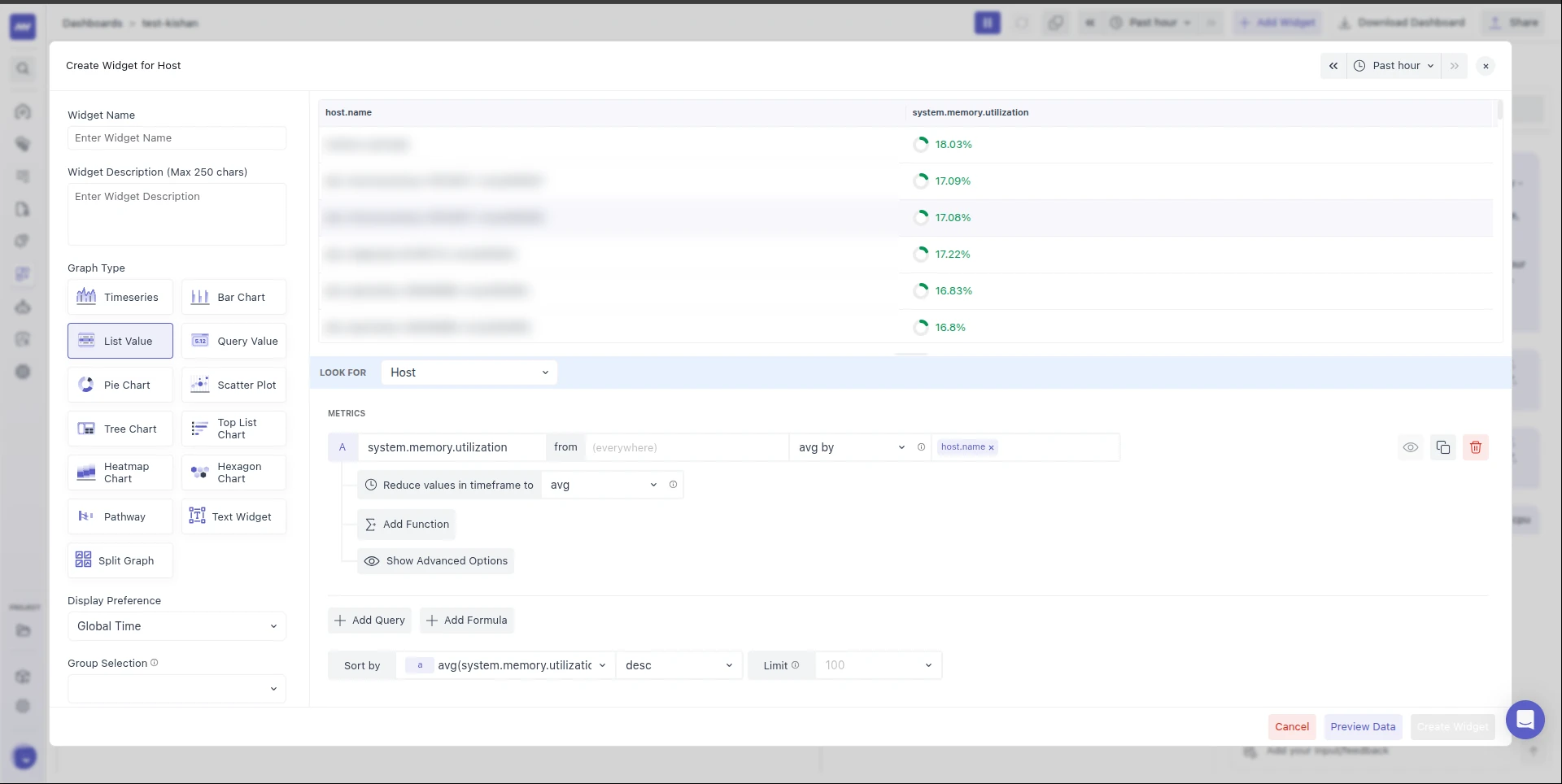
Widgets such as List Value show one number per group, not a line over time. The Reduce values in timeframe to row (shown with a clock icon) controls how the selected time range is collapsed into that one value. The options are avg, sum, min, max, and last.
For example, with a 1-hour time range and max, a List Value widget shows the highest value each group reached during that hour.
Where it appears
- Shown on: List Value, Query Value, Pie Chart, Top List Chart, Tree Chart, Scatter Plot, and Hexagon Chart.
- Not shown on: Timeseries, Bar Chart, Heatmap Chart, and Split Graph.
- It is also not shown for formulas, in alert builders, or for aggregations that cannot be reduced. It applies to avg, sum, min, max, uniq, and percentile aggregations.
Defaults
- New queries use avg.
- Switching a widget from a time-based chart to one that shows the reducer sets it to avg. Switching back to a time-based chart removes it.
- Widgets saved before this option existed show last, which is how their values were already computed, so their numbers do not change.
4.6 Control density with Roll-Up (aggregation over time) #
Metrics are usually collected in short intervals, typically every 5 to 20 seconds, by agents, integrations, or cloud services.
For example:
- If a metric is collected every 5 seconds, you will have 17,280 data points for one day of data.
- Due to physical limits, middleware graphs can only display about 200–300 data points at once. The system automatically aggregates your data into larger time blocks.
- Hence, 1-day data will be rolled up every 5 minutes, creating 288 data points, where each new point represents an average of 60 original data points.
By default, Middleware:
- Averages the metric values within each time bucket (Roll Up: Average)
- Uses a roll-up interval based on the length of the selected time range
| Time range up to | Roll Up Interval |
|---|---|
| 2 hours | 30 seconds |
| 4 hours | 1 minute |
| 1 day | 5 minutes |
| 2 days | 10 minutes |
| 10 days | 1 hour |
| 30 days | 8 hours |
Metric queries return at most the last 7 days of the selected time range. With a longer range, the start is moved forward to 7 days before the end. The roll-up interval still comes from the range you selected, not the shortened one: Past 30 days shows the last 7 days in 8-hour buckets (21 points), and a 10-day range shows the last 7 days in 1-hour buckets.
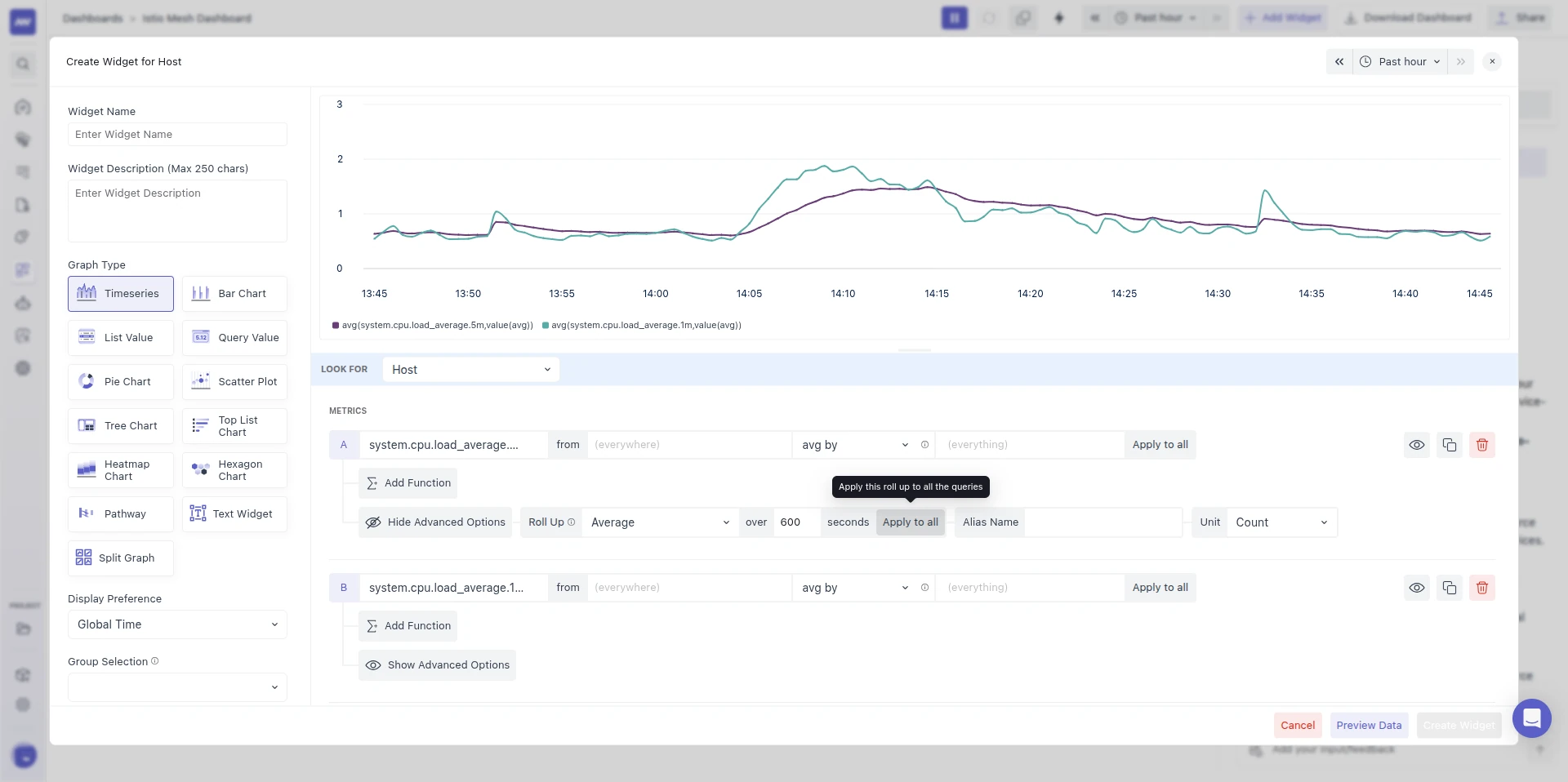
To change this, open Show Advanced Options and use the Roll Up <fn> over <N> seconds row:
- Roll Up: The aggregation applied within each time bucket: Average, Sum, Minimum, Maximum, or Last (the most recent value in the bucket).
- over [N] seconds: The bucket size, e.g., 120 or 600. Leave it empty (placeholder
auto) to use the default interval. The default interval for the time range is also the minimum: a smaller value is raised to it. For example,60over a 1-day range still gives 5-minute buckets. Buckets are never smaller than 30 seconds, whatever the time range. - Apply to all: Applies this roll-up to all the queries in the widget.
Delta sums ignore the Roll Up method. For a sum metric with delta temporality (see Temporality), each bucket always shows the sum of the increments reported in it. The value therefore grows with the bucket size. To get a value that doesn't depend on the bucket size, add Rate.
For non-metric aggregations, the label reads Roll Up Over, and you set only the interval.
Roll Up and rate functions are independent. The roll-up is applied to each bucket first, then the rate is taken over the rolled-up values. Rate functions are no longer in the roll-up dropdown; add them from Add Function → Rate (see 4.8). Removing a rate function keeps your roll-up.
The exception is the count, sum, min and max fields of a histogram. There the roll-up and the rate share one setting: adding Rate or Increase replaces the roll-up, and removing it resets the roll-up to Last.
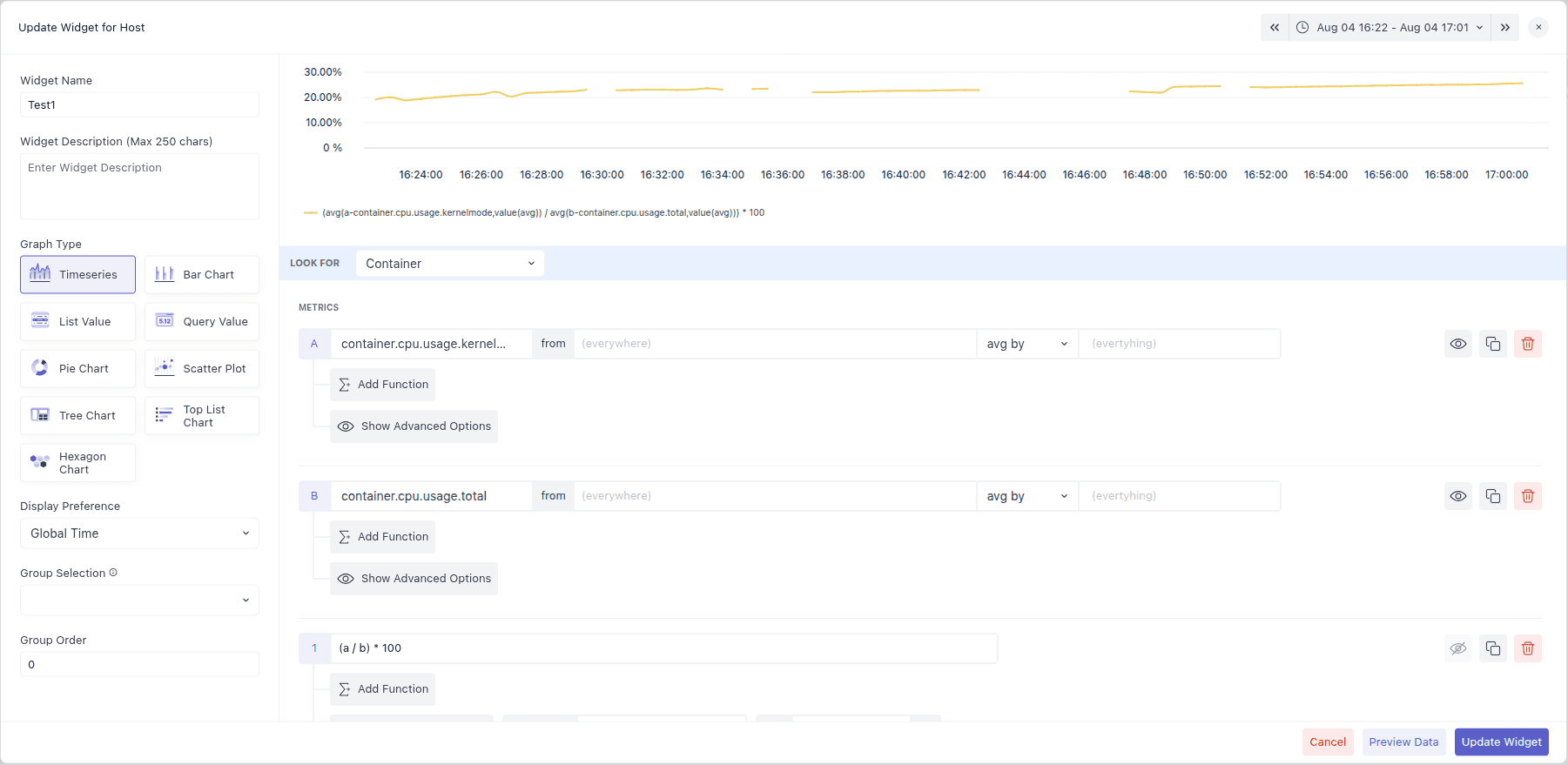
4.7 Compose results with Formulas#
Assign letters (a, b, c, …) to your queries, then write an expression that uses those letters as variables. For instance, to compute a percentage, you might write: (a / b) * 100
Rules:
- Each query must be represented by its assigned lower‑case letter symbol, or you will get an error.
- The formula must be a valid mathematical expression. It can use the query letters, numbers (for example
100or0.5), the operators+,-,*and/, and round brackets. Functions can't be used inside the expression; add them to the formula with Add Function instead.
How a formula is calculated
- The formula is evaluated separately for each group and each timestamp. Series are matched by their group-by values, so queries in a formula should use the same group by.
- Functions on the individual queries are applied first, then the formula is evaluated, then any functions added to the formula.
- If one of the queries has no value at a timestamp, the formula has no point there.
- Dividing by zero, or any result that isn't a finite number, gives 0, not a gap. Keep this in mind for ratios where the denominator can be zero, such as error rate with no traffic.
4.8 Transform results with Functions#
Functions transform the output of a query, for example turning a counter into a rate, smoothing a noisy line, or comparing against last week.
Add a function
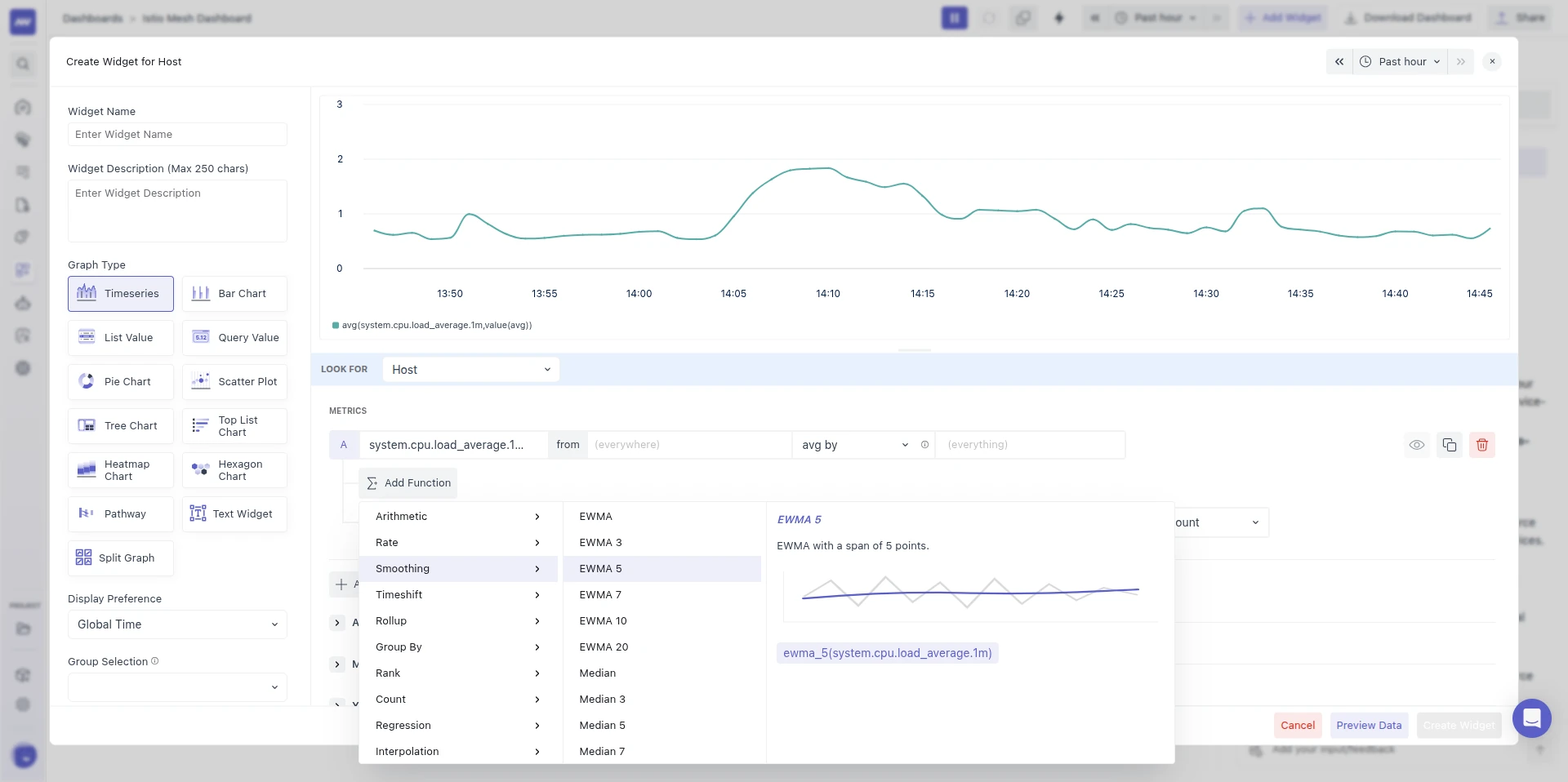
- Click Add Function in the functions row under the query.
- The picker opens in three panes:
- Categories on the left.
- Functions in the selected category in the middle.
- Preview on the right, with a description, a mini visualization, and the expression it produces, e.g.
fn(metric).
- Click a function to apply it. It appears as a chip in the functions row.
Work with function chips
- Functions that take arguments show inline inputs on the chip. An invalid number turns the input red.
- Click ✕ on a chip to remove the function.
- Functions run in the order they were added, except rate functions and timeshifts: they are part of the query itself, so they always run before the other functions.
- The same function can't be added twice to one query.
- Only one rate function is allowed per query. Picking another one replaces the current one.
- Only one timeshift (Hour before, Day before, or Week before) is allowed per query. Picking another one replaces the current one.
- A rate function always shows as the first chip in the row.
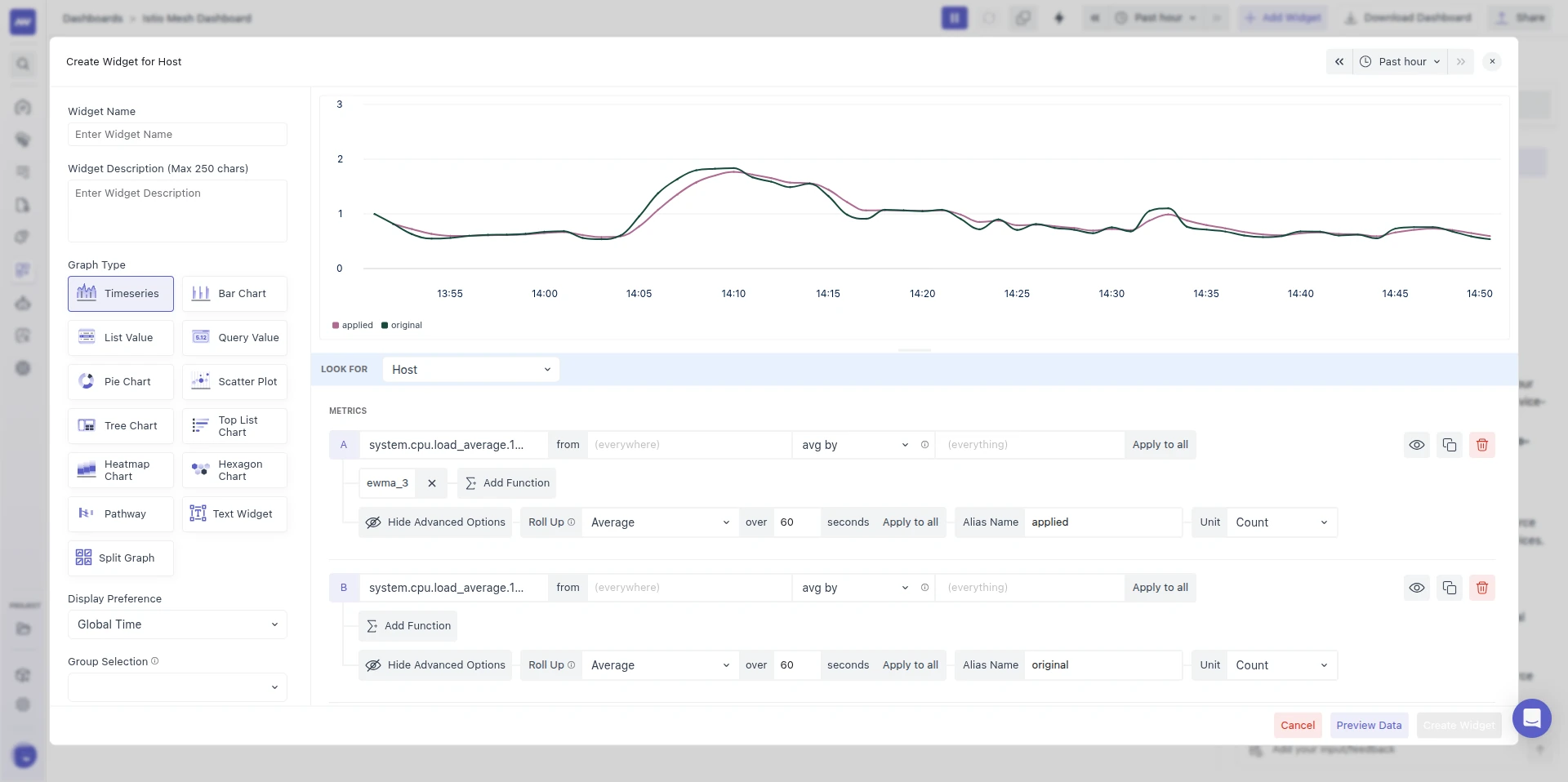
In the example below, query A has an ewma_3 chip applied and query B is the same metric without functions, so the chart compares the smoothed line (alias applied) with the raw one (alias original).
Function reference
| Category | Functions | Arguments (default) |
|---|---|---|
| Arithmetic: Apply mathematical functions to the query. | Absolute Value, Log 2, Log 10, Cumulative sum, Power, Integral | Power: power (2) |
| Rate: Graph the rate at which the metric changes. | Rate, Increase, Diff, Monotonic Diff, Derivative, Per Second, Per Minute, Per Hour, Delta Time | — |
| Smoothing: Smooth noisy series with moving averages. | EWMA, EWMA 3, EWMA 5, EWMA 7, EWMA 10, EWMA 20, Median, Median 3, Median 5, Median 7, Median 9, Autosmooth | — |
| Timeshift: Compare a metric across different time periods. | Hour before, Day before, Week before | Day before: days (−1); Week before: weeks (−1). Only whole numbers of −1 or lower are accepted. |
| Rollup: Re-bucket or window-aggregate the series. | Rollup, Moving Rollup | aggregator (avg; one of avg, count, min, max, sum) and seconds (60) |
| Group By: Re-aggregate groups by a subset of their tags. | Group By | aggregator (avg) and tags (chosen from the query's group by) |
| Rank: Keep only the top or bottom ranking groups. | Top | limit (5), aggregator (max), and direction (desc or asc) |
| Count: Count how many groups have a value at each timestamp. | Count Nonzero, Count Nonzero Finite, Count Not Null | — |
| Regression: Fit a trend line through the series. | Trend Line, Robust Trend, Piecewise Constant | — |
| Interpolation: Interpolate missing metric values in sparse data. | Linear, Last, Zero, Default Zero, Fill | Fill: method (linear, last, zero, or null) and limit (300 seconds, maximum 600 seconds) |
| Algorithms: Transform values with rounding and thresholds. | Running Diff, Value Diff, Monotonic Value Diff, Round, Ceil, Floor, Cutoff Min, Cutoff Max, Clamp Min, Clamp Max, Is Greater, Is Less, Is Between, Exclude Null | Cutoff Min/Max, Clamp Min/Max, Is Greater, Is Less: threshold (0); Is Between: lower (0) and upper (100), both excluded |
The aggregator for Group By, and for the "by" argument of Top, can be avg, sum, min, max, count, median, stddev, last, p50, p75, p90, p95, or p99.
Common recipes
| Goal | Query and functions |
|---|---|
| Requests per second from a request counter | Pick the counter (badge SUM). On every graph type except List Value, Rate is applied for you, with a /s unit. |
| Compare today with last week | Add query a with the metric, then a copy of it as query b with Week before. Both lines appear on the same chart. |
| Show only the 5 busiest hosts | system.cpu.utilization, avg by host.name, then Top with limit 5, aggregator max, direction desc. |
| Smooth a noisy latency line | Add EWMA 10, or Median 5 to ignore single spikes. |
| Count how many hosts are reporting | system.cpu.utilization, avg by host.name, then Count Not Null. |
| Fill gaps in a sparse metric | Add Fill with method last to carry the previous value forward, up to the limit in seconds. |
| Flag values above a threshold | Add Is Greater with threshold 90. |
When functions are hidden
Some functions are not offered when they would give misleading results:
- Formulas, attribute queries, logs, and traces: The Rate category is hidden.
- Histogram metrics: With the count, sum, min or max field, the Rate category offers only Rate and Increase. With the bucket field (percentiles), the Rate category is hidden.
- Gauge metrics: Rate and Increase are hidden, because they treat any drop in value as a counter reset. If you switch from one gauge metric to another, an applied Rate or Increase is removed. If you switch from a sum metric to a gauge, remove it yourself.
- List Value: Functions that need a time series are hidden: Cumulative sum and Integral; the whole Smoothing, Rank, Regression, and Interpolation categories; and Running Diff, Value Diff, and Monotonic Value Diff.
On List Value, only the Count functions are applied to the result, and rate functions and timeshifts still apply to the query. Other functions that stay visible, such as Absolute Value, Round, Clamp Min, Rollup or Group By, have no effect on List Value. The Count functions count across groups, and if every metric column is counted, the table collapses to a single row of counts.
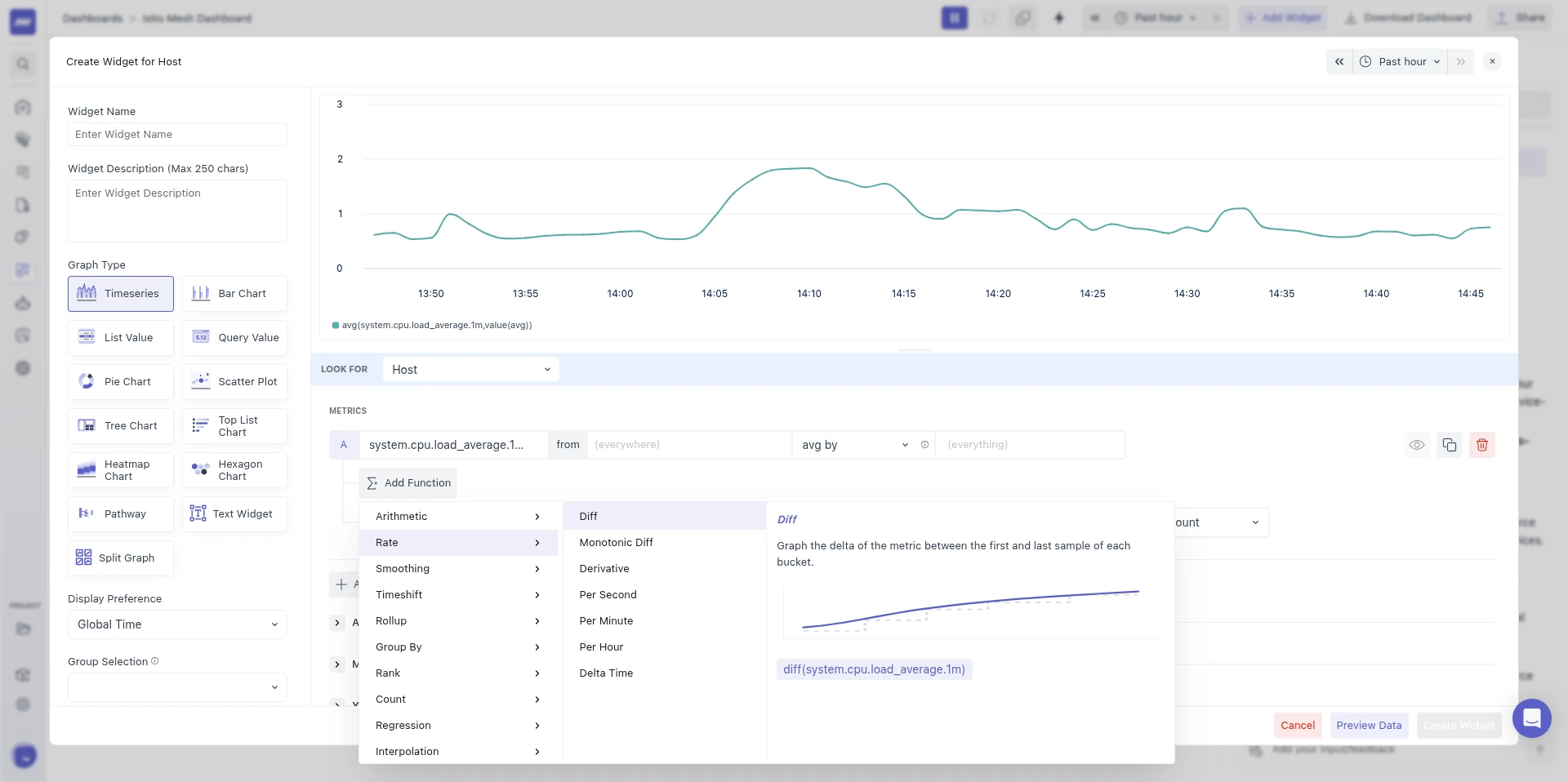
For example, system.cpu.load_average.1m is a gauge metric, so its Rate category lists Diff, Monotonic Diff, Derivative, Per Second, Per Minute, Per Hour, and Delta Time, without Rate or Increase.
Rate functions and units
The Rate category is especially useful when you need a change-per-interval view from a cumulative counter. When you pick a rate function, the unit's per is set for you:
- Rate, Per Second, and Derivative:
/s - Per Minute:
/min - Per Hour:
/h - Increase, Diff, Monotonic Diff, and Delta Time: no suffix
If the query has no unit, the metric's own unit is used. A per you set by hand is never overwritten, and units that are already rates don't get a second suffix.
Automatic rate for counters: On every graph type except List Value, including Query Value and Top List Chart, picking a monotonic SUM (counter) metric applies Rate automatically, with a /s unit. This happens when the query had no metric yet or a metric of another type. Switching from one sum metric to another keeps the functions you already have. Opening a saved widget never changes its query.
How the rate functions differ
Rate functions compare each bucket with the previous one, per series, after the roll-up. They differ in how they handle a drop in value, which on a counter usually means the process restarted and the counter reset:
| Function | Result per bucket | When the value drops |
|---|---|---|
| Rate | Change ÷ seconds between buckets | Treats the new value as the increase since the reset: new value ÷ seconds |
| Increase | Change between buckets | Treats the new value as the increase since the reset |
| Diff | Change between buckets | Negative |
| Monotonic Diff | Change between buckets | 0 |
| Derivative | Change ÷ seconds between buckets | Negative |
| Per Second / Per Minute / Per Hour | Change per second, ×60 or ×3600 | 0 |
| Delta Time | Seconds between buckets | — |
For a sum metric with delta temporality, Rate and Increase don't compare buckets: each bucket's increments are added up, and Rate divides that by the bucket size in seconds.
After the per-series value is calculated, series are combined with the space aggregation (for example sum by) as usual.
Example of rate functions applied to a counter:
| Timestamp | Value | Diff | Per Second | Per Minute | Per Hour | Monotonic Diff |
|---|---|---|---|---|---|---|
| 2025-08-13 15:00:00 | 10 | N/A | N/A | N/A | N/A | N/A |
| 2025-08-13 15:01:00 | 12 | 2 | 0.0333 | 2 | 120 | 2 |
| 2025-08-13 15:02:00 | 15 | 3 | 0.05 | 3 | 180 | 3 |
| 2025-08-13 15:03:00 | 22 | 7 | 0.1167 | 7 | 420 | 7 |
| 2025-08-13 15:04:00 | 30 | 8 | 0.1333 | 8 | 480 | 8 |
| 2025-08-13 15:05:00 | 15 | -15 | 0 | 0 | 0 | 0 |
At 15:05 the counter dropped from 30 to 15, which is treated as a reset. Diff shows the signed change. Monotonic Diff and Per Second/Minute/Hour clamp it to 0. Rate would show 15 ÷ 60 = 0.25, and Increase 15.
Built-in dashboards and alert templates now use these functions, and their values are unchanged. Older custom widgets that use legacy functions (Per Second/Minute/Hour, Value Diff, Monotonic Value Diff, Fill Linear/Last, Default Zero) are converted automatically and keep working. No action is needed.
5. Advanced Options#
Advanced controls tighten the final semantics and presentation of the widget.
5.1 Alias Name#
By default, your graph will use the selected metric name as the label for the line, column, or component that shows its data.
If you want a different label, you can enter a custom name in the Alias Name input box. This custom name will then appear in the graph legend and tooltips instead of the metric’s default name.
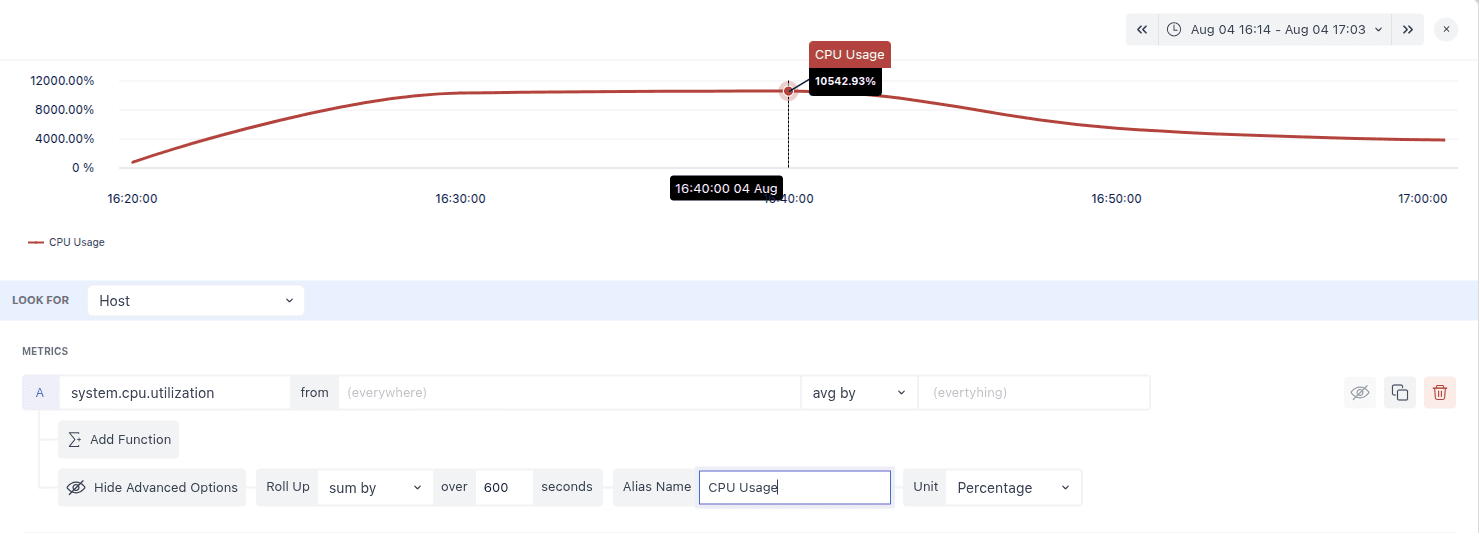
5.2 Unit (override default metric units) #
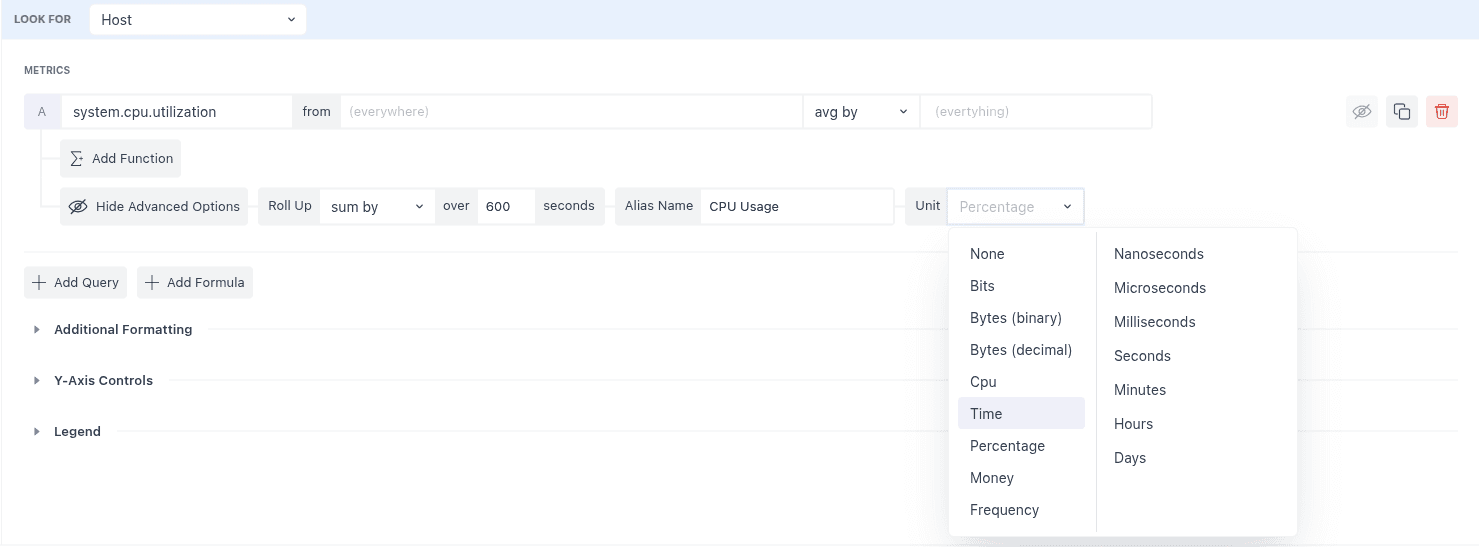
Most metrics ship with a default unit (for example, system.cpu.utilization renders as %). You can override this if your reporting requires different semantics. Open Show Advanced Options, locate Unit, and choose from the dropdown. Use per to make it a rate unit, e.g., /s. The widget immediately interprets and displays values using this unit.
Metrics without a configured display unit are formatted automatically from their OpenTelemetry unit on axes, tooltips, and table columns. A unit you choose always takes priority. Rate functions also set per automatically (see Rate functions and units). For the full list, see Customizing Metric Unit.
5.3 Visual Config#
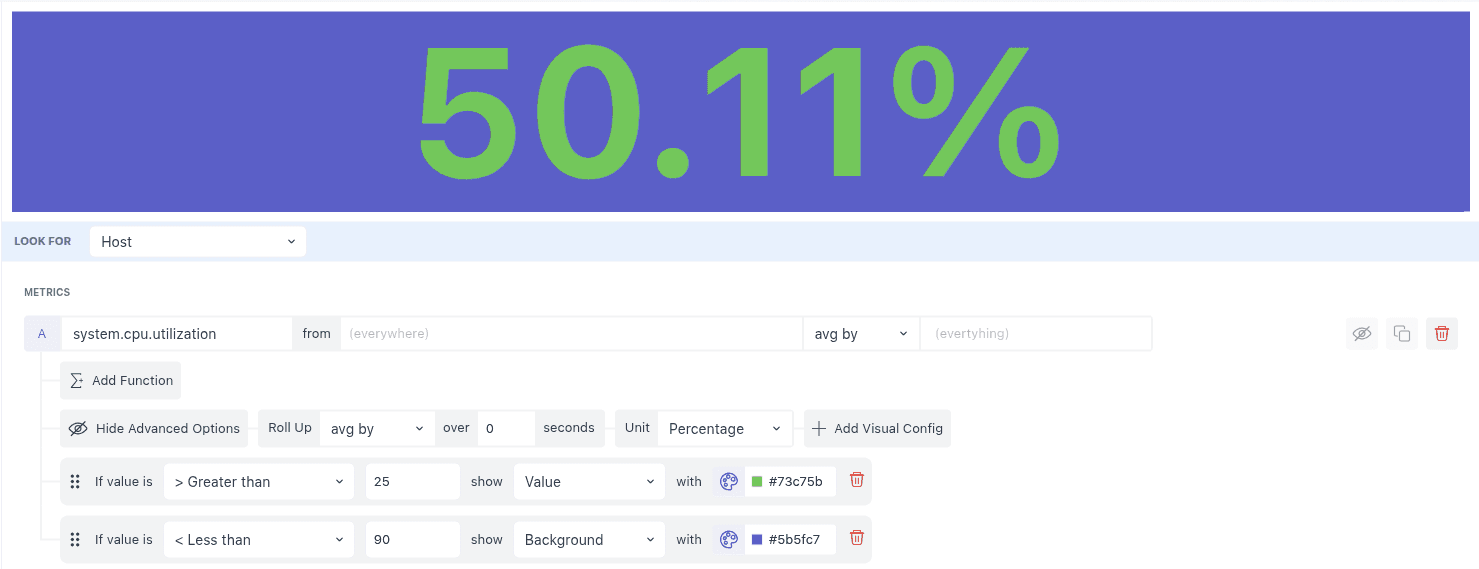
In the Query Value graph, you can customize the color of the value and the background based on specific conditions using the Visual Config rules.
How to add a Visual Config rule:
- Click the Add Visual Config button to create a new rule.
- In the rule, specify these settings:
- Operator: Choose an operator (like equals, greater than, less than) from the dropdown to compare against the value.
- Value: Enter the number or value you want to compare the metric against.
- Apply Color To: Select whether the color should change for the value itself or the background behind the value.
- Color: Pick the color you want to apply, either by entering a hex code or selecting from the color picker.
Compare data with the previous time period
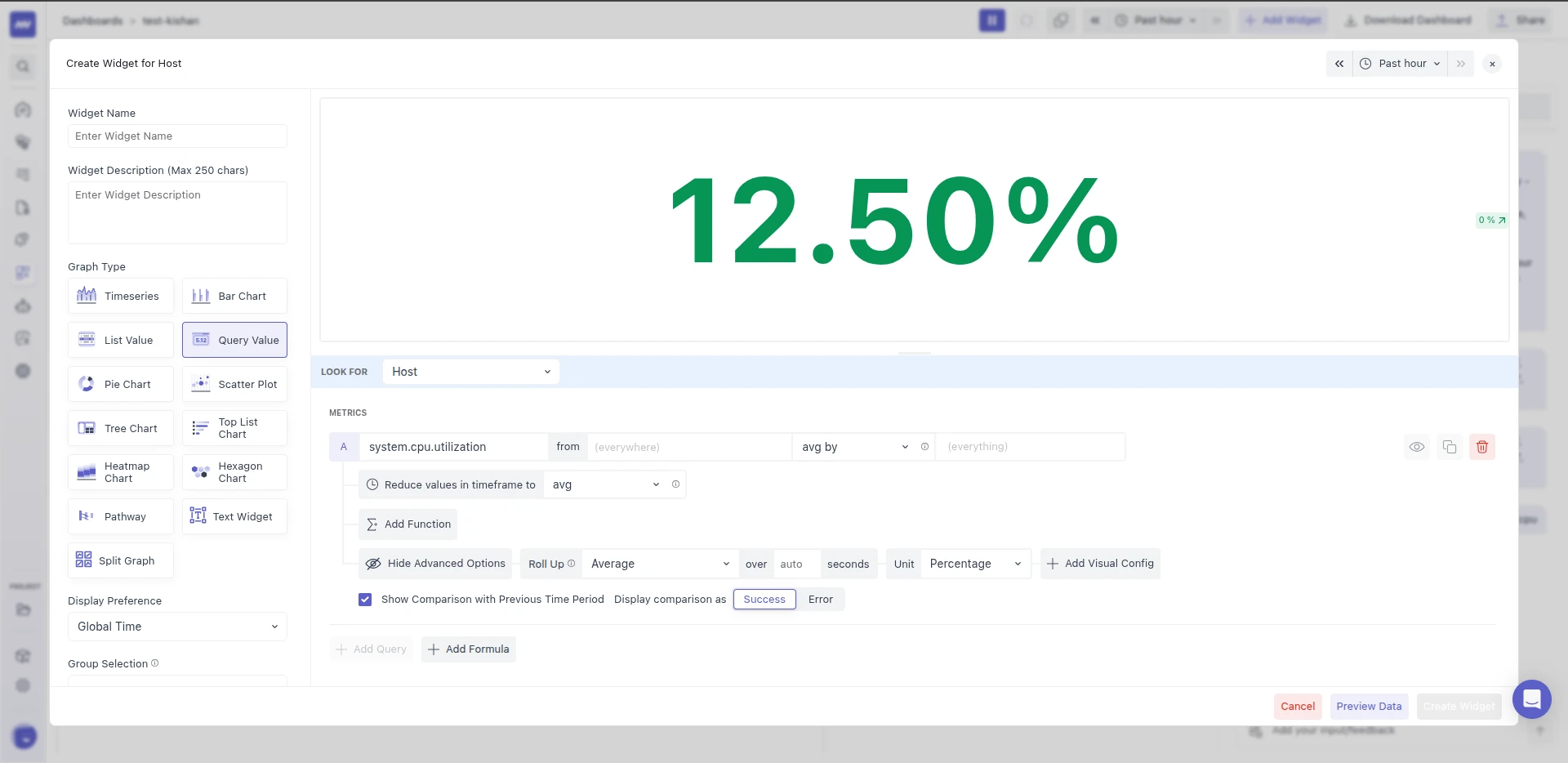
In the Query Value graph, you can also show the percentage change compared to the previous time period.
Example:
- Last hour's metric value: 25.45
- Last-to-last hour's metric value: 27.46
- Change: ~7.3% decrease (shown in the mid‑right corner of the graph)
How to enable this:
- Click Show Advanced Options, then check the Show Comparison with Previous Time Period checkbox.
- Next to Display comparison as, choose Success or Error to decide how the change should be displayed.
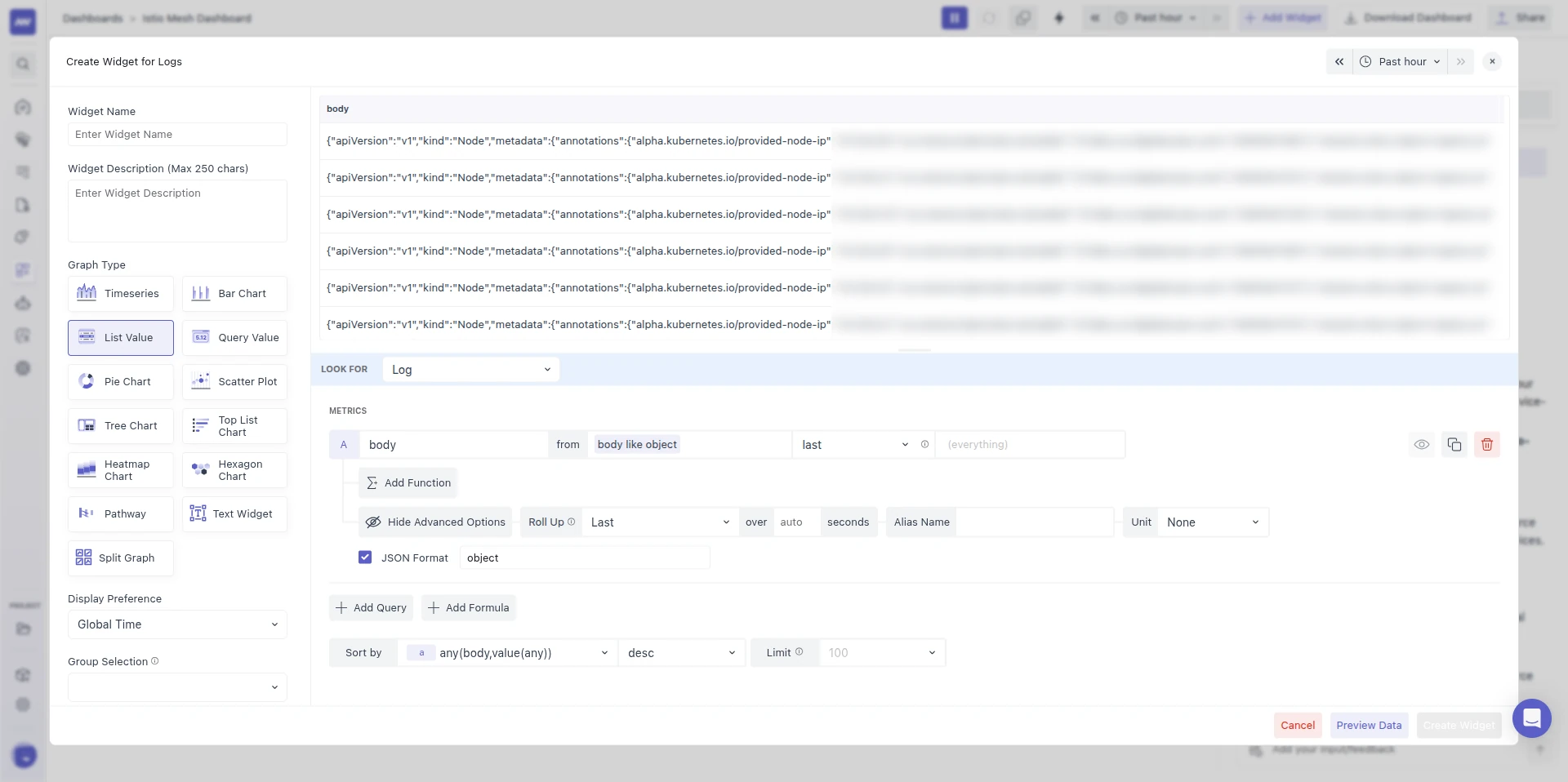
JSON Format
In the List Value graph, if the data is in JSON format (for example, a log body or message), you can extract and display the value of a specific field.
How to use JSON Format:
- Click Show Advanced Options on the query.
- Check the JSON Format checkbox.
- In the input box next to it, type the field name whose value you want to extract from the JSON.
The widget will then display the value from that specific JSON field as the complete value in the list.
5.4 Sort by and Limit#
Sort by and Limit sit below all the queries and apply to the whole widget. Use them to answer "which ones are worst?", for example the 10 hosts with the highest memory usage in a Top List.
| Option | Description | Default |
|---|---|---|
| Sort by | The metric or group to sort by, and the order (ascending or descending). Clearing it shows Default. | The first query's metric, descending |
| Limit | How many results the widget shows: 5, 10, 25, 50, or 100. You can clear it, and a custom value saved on an older widget is kept. | — |
Both are hidden on Query Value and on time-based widgets (Timeseries, Areas, Bar Chart, Stacked Bars, Heatmap Chart, and Split Graph). On those widgets, Heatmaps show up to 20 rows and other charts up to 100 series. These caps aren't a top-N: when a query returns more groups, which ones are shown isn't defined. To see the highest or lowest groups, add the Top function.
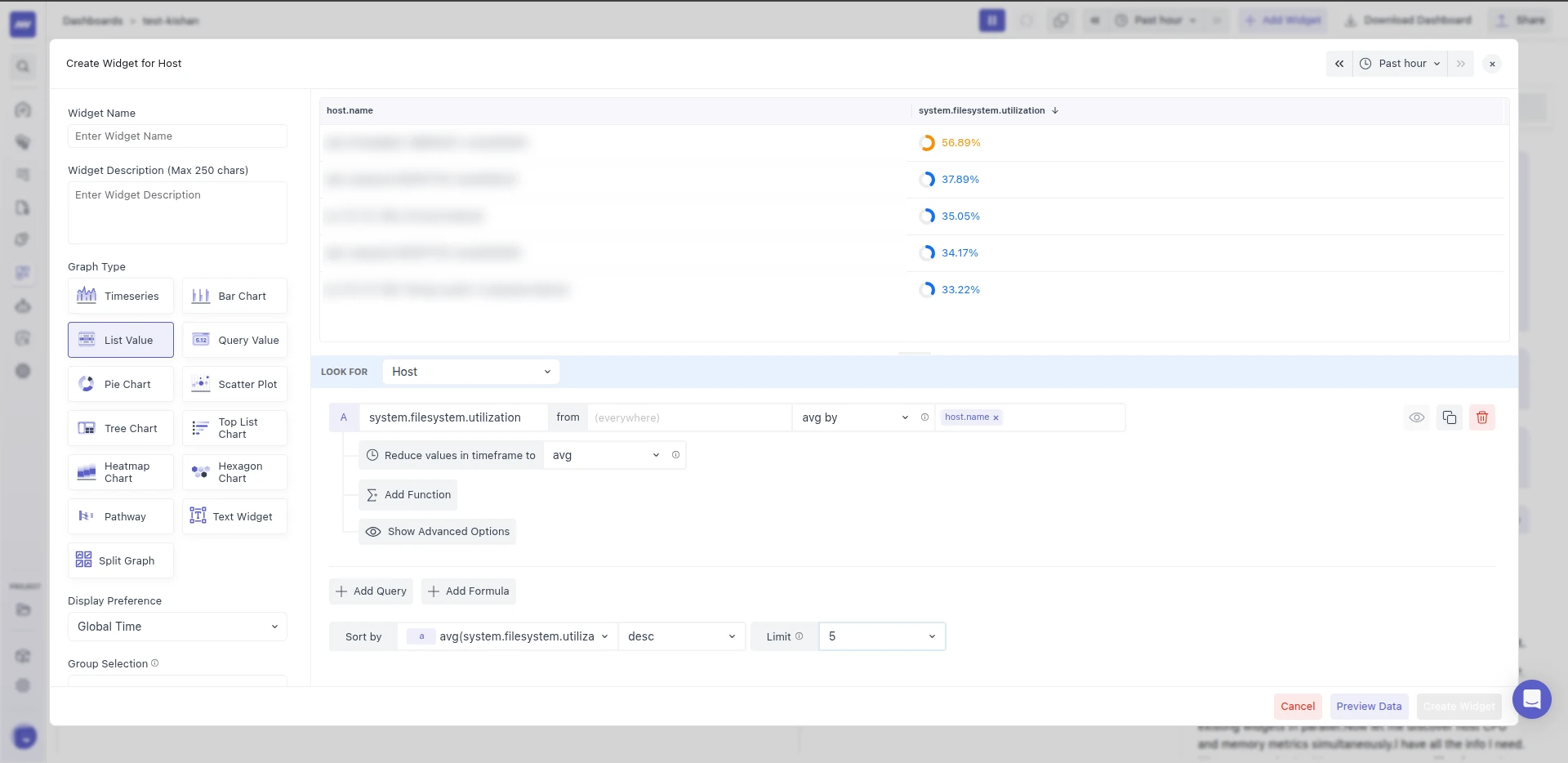
Sort by
In a List Value widget, you can sort the displayed data by clicking the column headers. This lets you quickly reorder the rows based on a metric or group name. However, this sorting only applies temporarily and will reset when you reload the page.
To make the sorting persistent across page reloads, use the Sort by dropdowns:
- First Dropdown: Select the metric or group name by which you want to sort the data. It defaults to the first query's metric.
- Second Dropdown: Choose the sorting order, ascending or descending. The default is descending.
If you clear Sort by, it shows Default.
Limit
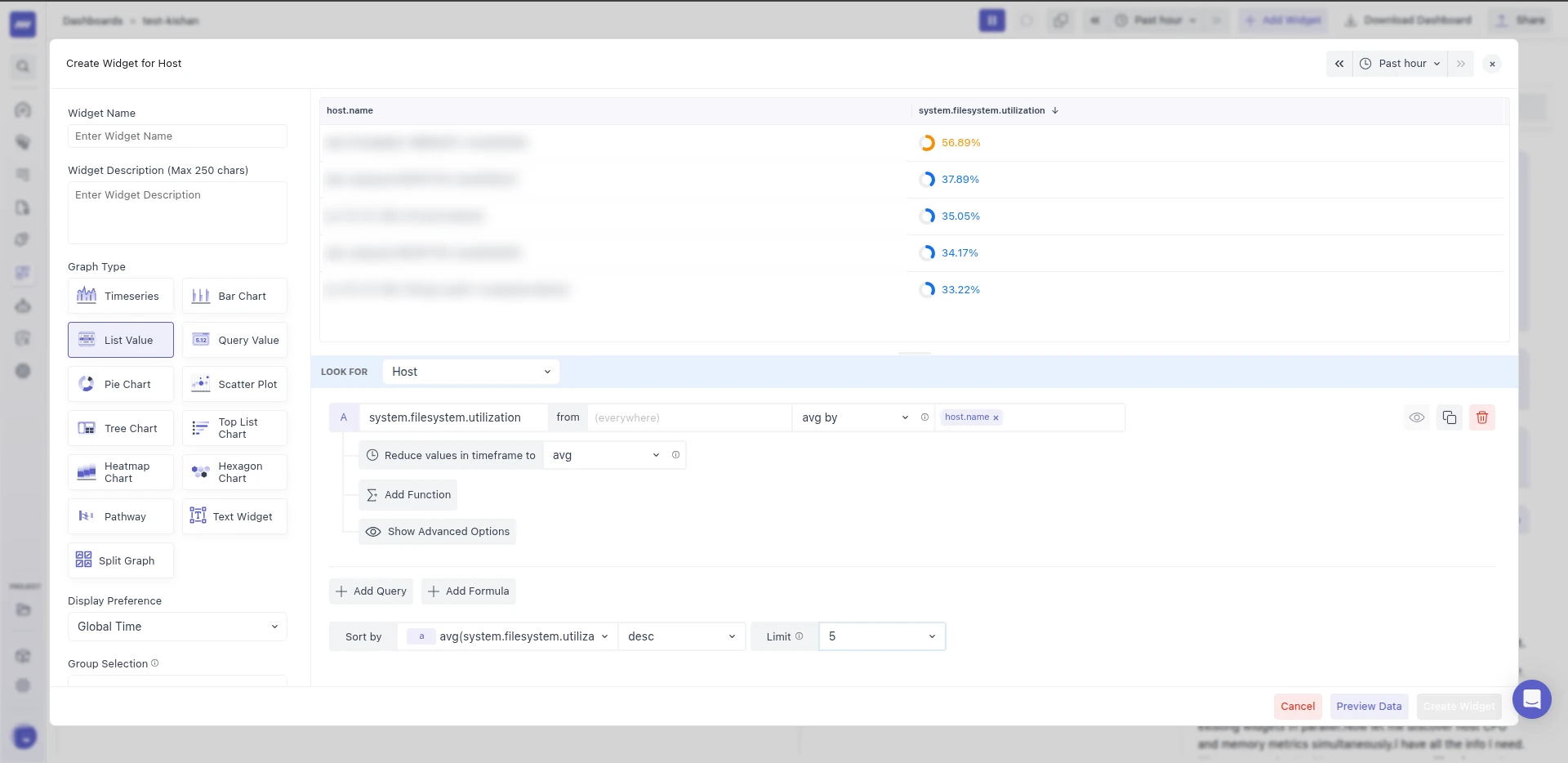
A larger limit may affect the performance of the widget.
List Value widgets on dashboards and in the widget editor preview don't paginate. They show all rows up to the Limit.
6. Additional Formatting#
This section gives you various options to customize how your data appears in the graph.
Many of these formatting options are designed for specific graph types, so you may not see all options available for every graph. The options shown will depend on which type of graph you selected.
6.1 Display Options#
You can choose from multiple display options to fine tune the graph according to your preference.
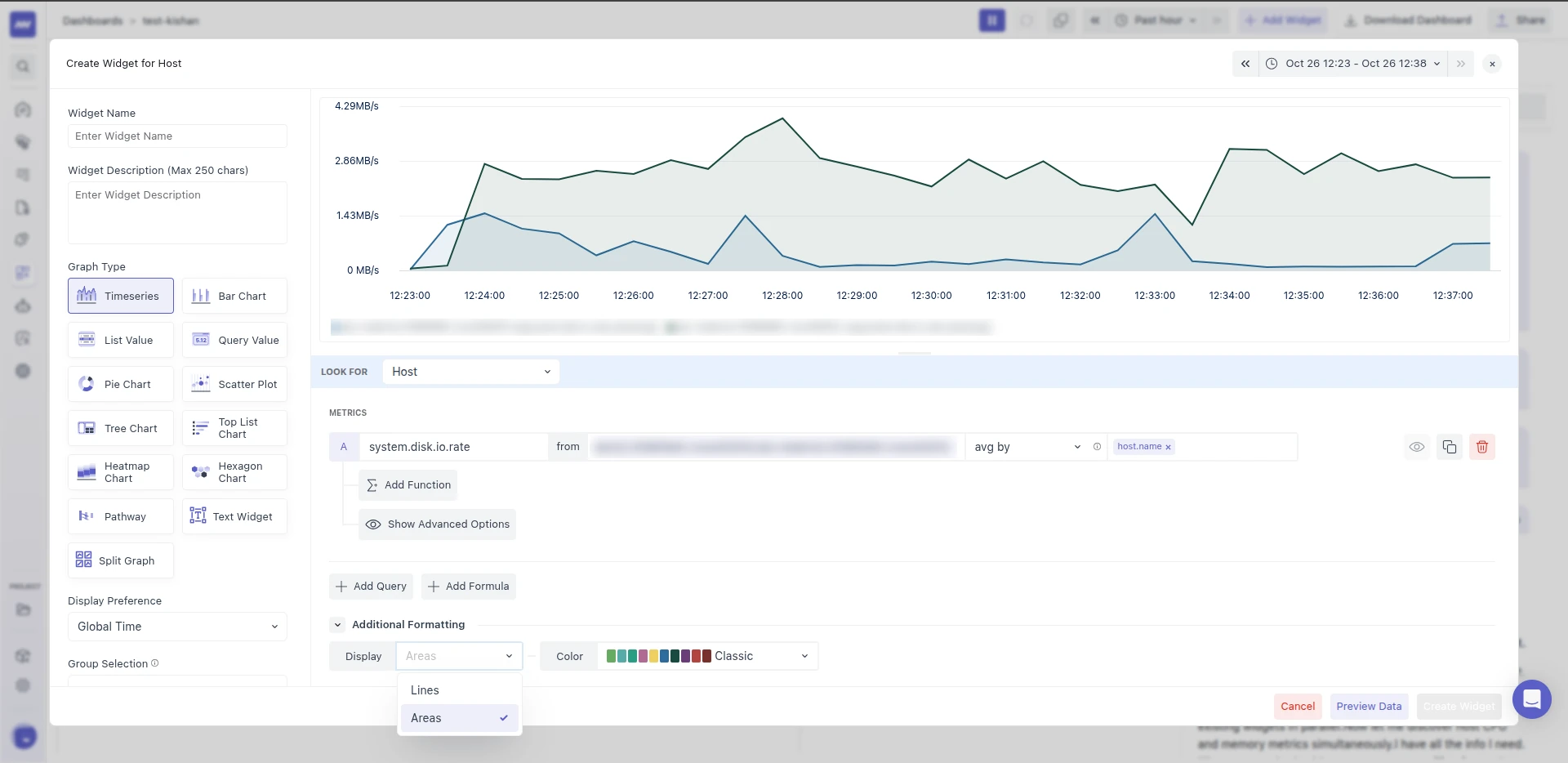
- Timeseries Graph: You can choose how to show your data as either Lines (the default) or Areas.
- Lines: Displays your data as connected points forming a line, showing trends over time clearly.
- Areas: Fills the space underneath the line with color, helping to highlight the volume or magnitude of values over the timeline.
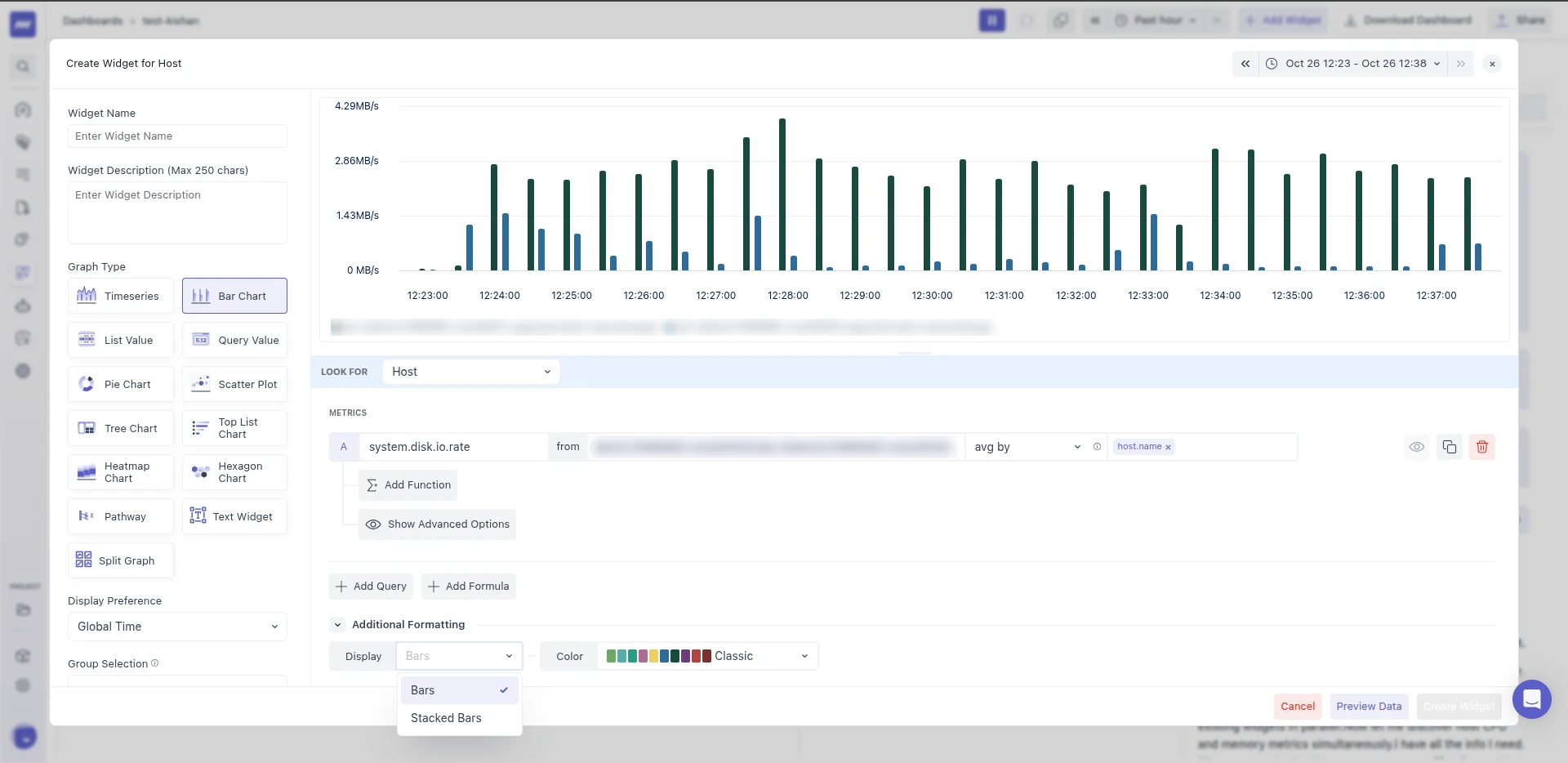
- Bar Graph: You can display your data in Bars (default) or Stacked Bars.
- Bars: Shows each data series as separate side-by-side vertical bars.
- Stacked Bars: Layer different data series on top of each other within the same bar, helping you see the total combined value as well as the contribution of each part.
Style
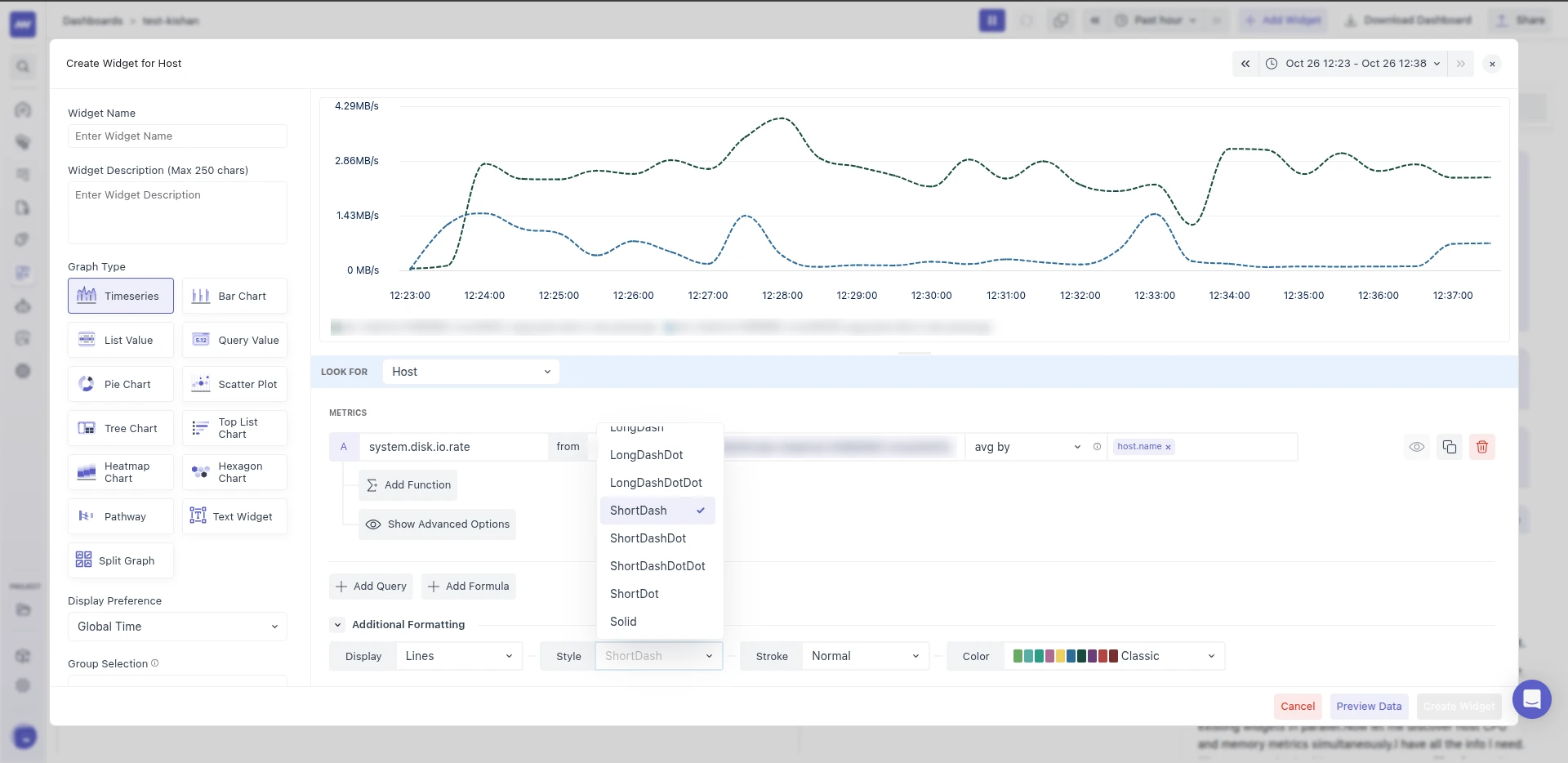
When using the Lines display type in your timeseries graph, you can customize the appearance of the line by choosing one of the following styles:
- Dash
- DashDot
- Dot
- LongDash
- LongDashDot
- LongDashDotDot
- ShortDash
- ShortDashDot
- ShortDashDotDot
- ShortDot
- Solid (default)
Stroke
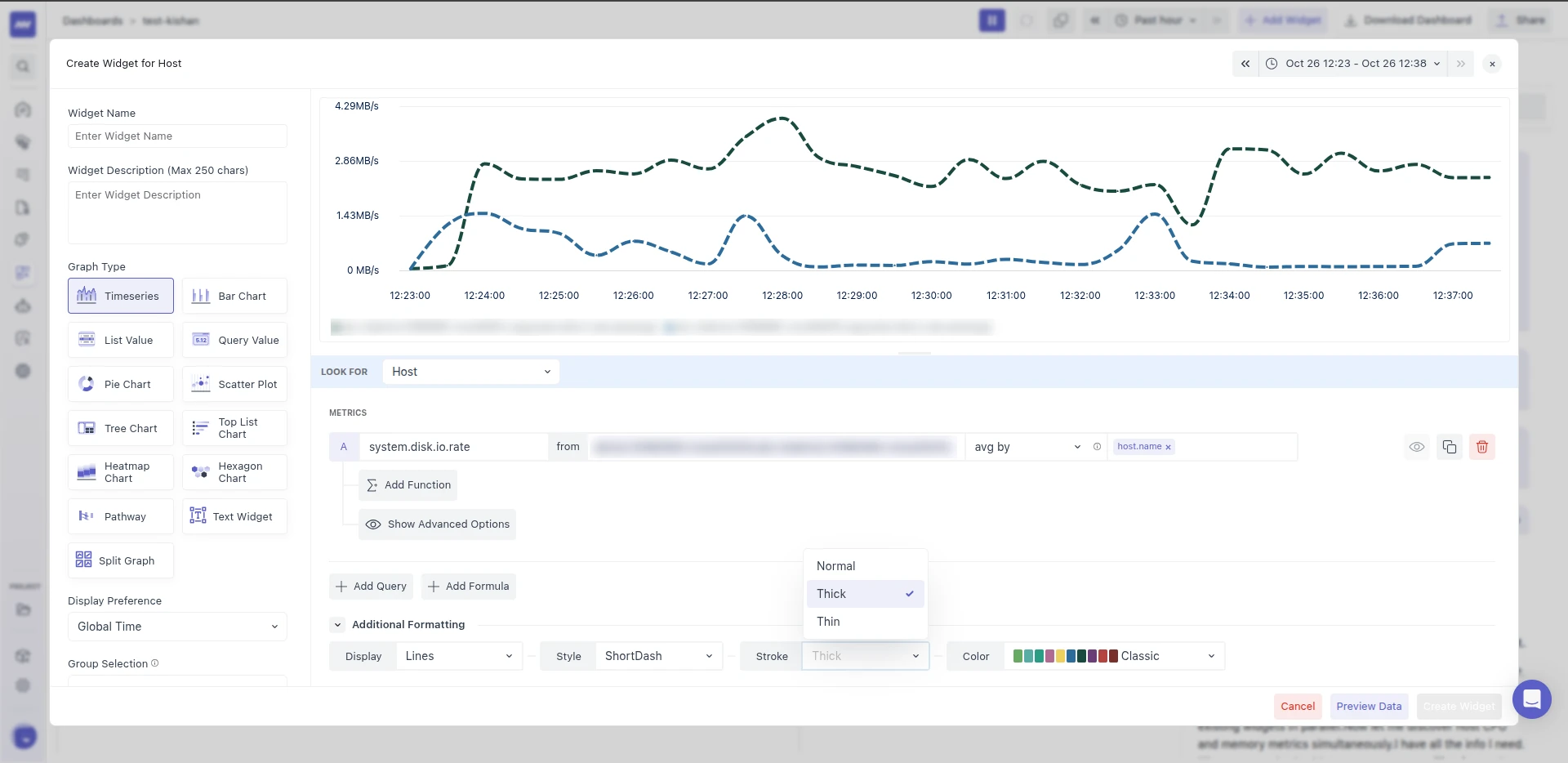
You can adjust how thick or thin the line appears in your graph by changing the stroke width. The available options are: Normal (Default), Thick, or Thin.
Color
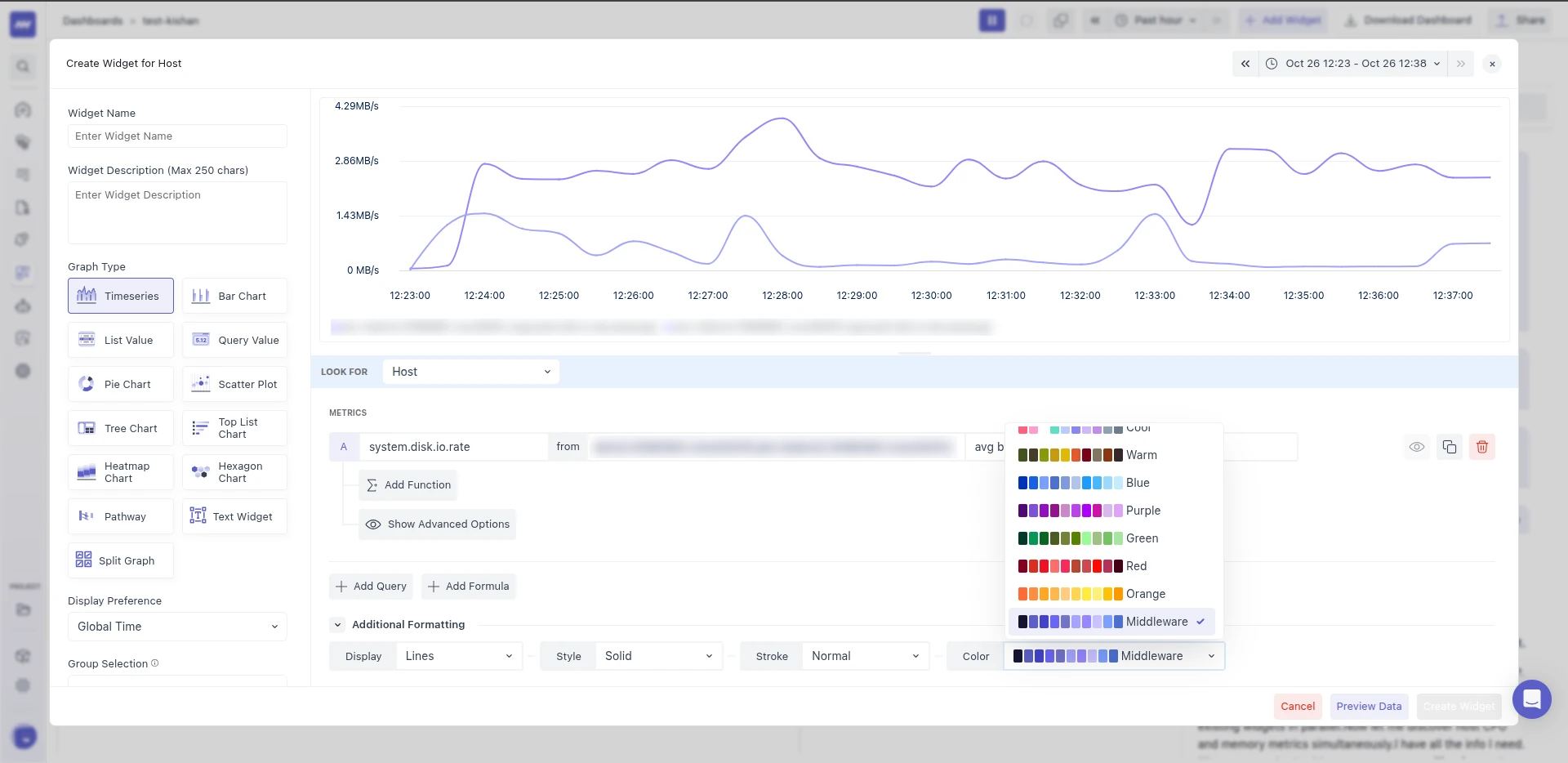
You can change the set of colors your graph uses by selecting a different color palette. This palette controls the colors applied to the lines, areas, bars, or other visual elements in your graph.
6.2 Y-Axis Controls#
In the timeseries or bar graph, you can configure the Y-axis as per your needs and data.
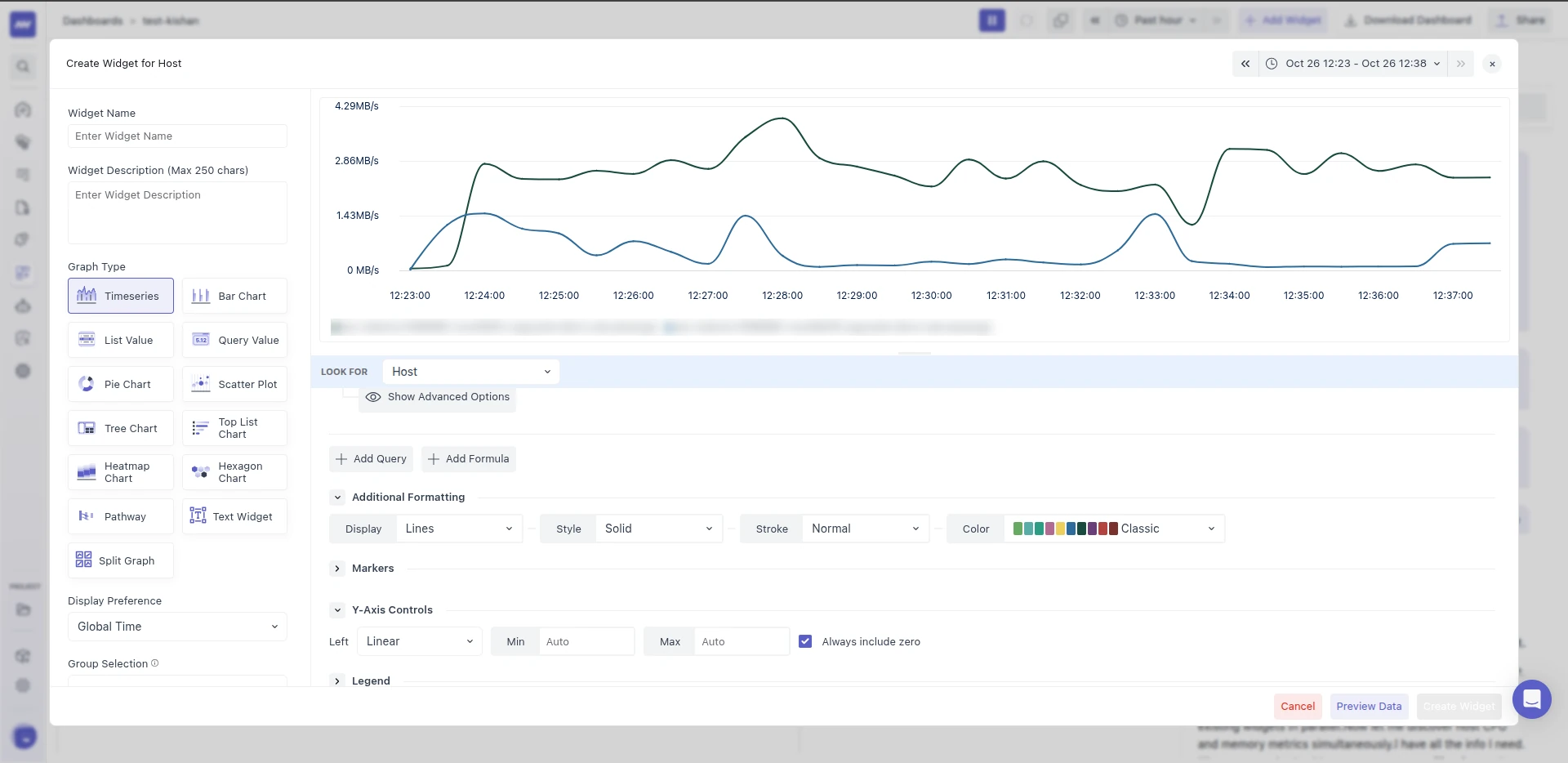
Scale Type
Choose how values on the Y-axis of your graph are scaled. The available scale types are:
- Linear (Default): Values increase in equal steps. Useful for most metrics. Example: 10, 20, 30, 40
- Logarithmic: Each step increases by a fixed factor (not a fixed difference). Good for data that spans wide ranges, like exponential growth or multiplicative change. Example: 0.1, 1, 10, 100, and so on.
- Datetime: Y-axis values represent time periods, useful if your metric is duration or timestamp-based. Example: 0.1 secs, 1 min, 10 mins, etc.
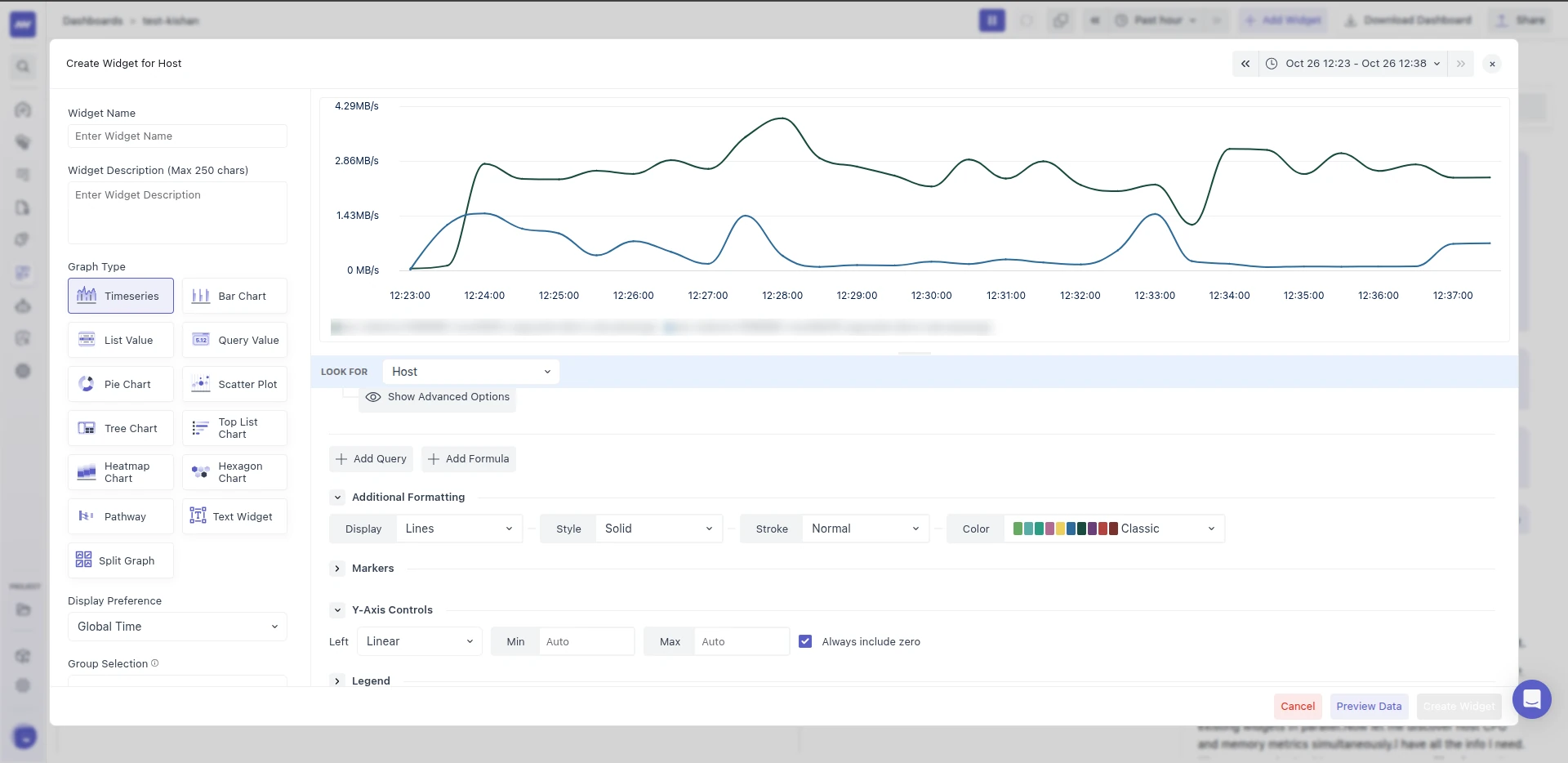
Min/Max
You can set the minimum and/or maximum value for the Y-axis in your graph. By default, the Y-axis range is set to Auto, adjusting automatically to fit your data.
Even if you set a minimum or maximum, the graph may sometimes show values slightly outside your range to display data accurately and avoid distortion.
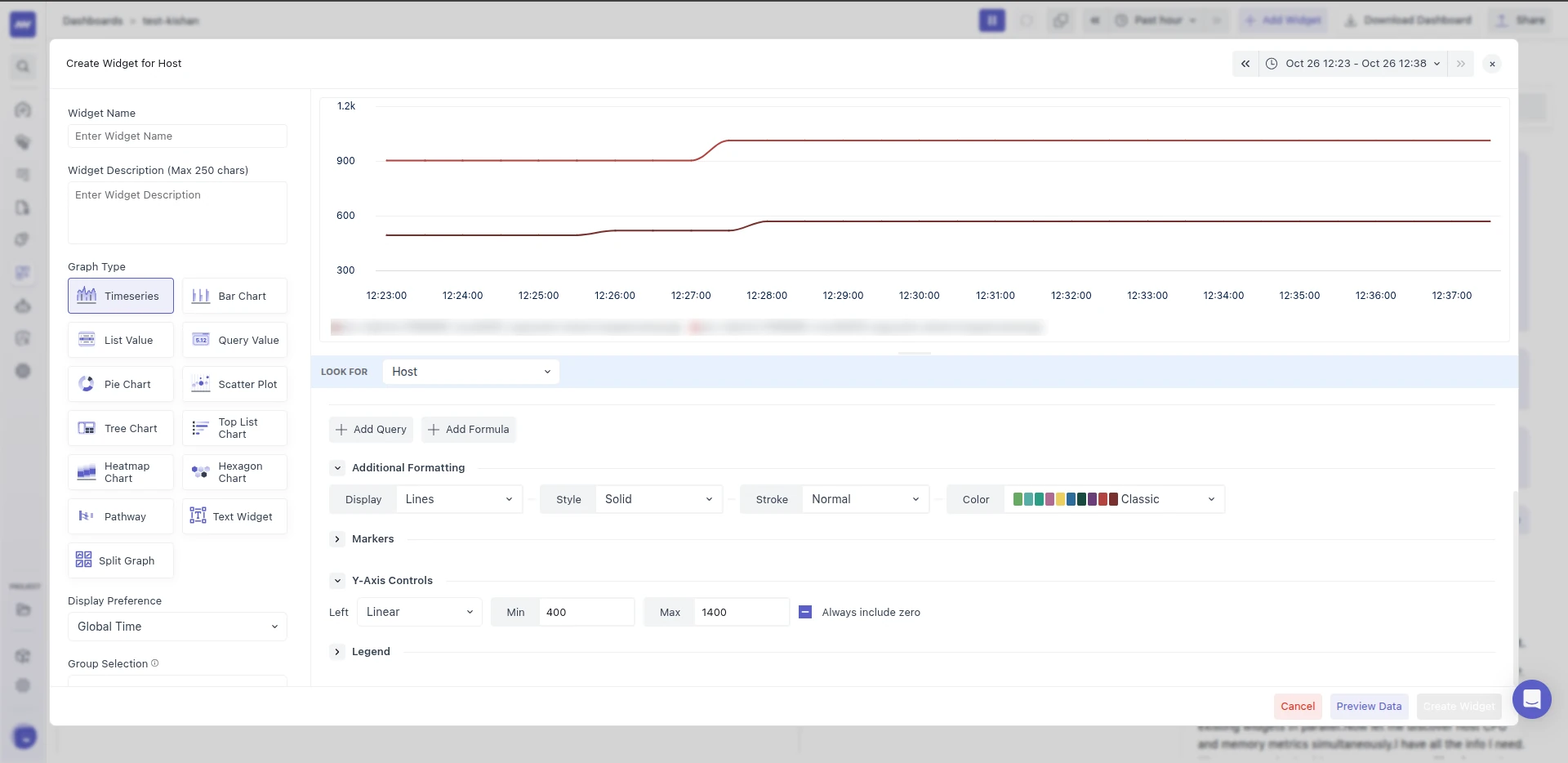
Always include zero
If you have not specified a minimum value, you can select the Always Include Zero checkbox. This will force the Y-axis to start at zero, making it easier to compare values relative to a zero baseline.
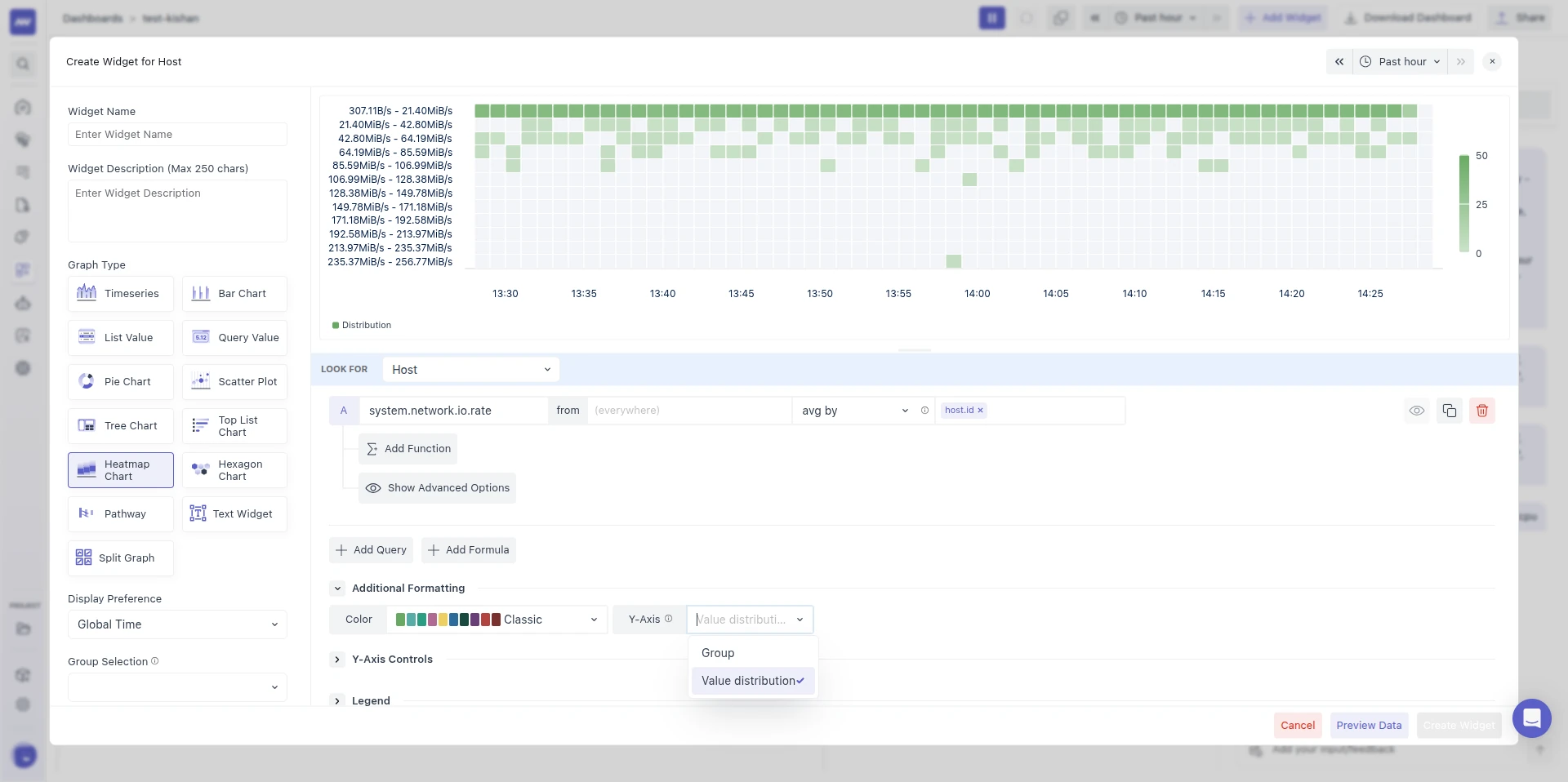
Heatmap Y-Axis
Use a Heatmap when a query returns too many groups to read as separate lines. For example, CPU utilization grouped by k8s.pod.name across hundreds of pods is unreadable as a timeseries, but as a heatmap you can spot the hot pods and the times they ran hot.
The Heatmap graph shows time on the x-axis, rows on the y-axis, and the value as the cell color, with a gradient legend. Time is split into about 60 columns that cover the whole range. Buckets with no data are filled with 0, so a quiet period looks the same as a period where the value was 0.
Under Additional formatting → Y-Axis, choose what each row represents:
| Option | Each row is | Each cell shows | Use it when |
|---|---|---|---|
| Group (default) | One group in the query. Rows are sorted by label so their order stays stable; with a group by, the labels are just the group values. | That group's value | You want to see which specific group (pod, host, service) is hot. |
| Value distribution | One of 12 value ranges across the metric's range, e.g. "10 MB - 20 MB". | How many groups fell in that range | The query returns many groups and you care about the spread, not individual groups. |
Heatmaps show up to 20 rows by default.
Group: one row per host, with the gradient legend on the right.
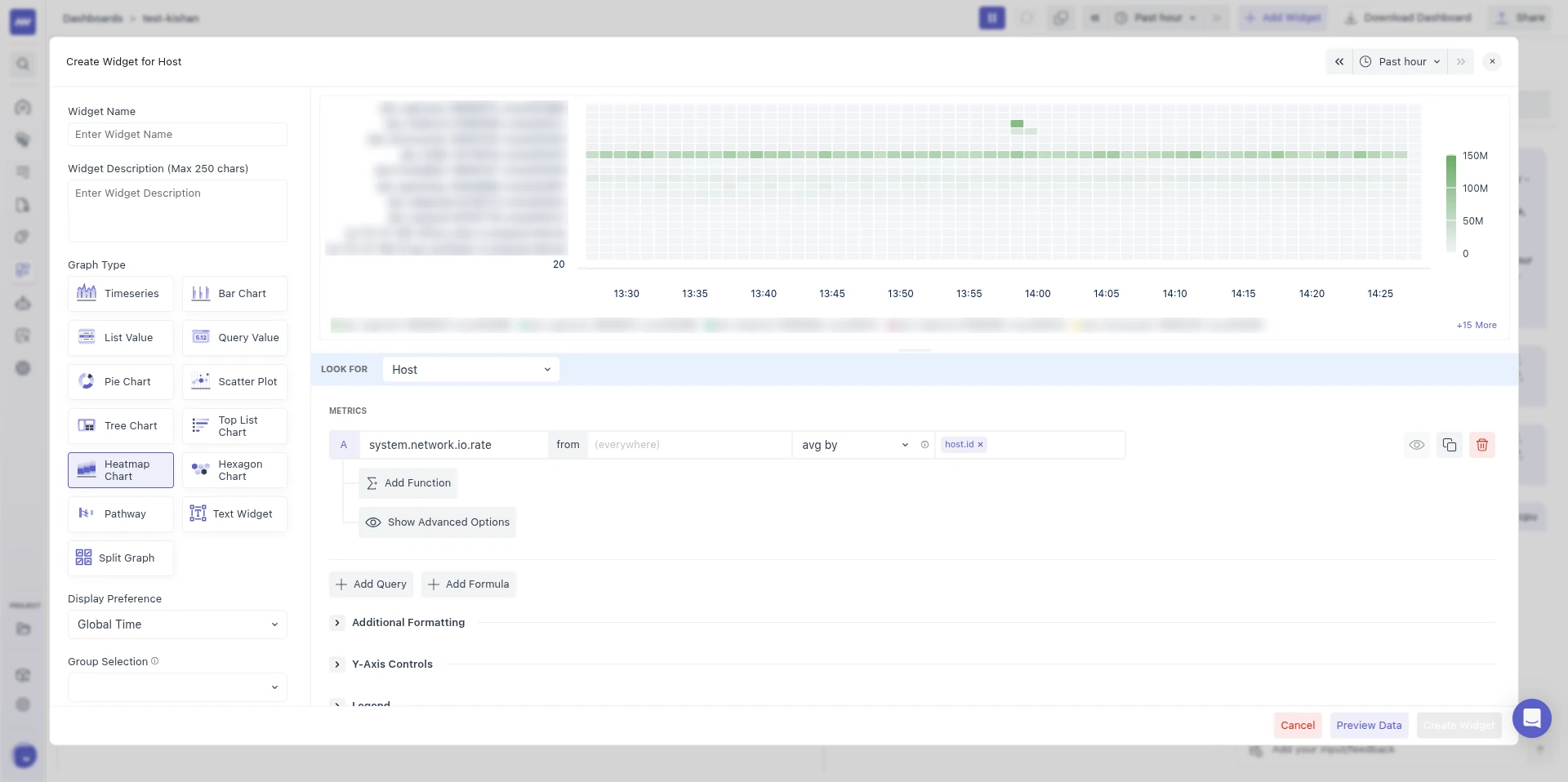
Value distribution: rows are value ranges, and each cell counts the hosts in that range.
6.3 Legend#
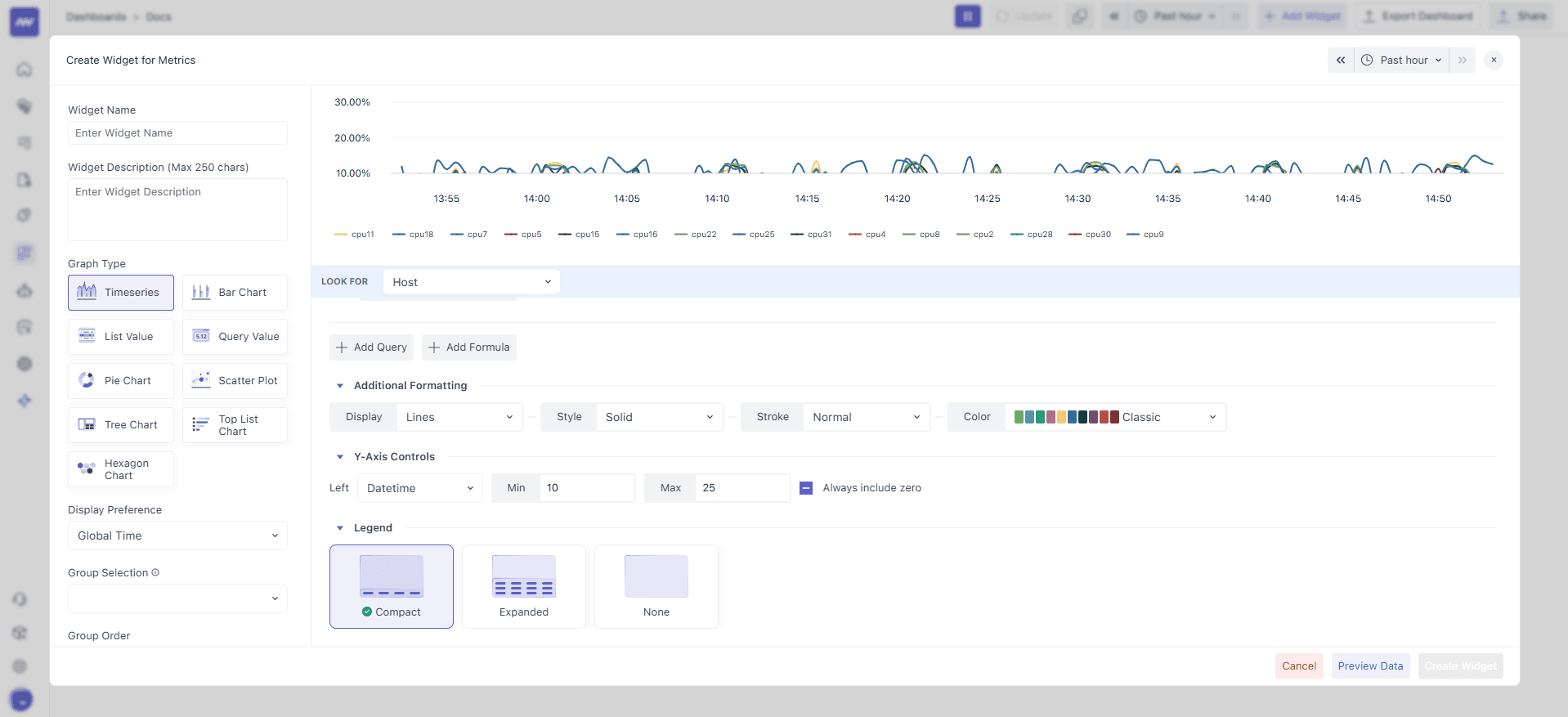
By default, your graph displays legends at the bottom-left corner that help you identify different groups of data. Legends are especially useful when you have multiple data groups and need to quickly understand what each represents.
You can choose from three different legend formats:
- Compact (Default): Shows only the group name for each data series.
- Extended: Shows the group name plus detailed statistics, including minimum, maximum, average, and sum values for each group in a table format. You may need to scroll within the graph area to see the complete table.
- None: Hides the legend completely.
You can temporarily hide specific data groups by clicking on their name in the legend. This is helpful when you want to focus on certain data series or reduce visual clutter. Click the legend name again to show the data group.
6.4 Markers#
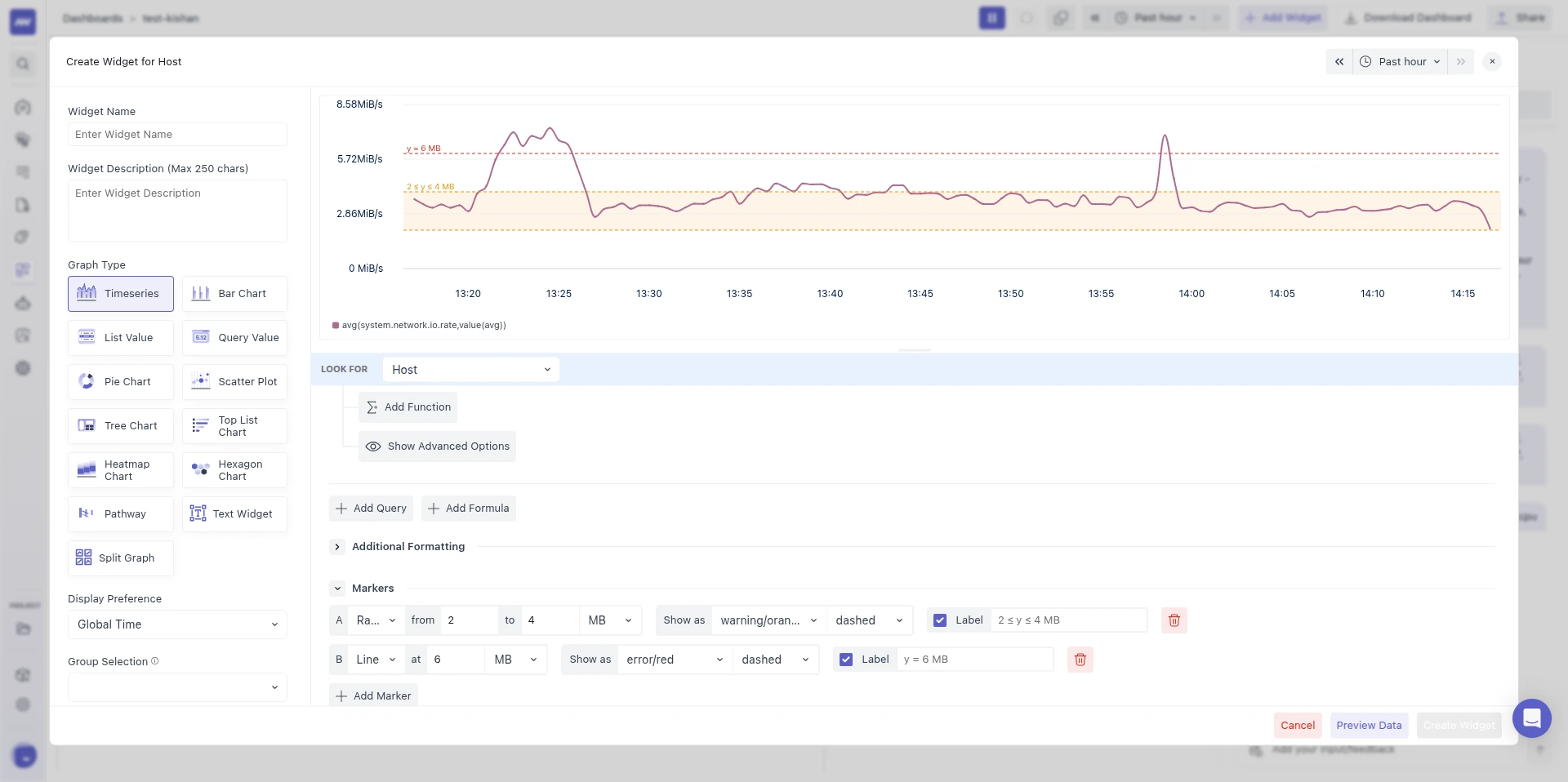
In the Timeseries graph, markers draw fixed reference lines or bands on the chart, so anyone reading the widget can see at a glance whether a value is healthy. Find them in the Markers section, below Additional Formatting in the widget editor.
Example use cases:
- A red Line at
500 mson a p95 latency widget to mark your SLO threshold. - A green Range from
40to70on a CPU utilization widget to mark the expected operating band. - A warning line at
80 GBon a disk usage widget, set in GB even though the metric reports bytes.
Add a marker
- Click Add Marker. Each marker gets a letter: A, B, C, and so on.
- Set the options below.
- To delete a marker, click Remove marker.
| Option | Description | Default |
|---|---|---|
| Type | Line at <Value> draws a horizontal line at one value. Range from <Value> to <Value> shades a band between two values; you can enter the bounds in either order. | Line |
| Unit | Shown when the metric's unit is scalable (bytes, bits, time, or frequency). Values are converted, so "10 GB" is plotted at 10 GB. | The metric's unit |
| Show as (color) | error (red), warning (orange), ok (green), info (blue), or neutral (grey). | error |
| Show as (style) | bold, solid, dashed, or dotted. | bold |
| Label | Shows a label for the marker. If you leave the text empty, a label is generated for you, e.g. y = 6 MB for a line or 2 ≤ y ≤ 4 MB for a range. | On |
The y-axis expands to keep all markers visible. Editing markers doesn't re-run the query.
Need assistance or want to learn more about Middleware? Get in touch with us via our Contact Us or join our Slack channel.
What did you think of this content?