Types of Metrics
Every metric Middleware collects has a type, also called its instrument type. The type describes what the numbers mean: a reading taken at a moment, a running total, or a distribution of values. It decides which aggregations and functions make sense, so the query builder adapts the options it offers to the type of the metric you pick.
Middleware follows the OpenTelemetry metric data model. In the metric picker, each metric shows its type as a badge, and the hover panel repeats it next to the unit.
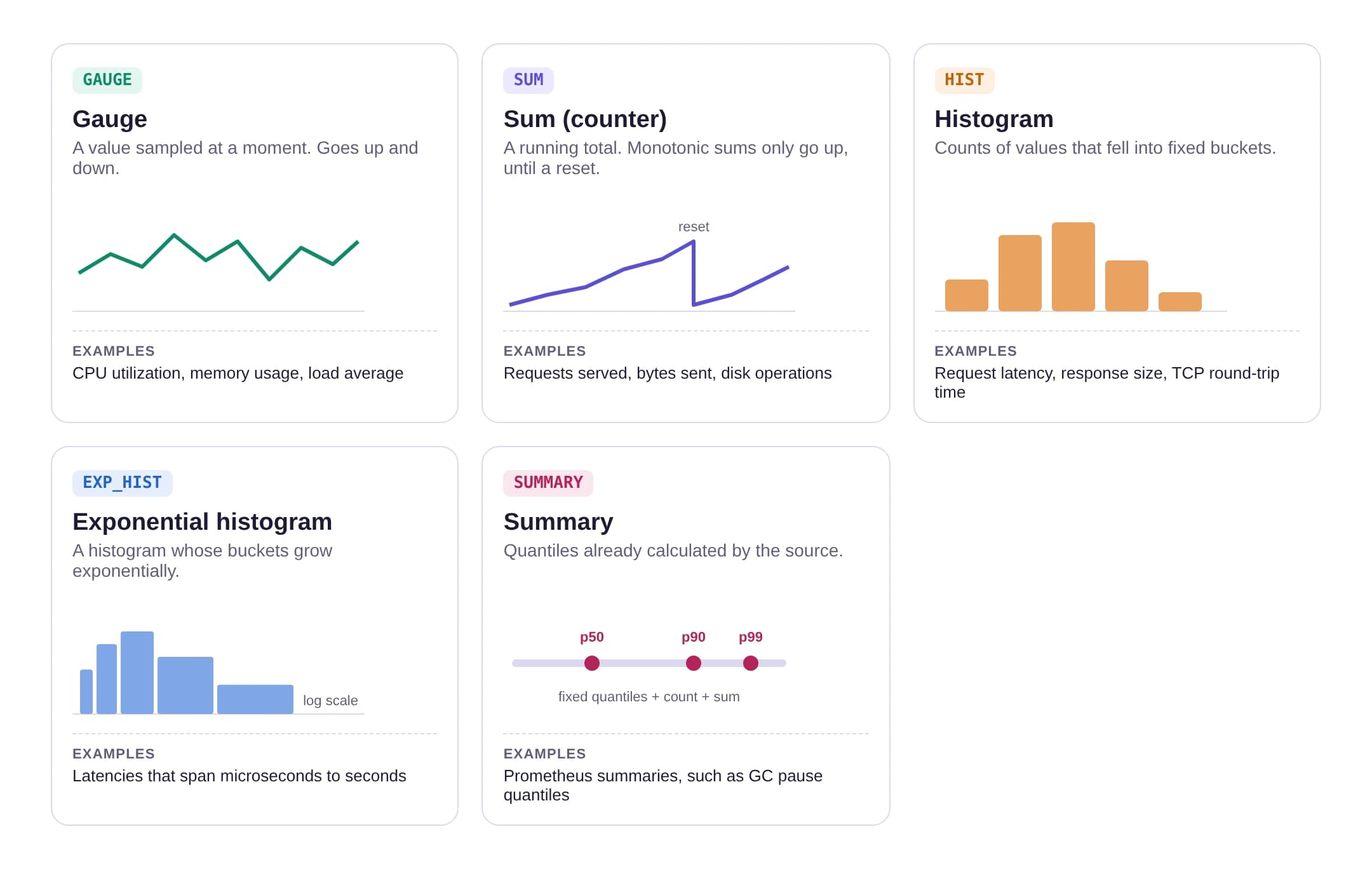
Quick reference#
| Type | Badge | What a data point holds | Typical questions |
|---|---|---|---|
| Gauge | GAUGE | The current value at the moment of measurement | What is CPU or memory usage right now? What was the peak? |
| Sum | SUM | A total accumulated over time | How many requests per second? How many errors in the last hour? |
| Histogram | HIST | Counts of values per bucket, plus their count, sum, min and max | What is the p95 latency? How are response times spread? |
| Exponential histogram | EXP_HIST | Like a histogram, with buckets that grow exponentially | Same as a histogram, for values that span several orders of magnitude |
| Summary | SUMMARY | Quantiles calculated by the source, plus count and sum | What quantiles did the application report? |
Gauge#
A gauge is a value sampled at a point in time. It can go up or down freely, and each data point stands on its own: it doesn't depend on the previous one.
Examples: system.cpu.utilization, system.memory.utilization, system.cpu.load_average.1m, temperatures, queue length.
How to query it
- Combine data points over time with Average, Minimum, Maximum or Last in Roll Up, depending on whether you want the typical value, the low, the peak or the most recent reading.
- Combine hosts with avg by, max by or min by. Summing gauges across hosts only makes sense when the total means something, such as total memory in use across a cluster.
Rate and Increase are not offered for gauge metrics. They treat any drop in value as a counter reset, which gives wrong results for values that naturally go up and down. If you switch from one gauge to another, an applied Rate or Increase is removed. If you switch from a sum metric to a gauge, remove it yourself. To see how fast a gauge changes, use Derivative or Diff, which keep drops negative.
Sum#
A sum, often called a counter, adds up measurements over time. Sums come in two kinds:
- Monotonic sums only increase, such as the number of requests served or bytes sent. They drop back to zero only when the process that reports them restarts.
- Non-monotonic sums can increase or decrease, such as the number of active connections, where connections are added and removed.
Examples: request counts, bytes sent and received, disk operations, system.disk.operation_time.
How to query it
The raw value of a monotonic sum is rarely useful on its own: a total that keeps climbing since the process started doesn't say much about what is happening now. Use a function from the Rate category to turn it into change over time:
- Rate or Per Second for change per second, such as requests per second.
- Per Minute or Per Hour for change per minute or hour.
- Increase for the total change over each interval, such as errors in each 5 minutes.
On every graph type except List Value, picking a monotonic sum applies Rate automatically and sets a /s unit. See Functions in the Dashboard builder guide.
Non-monotonic sums: The Rate functions are offered for non-monotonic sums too, but Rate, Increase, Monotonic Diff and Per Second/Minute/Hour treat every drop as a counter reset. For values such as active connections, use a plain roll-up such as Average or Last, or Diff and Derivative, which keep drops negative.
Temporality#
A sum can report its value in two ways, called its temporality:
- Cumulative: each data point is the running total since the process started, like a car's odometer.
- Delta: each data point is only the change since the previous report.
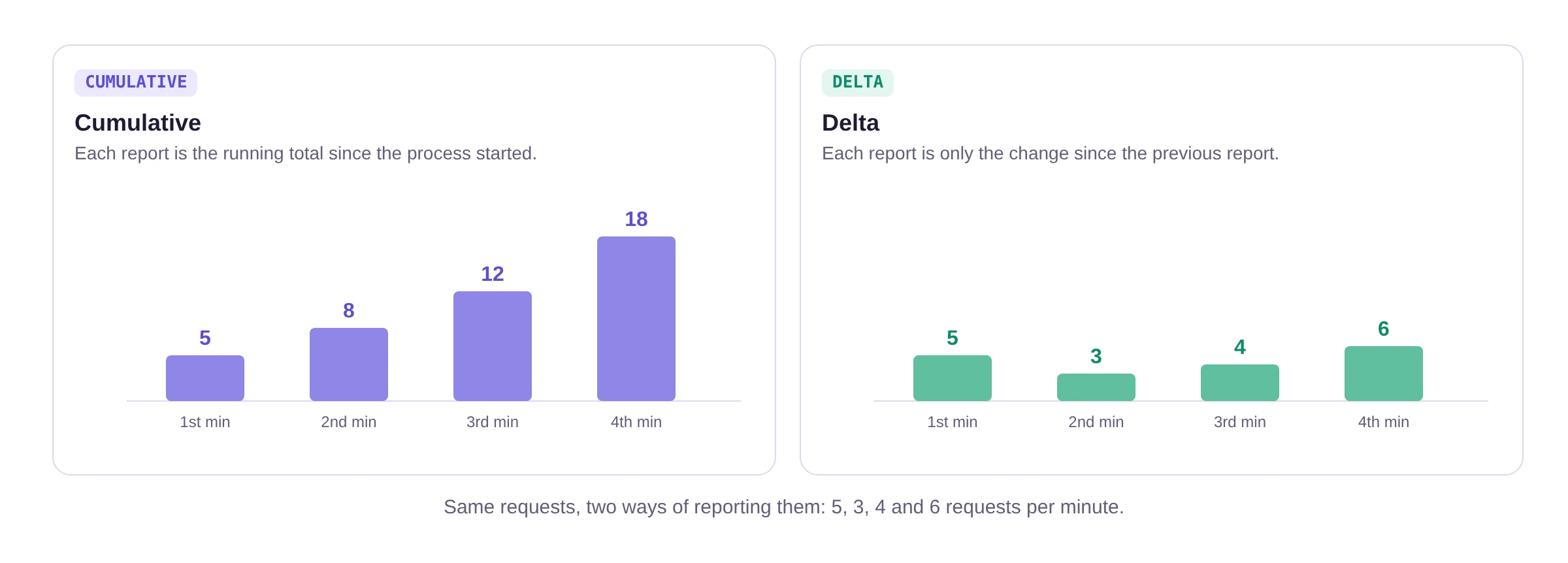
Both describe the same activity; only the reporting differs. In the Dashboard Explorer, the metric metadata bar under a query shows the temporality of the selected metric as CUMULATIVE or DELTA.
Middleware handles the two differently, so the same query can behave differently:
| Query | Cumulative sum | Delta sum |
|---|---|---|
| No rate function | The roll-up you choose (Average by default) of the running total in each bucket | Always the sum of the increments in each bucket, whatever the Roll Up method. The value grows with the bucket size. |
| Rate | Change between buckets ÷ seconds between them | Sum of the increments in the bucket ÷ bucket size in seconds |
| Increase | Change between buckets | Sum of the increments in the bucket |
In both cases Rate gives a per-second value that doesn't depend on the bucket size, which is why it's applied automatically to counters.
Histogram#
A histogram records the distribution of values. Instead of storing every individual measurement, it counts how many fell into each of a set of ranges, called buckets, and also keeps the overall count, sum, minimum and maximum. This makes it possible to calculate percentiles such as the p95 latency.
Examples: request latency, response size, obi.stat.tcp.rtt (TCP round-trip time).
How to query it
When you pick a histogram metric, a field dropdown appears next to the metric picker:
| Field | What you get | Aggregation options |
|---|---|---|
| bucket | Percentiles calculated from the bucket counts | p50, p75, p90, p95 (default), p99 |
| count | How many values were recorded | avg, sum, min, max, last |
| sum | The total of all recorded values | avg, sum, min, max, last |
| min / max | The smallest or largest recorded value | avg, sum, min, max, last |
With the count, sum, min or max field, the Rate category of Add Function offers only Rate and Increase. With the bucket field, the Rate category is hidden, because percentiles are already calculated per time bucket.
On a cumulative histogram, count and sum are running totals since the process started, and their default roll-up is Last. Add Rate or Increase to see how many values were recorded per second or per bucket.
How percentiles are calculated
For each time bucket, Middleware:
- Takes how many values fell into each histogram bucket during that time bucket. For cumulative histograms, it subtracts the previous counts, and a drop is treated as a reset.
- Adds those counts together for all series in the same group, for example all hosts when there is no group by.
- Calculates the percentile from the combined counts, interpolating linearly inside the histogram bucket that holds it, like Prometheus
histogram_quantile.
Because counts are combined before the percentile is calculated, the p95 across many hosts is a true p95 of all their values, not an average of each host's p95.
- Percentiles from a histogram are estimates: Middleware knows how many values fell into each bucket, not their exact values. Narrower buckets give more precise percentiles.
- All series in a query should use the same bucket boundaries. If services report the same metric with different boundaries, the percentiles are unreliable.
- The query builder offers p50 to p99. Higher percentiles such as p99.9 aren't available.
Exponential histogram#
An exponential histogram works like a histogram, but its bucket boundaries grow exponentially instead of being fixed by hand: each bucket is wider than the one before. This keeps the relative precision the same across the whole range, which suits values that span several orders of magnitude, such as latencies from microseconds to seconds.
Examples: latency of network requests or database calls with a very wide range.
How to query it
Exactly like a histogram: the same field dropdown (bucket, count, sum, min, max), the same percentiles, and the same Rate functions. When series use different scales (bucket resolutions), Middleware converts them to the coarsest common scale before combining them, so percentiles across hosts stay accurate.
Summary#
A summary also describes a distribution, but the source calculates the quantiles itself, such as p50, p90 and p99, and reports them along with the count and sum. Summaries mostly come from Prometheus-instrumented applications.
Examples: Prometheus summaries, such as garbage-collection pause durations.
Summary metrics are listed in the metric picker with a SUMMARY badge, but they can't be charted in widgets yet. If you control the instrumentation, report the value as a histogram instead.
Because quantiles are calculated on each source, they can't be combined accurately across hosts: the average of several p99 values is not the p99 of all the data. Prefer histograms when you need percentiles across many hosts or services.
Next steps#
- See how data points are combined over time and across hosts, step by step, in Understanding Aggregations.
- Build queries with these metrics in the Dashboard builder.
Need assistance or want to learn more about Middleware? Get in touch with us via our Contact Us or join our Slack channel.
What did you think of this content?