Webhook
Send Middleware alert notifications to any HTTP endpoint. Use a webhook for tools that don't have a dedicated Middleware integration, such as Zoho Cliq, an internal service, or an automation pipeline.
What you get#
- Send alerts with
POST,PUTorPATCHto anyhttporhttpsURL - Authenticate with custom headers, query parameters, or an OAuth 2.0 token that Middleware refreshes for you
- Shape the request body to match what the receiver expects, using alert variables such as
{{title}}and{{status}} - Send a test request and see the receiver's real status code and response before you save
- See what the receiver replied for every alert, in the rule's alert history
- Choose one or more webhooks as a notification medium per alert rule
Prerequisites#
- A Middleware workspace with permission to install integrations and create alerts
- An HTTP endpoint that accepts requests from Middleware, plus the credentials it requires (an API key, a token, or OAuth 2.0 client credentials)
How it works#
The Webhook integration has two tabs:
- Webhooks are destinations: a URL, a method, headers, and an optional custom payload. Alert rules send to webhooks.
- Auth Methods are reusable OAuth 2.0 credentials. A webhook can reference an auth method, and Middleware attaches a fresh access token to every request.
Keeping credentials in auth methods lets several webhooks share one credential, and rotating it is a single change. Webhooks and auth methods belong to a project, and every alert rule in that project can use them.
Step-by-step Setup#
1 Add a webhook#
- In Middleware, go to Integrations, search "Webhook", and open it.
- On the Webhooks tab, click Add webhook.
- Fill in the form:
| Field | Description |
|---|---|
| Name | Required. The name you pick when you add the webhook to an alert rule, for example Production alerts. |
| Method | POST (default), PUT or PATCH. |
| URL | Required. The full http:// or https:// URL of the receiver. |
| Request Headers | Optional headers sent with every request, for example X-API-Key: <key>. |
| Query Parameters | Optional parameters added to the URL, for receivers that authenticate with an API key in the query string. |
| Auth Method | Optional. Attaches an OAuth 2.0 token to every request. See step 3 below. |
| Custom Payload | Optional request body built from alert variables. Leave it empty to send the default payload. |
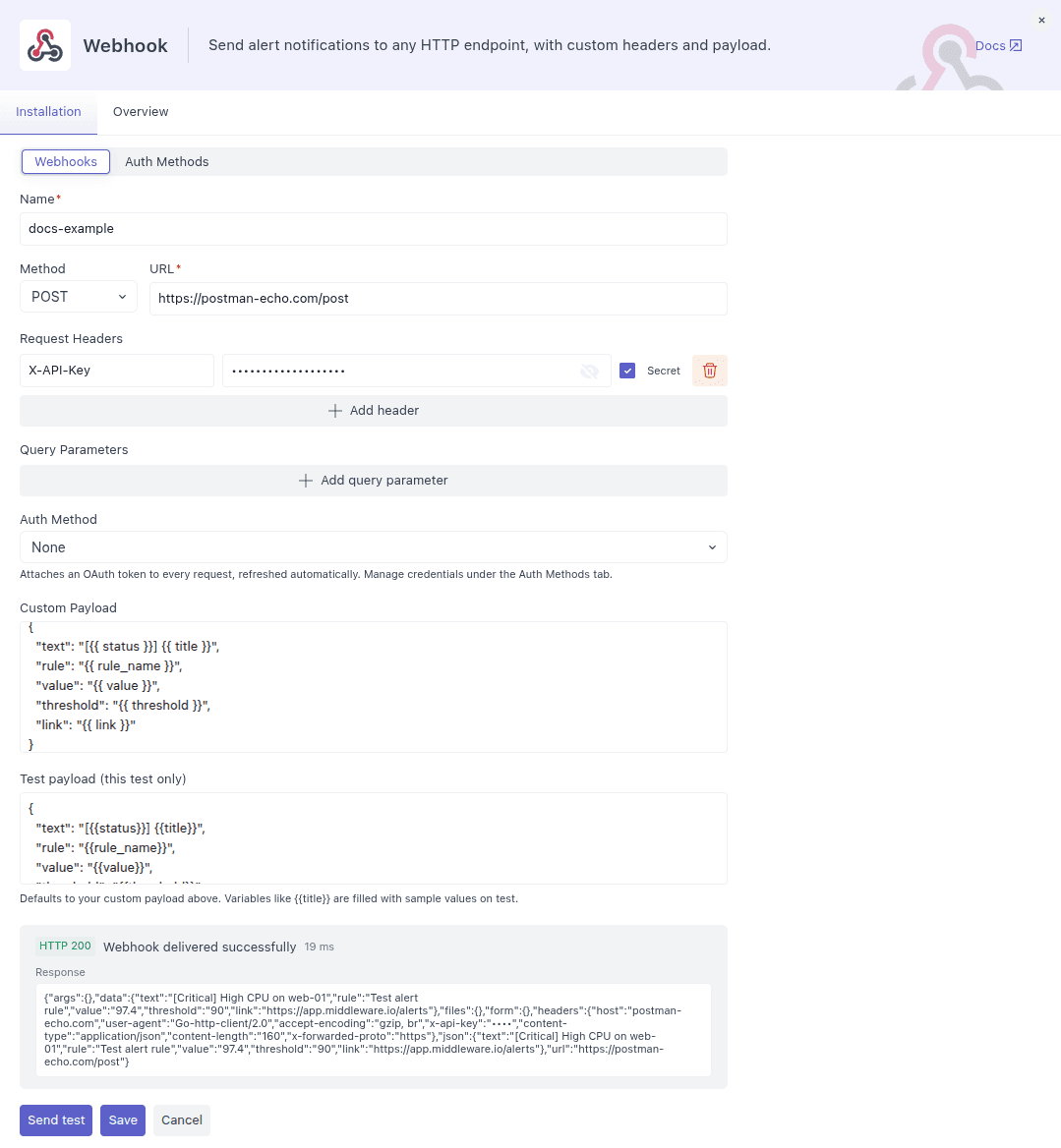
Keep credentials secret. Select Secret on a header or query parameter to store its value write-only:
- The value is never shown again in the UI or returned by the API. Only a mask is displayed.
- Leaving it blank when you edit the webhook keeps the stored value. Typing a new value replaces it.
- It is removed from any error message or response body shown in Middleware. In the screenshot above, the receiver echoed the header back and Middleware shows it as
••••.
Select Secret before you type the value: selecting it clears anything already in the field.
Don't put tokens in the URL. Anything left in the URL field is stored and displayed in plain text. If the receiver expects a token in the query string, add it under Query Parameters and mark it Secret. Middleware warns you when the URL contains a query string.
2 Send a test and save#
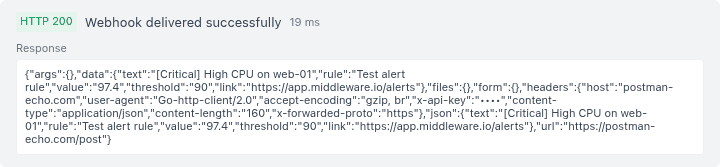
- Click Send test. Middleware sends a sample request and shows the receiver's status code, response body and duration.
- Fix anything the receiver rejects, then click Save.
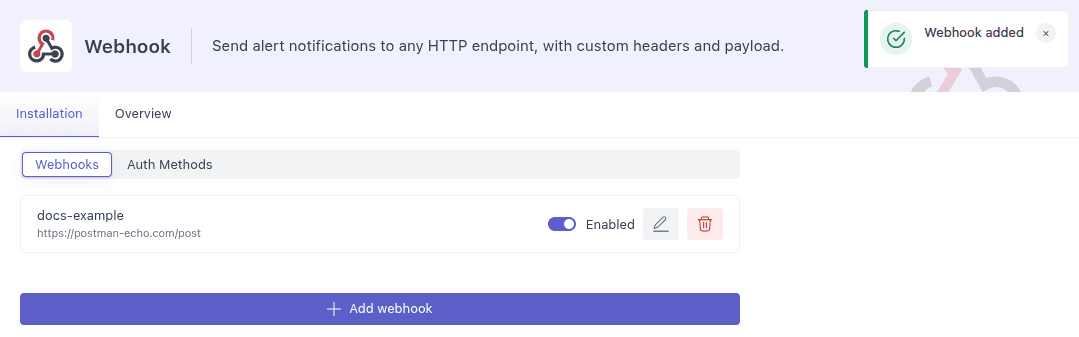
The webhook appears in the list with an Enabled toggle. Turn it off to pause delivery without editing any alert rules: rules skip disabled webhooks.
3 (Optional) Add an auth method#
Use an auth method when the receiver needs an OAuth 2.0 access token. Access tokens usually expire within an hour, so a token pasted into a header stops working soon after. An auth method gets a new token before the old one expires and caches it until then.
- Open the Auth Methods tab and click Add auth method.
- Fill in the form:
| Field | Description |
|---|---|
| Name | Required. Shown in the webhook's Auth Method dropdown. |
| Grant type | OAuth 2.0 — Client Credentials: the client ID and secret are exchanged for a token directly. OAuth 2.0 — Refresh Token: a refresh token you obtained once is exchanged for new access tokens. Use this when your provider issues user-authorized refresh tokens. |
| Access Token URL | Required. The provider's token endpoint, for example https://<provider>/oauth/token. |
| Client ID | Required. |
| Client Secret | Required when you create the auth method. Stored write-only. |
| Refresh Token | Shown only for the Refresh Token grant. Stored write-only. |
| Scope | Optional. Sent to the provider exactly as typed. Separate multiple scopes the way your provider expects: a space for most providers, a comma for some (such as Zoho). |
| Token Prefix | Defaults to Bearer. Change it only if your provider uses a different scheme. |
| Header Name | Defaults to Authorization. |
The token is sent as <Token Prefix> <token> in the header you named. For most providers that is Authorization: Bearer <token>.
- Click Test credentials. Middleware requests a token and shows Token obtained with its expiry, or Failed with the provider's error.
- Click Save.
- Open the webhook that should use these credentials, select the auth method under Auth Method, and click Save.
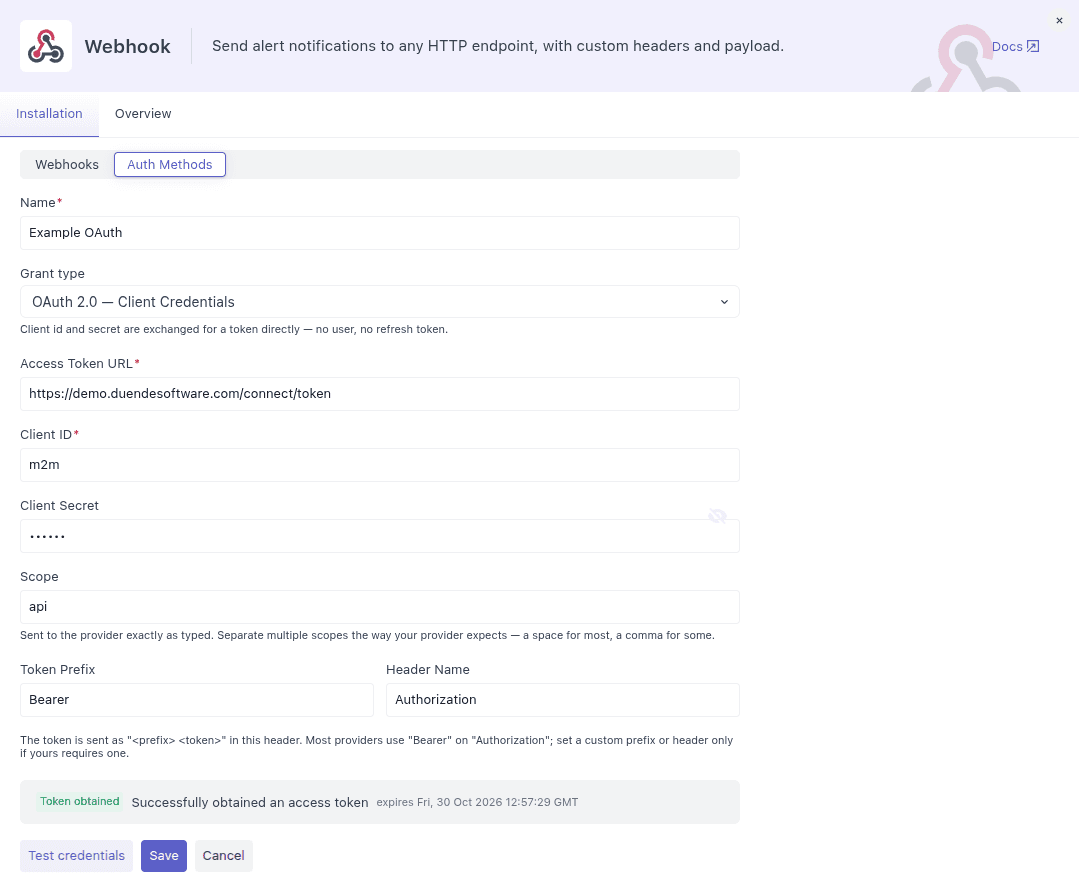
Note: Test credentials only proves Middleware can get a token. Use Send test on the webhook to confirm the receiver accepts it. When a webhook uses an auth method, remove any Authorization header you added by hand: the auth method sets that header on every request.
4 Use the webhook when creating an alert#
- Create (or edit) an alert in Alerts → Create Alert.
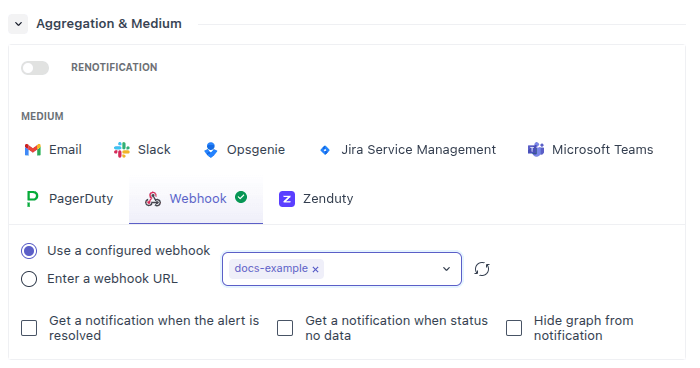
- In Aggregation & Medium, select the Webhook medium.
- Choose how to send:
- Use a configured webhook: pick one or more webhooks saved on the Webhook integration. Their headers, auth method and custom payload are used. If you just created a webhook in another tab, click the refresh icon beside the dropdown to load it.
- Enter a webhook URL: type a URL directly. The request has no custom headers or authentication and uses the default payload. If the URL is a Slack incoming webhook (
hooks.slack.com/services/...), Middleware sends a Slack-formatted message instead. Use this for quick tests only.
- Optionally select Get a notification when the alert is resolved and Get a notification when status no data.
- Save the alert.
Custom payload#
By default, Middleware sends a fixed JSON body (see Default payload). Most chat tools and APIs expect a specific body instead. Use Custom Payload to write that body yourself.
Put variables in double curly braces. When an alert fires, Middleware replaces each one with the alert's value:
{
  "text": "[{{status}}] {{title}}",
  "rule": "{{rule_name}}",
  "value": "{{value}}",
  "threshold": "{{threshold}}",
  "link": "{{link}}"
}- Values are escaped for JSON strings, so a quote or line break in a rule name won't break the body. Place variables inside quoted strings, as shown above.
- An unknown or misspelled variable is replaced with an empty string.
- The body is sent as written and isn't checked for valid JSON, because not every receiver expects JSON. If the receiver rejects it, Send test shows you its error.
- Type
{{in the editor to pick from the list of variables. The editor may display a variable with spaces, such as{{ status }}. Both forms work.
Payload variables#
| Variable | Description |
|---|---|
{{rule_name}} | Name of the alert rule. |
{{title}} | Notification title. |
{{summary}} | One-line summary of the alert. |
{{body}} | Notification body. When the rule has a custom alert message, this is that message with its variables filled in. |
{{status}} | Critical, Warning, Okay or No data. |
{{status_label}} | Status as shown in notification headers. |
{{monitor_type}} | Monitor type, for example metric, log or APM. |
{{metric_name}} | Metric or formula that was evaluated. |
{{operator}} | Comparison operator, for example >. |
{{condition_phrase}} | The condition written out in words. |
{{threshold}} | Threshold that was crossed. |
{{value}} | Evaluated value as a raw number. |
{{value_formatted}} | Evaluated value with its unit. |
{{warning_threshold}} | Warning threshold configured on the rule. |
{{critical_threshold}} | Critical threshold configured on the rule. |
{{evaluation_time}} | Evaluation window of the rule. |
{{alert_on}} | Time the alert was triggered. |
{{host}} | Host the alert is about, when it applies. |
{{group_name}} | Attribute the rule groups by, for example host.name. |
{{group_value}} | Value of that attribute for this alert, for example web-01. |
{{triggered_at}} | Time the alert was triggered. |
{{link}} | Link to the alert in Middleware. |
Rules that send one notification for many groups also provide {{group_count}} (number of groups alerting) and {{top_offenders}} (the groups with the highest values).
Test payload#
The Test payload (this test only) box below Custom Payload controls what Send test sends. It starts with your custom payload, and you can change it for a single test without changing the saved payload. Click Reset to payload above to go back to it.
During a test, variables are filled with sample values, for example {{title}} becomes High CPU on web-01 and {{value}} becomes 97.4. Some variables, such as {{value_formatted}}, have no sample value and are empty in a test. They are filled in when a real alert fires.
Default payload#
When Custom Payload is empty, Middleware sends a JSON object containing the full notification, a timestamp and a version:
{
  "notification": {
    "RuleName": "High CPU",
    "Title": "High CPU on web-01",
    "Summary": "...",
    "MonitorType": "metric",
    "Status": "Critical",
    "MetricName": "system.cpu.utilization",
    "Operator": ">",
    "Threshold": "90",
    "Value": "97.4 %",
    "Link": "https://<your-project>.middleware.io/alerts/rules?ruleid=...",
    "Host": "web-01",
    "GroupName": "host.name",
    "GroupValue": "web-01",
    "TriggeredAt": "...",
    "...": "..."
  },
  "timestamp": "2026-10-30T09:15:00Z",
  "version": "1.0"
}
Use Send test with an empty Custom Payload to see the complete default body.
Verify the Integration#
Middleware records what each webhook replied every time an alert fires.
- Open the alert rule from Alerts → Rule List.
- In Alert History, the Webhook column shows one badge per webhook:
<webhook name> · <status code>, green for a2xxresponse and red otherwise.<webhook name> · failedwhen the request couldn't be completed at all, for example a DNS error, a TLS error, a timeout, or an auth method that couldn't get a token.
- Hover over a badge to see the receiver's response body (first 1 KB) or the error, plus the request duration.

Any 2xx status counts as delivered. Some receivers, such as Zoho Cliq, return 204 No Content on success. Each webhook on a rule is delivered independently, so one failing webhook doesn't stop the others.
Note: If you remove a webhook, alert rules that use it stop sending to it. Before you remove an auth method, update every webhook that uses it.
Example: Zoho Cliq#
This example posts alerts to a Zoho Cliq channel using an OAuth auth method.
1 Create a Zoho API client#
In the Zoho API Console, create a Self Client or Server-based Application and copy its client ID and client secret.
2 Add an auth method#
| Field | Value |
|---|---|
| Grant type | OAuth 2.0 — Client Credentials |
| Access Token URL | https://accounts.zoho.<dc>/oauth/v2/token |
| Scope | ZohoCliq.Messages.CREATE,ZohoCliq.Channels.READ (Zoho expects scopes separated by commas, not spaces) |
| Token Prefix | Zoho-oauthtoken |
| Header Name | Authorization |
<dc> is your Zoho data center: com (US), in (India), eu (Europe) or com.au (Australia). It must match the data center your organization is on. Click Test credentials to confirm Middleware can get a token.
3 Add a webhook#
| Field | Value |
|---|---|
| Method | POST |
| URL | https://cliq.zoho.<dc>/api/v2/channelsbyname/<channel-unique-name>/message |
| Auth Method | The auth method from step 2 |
| Custom Payload | {"text": "[{{status}}] {{title}}\n{{summary}}\n{{link}}"} |
The token URL (accounts.zoho.<dc>) and the message URL (cliq.zoho.<dc>) are on different hosts. Use the same data center for both.
The channel's unique name is not its display name: Cliq removes hyphens and spaces, so a channel shown as #mw-alerts has the unique name mwalerts. To find it, open the channel and go to Channel Info → Connectors → API Endpoint.
4 Test and save#
Click Send test. A successful post returns 204 and the message appears in the channel. Click Save, then add the webhook to your alert rules.
Troubleshooting#
- 401 or 403 from the receiver: The receiver rejected the credentials. Use Send test to see the exact response body, then check the header or query parameter the receiver expects. With an auth method, check the Token Prefix (Zoho requires
Zoho-oauthtoken, notBearer) and that you removed any manualAuthorizationheader. - "auth method error" on the badge: Middleware couldn't get a token, so the request wasn't sent. Open the auth method and click Test credentials to see the provider's error. Common causes are a wrong Access Token URL, an expired refresh token, a rotated client secret, or scopes in the wrong format.
- Send test works but alerts don't arrive: Send test uses the form as it is on screen, but alerts use the saved webhook, so make sure you clicked Save. Check that the webhook is Enabled, and that the alert rule selects this webhook under Aggregation & Medium. If the Webhook column in Alert History has no badge, the rule didn't send a notification, for example because resolve notifications are off.
- Variables are empty: Check the spelling against the variable list. Some variables only apply to some rules, for example
{{host}}is empty for rules that aren't about a host. - 404 from the receiver: Check the URL path and host. For Zoho Cliq, a 404 with
request_url_invalidusually means the wrong data center host, or the channel's display name used instead of its unique name. - Token rejected even though it's fresh: Tokens are scoped to the provider's region. A token issued by one Zoho data center is rejected by another.
Need assistance or want to learn more about Middleware? Get in touch with us via our Contact Us or join our Slack channel.
What did you think of this content?