Querying Metrics
You query metrics in the widget editor of a dashboard. Each widget holds one or more queries, and each query describes which metric to read, which data to keep, and how to combine it into the lines, bars or numbers the widget shows. You build queries with the visual query builder, so there's no query language to learn.
This page gives an overview of the query flow. For every option in detail, see the Dashboard builder guide.
Open the query builder#
- Go to Dashboards and open a dashboard, or create one with Create Dashboard.
- Click Add Widget and choose a data source.
- Pick a Graph Type, such as Timeseries, List Value or Query Value. The graph type affects which query options are available.
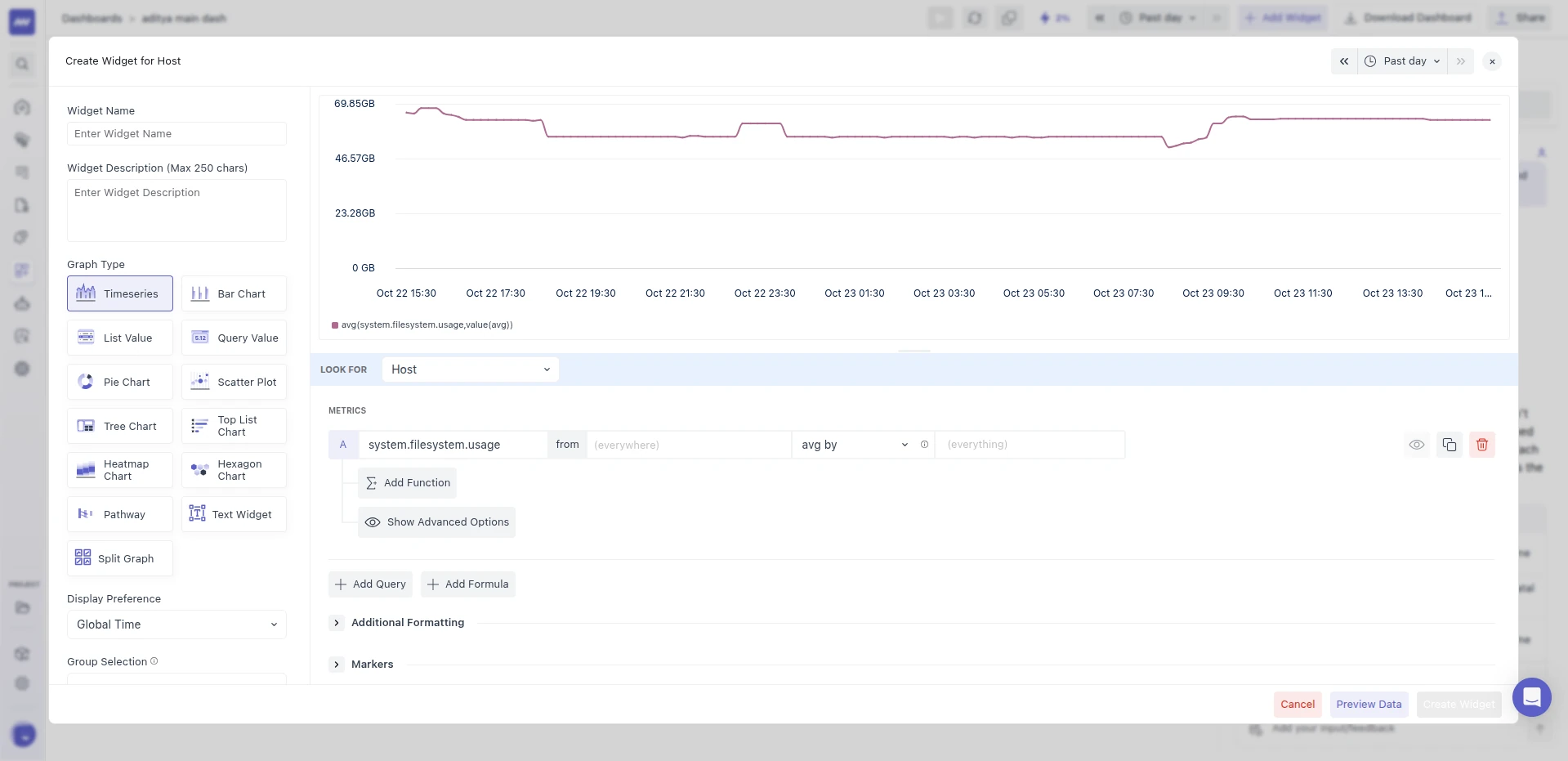
The widget editor shows a live preview at the top and the query builder below it.
Build a query step by step#
A query reads from left to right in the query builder. Each step narrows or shapes the data a little more.
1. Choose the data source#
Use Look For to pick the resource that emits the metric, such as Host, Container or Service. It defaults to All Metrics, which lets you search every metric. Learn more.
2. Pick a metric#
Search for the metric in the metric picker. Each metric shows a badge for its type (GAUGE, SUM, HIST, SUMMARY, EXP_HIST), and hovering over it shows its unit, description and attributes. The type decides which aggregations and functions are offered; see Types of Metrics.
You can also pick an attribute instead of a metric, for example host.id, to count its unique values. Learn more.
3. Filter the data#
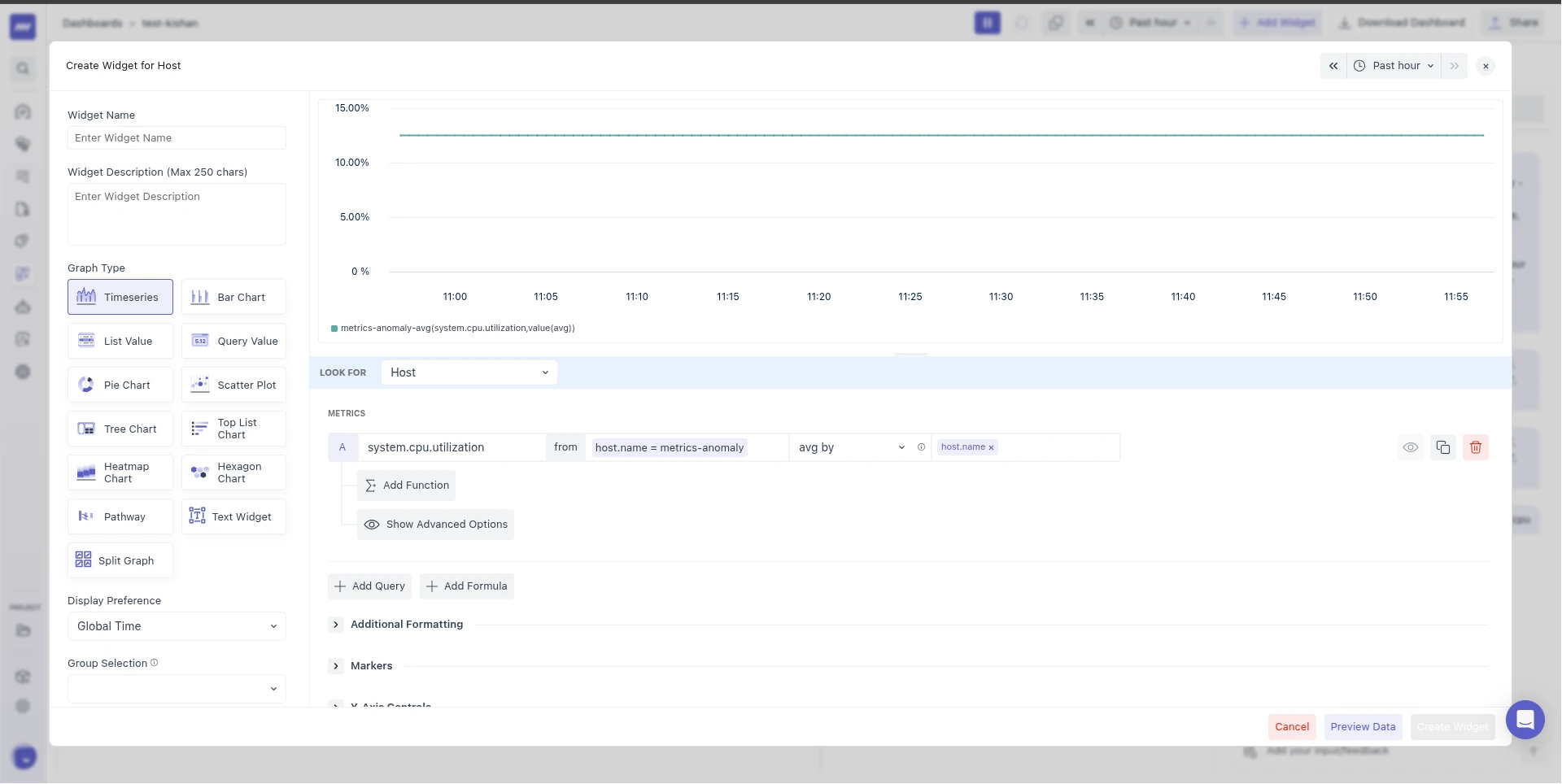
Use the from box to keep only the data you need, for example host.name = metrics-anomaly. You can use operators such as =, !=, IN, LIKE and REGEX, and combine conditions with AND, OR and brackets. The default, everywhere, keeps data from all sources. Learn more.
Keep in mind:
LIKEalways matches values that contain the text:host.name LIKE prodmatchesprod-1andeu-prod. UseREGEX ^prodfor "starts with".ANDandORare applied from left to right with the same precedence, so use brackets when you mix them.- Quote values that contain brackets or operator words with straight double quotes, for example
service.name = "orders (in queue)".
4. Aggregate and group#
Choose how to combine data from many sources into one series, with the aggregation dropdown: avg by, sum by, min by, max by, last, uniq by or count by. Add one or more attributes in group by, such as host.name, to get one series per value instead of one combined series. Learn more.
5. Set the time aggregation#
Under Show Advanced Options, Roll Up controls how data points are combined over time: the method (Average, Sum, Minimum, Maximum, Last) and the bucket size in seconds. Leave the size on auto to let Middleware pick it from the time range. A size smaller than the automatic one for the time range is raised to it. Metric queries cover at most the last 7 days of the selected range, but the bucket size still follows the range you selected, so a 30-day range shows 7 days in 8-hour buckets. Learn more.
6. Transform with functions#
Click Add Function to apply functions to the result, for example Rate to turn a counter into a per-second rate, EWMA to smooth a noisy line, Week before to compare with last week, or Top to keep only the busiest groups. Learn more.
7. Reduce to one value (single-value widgets)#
On widgets that show one number per group, such as List Value or Query Value, Reduce values in timeframe to collapses the selected time range into that number with avg, sum, min, max or last. Learn more.
Combine queries with formulas#
Add several queries to one widget with Add Query. Each query gets a letter (a, b, c…), and Add Formula lets you combine them with +, -, *, /, numbers and brackets, for example (a / b) * 100 to calculate a percentage. Give the queries the same group by so their series line up. Division by zero gives 0, not a gap. Learn more.
Polish the result#
- Alias Name replaces the metric name in the legend and tooltips. Learn more.
- Unit sets how values are displayed, such as bytes, percent or
/s. Learn more. - Sort by and Limit control the order and number of results on single-value widgets. Learn more.
Quick reference#
| I want to… | Use |
|---|---|
| See one line per host | group by host.name |
| See the busiest host, not the average | max by in the aggregation dropdown |
| Turn a request counter into requests per second | Add Function → Rate → Rate |
| Smooth a noisy line | Add Function → Smoothing → EWMA |
| Compare today with last week | A second query with Add Function → Timeshift → Week before |
| Show one number per host in a table | List Value widget, group by host.name, Reduce values in timeframe to |
| Calculate a ratio or percentage | Two queries and Add Formula |
Next steps#
- Learn how each metric type behaves in Types of Metrics.
- See exactly how values are combined in Understanding Aggregations.
- Explore every option in the Dashboard builder guide.
Need assistance or want to learn more about Middleware? Get in touch with us via our Contact Us or join our Slack channel.
What did you think of this content?