Zenduty Integration
Connect Middleware alerts to your Zenduty services so incidents route to the right on-call teams with your existing escalation policies and schedules.
What you get#
- Send alert notifications from Middleware to Zenduty Services
- Auto-resolve incidents in Zenduty when alerts recover (requires "Notify on Resolve" enabled on the alert rule)
- Respect your escalation policies & on-call schedules configured in Zenduty
- Choose Zenduty as a notification medium per alert rule
Prerequisites#
- A Middleware workspace with permission to install integrations and create alerts
- A Zenduty account with permission to create Teams, Services, and Integrations
Step-by-step Setup#
1 Create a Generic Integration in Zenduty#
- In Zenduty, navigate to Teams and select the team you want to receive alerts.
- Open the Services tab and select (or create) a Service.
- Go to the Service's Integrations tab and click Add Integration.
- Search for and select Generic Integration (API).
- Click Configure on the newly added integration and copy the Generic Integration URL.
The URL follows this format:
1https://events.zenduty.com/integration/{team_id}/generic/{integration_key}/Note: Each Service can have its own Generic Integration. If you want different alert rules to page different teams, create a separate Service and Generic Integration for each.
2 Install Zenduty in Middleware#
- In Middleware, go to Integrations, search "Zenduty", and open it.
- Enter a Service Name (a label to identify this service in Middleware, e.g., "Production Alerts").
- Paste the Generic Integration URL you copied from Zenduty.
- Click Add Service.
A successful install shows the service listed with a masked URL preview. You can add multiple Zenduty services to route different alerts to different teams.
Use Test Connection to verify the URL is valid and reachable.
3 Use Zenduty when Creating an Alert#
- Create (or edit) an alert in Alerts → Create Alert.
- In Configure Notifications, select Zenduty as a medium.
- Pick the Service you want to page (e.g., "Production Alerts").
- Save the alert.
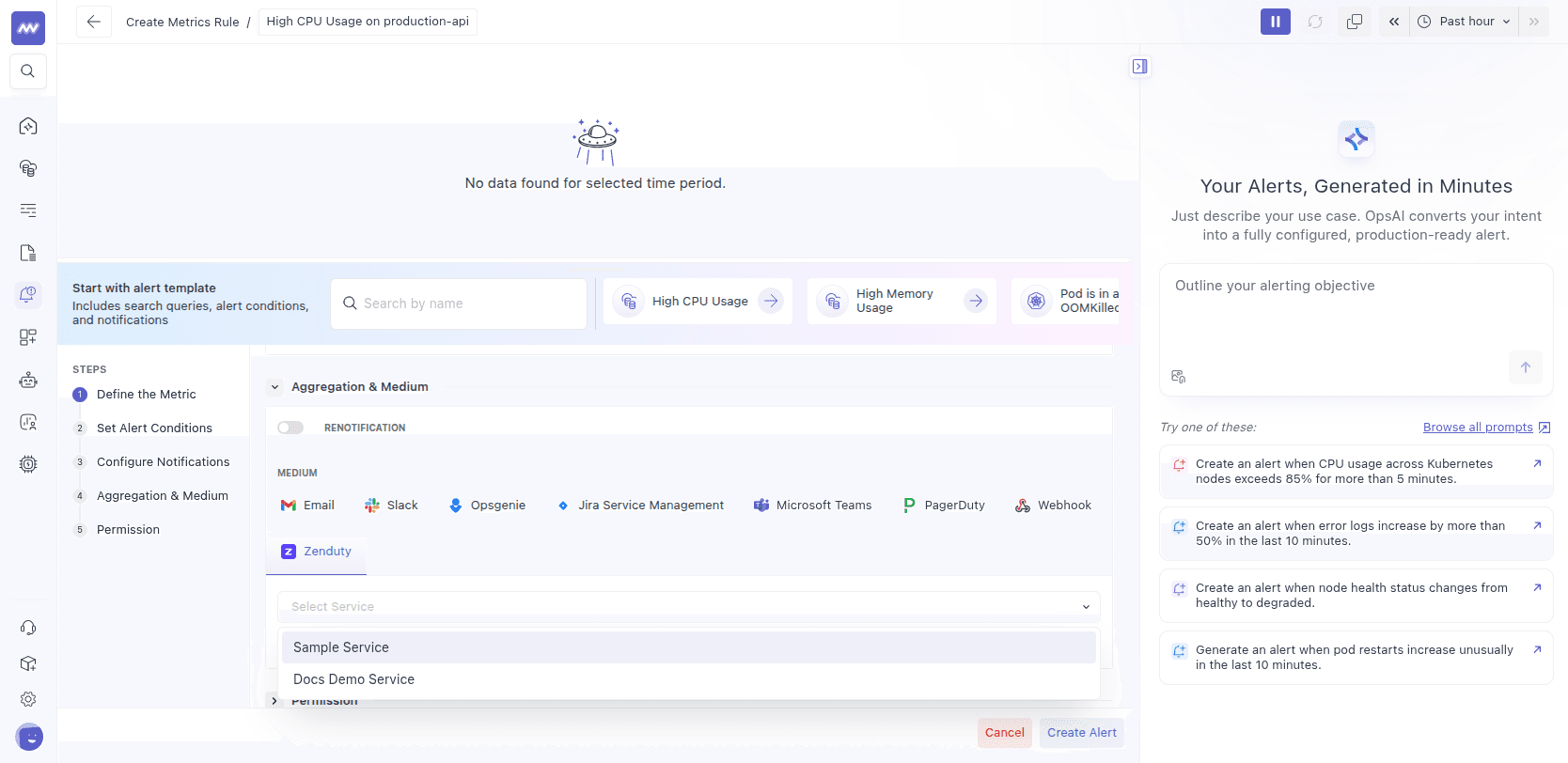
Tip: Enable "notify on resolve" if you also want a resolution update sent to Zenduty when the alert recovers. Zenduty will automatically resolve the corresponding incident.
How It Works#
When an alert triggers, Middleware sends an incident event to the Zenduty Generic Integration endpoint:
- Incident title: A short summary like "CRITICAL: High CPU Usage"
- Incident body: Structured details including the metric name, current value, condition, and a link to the alert in Middleware
- Dedup key: A stable identifier per alert rule and group value, so re-triggers update the same incident instead of creating duplicates
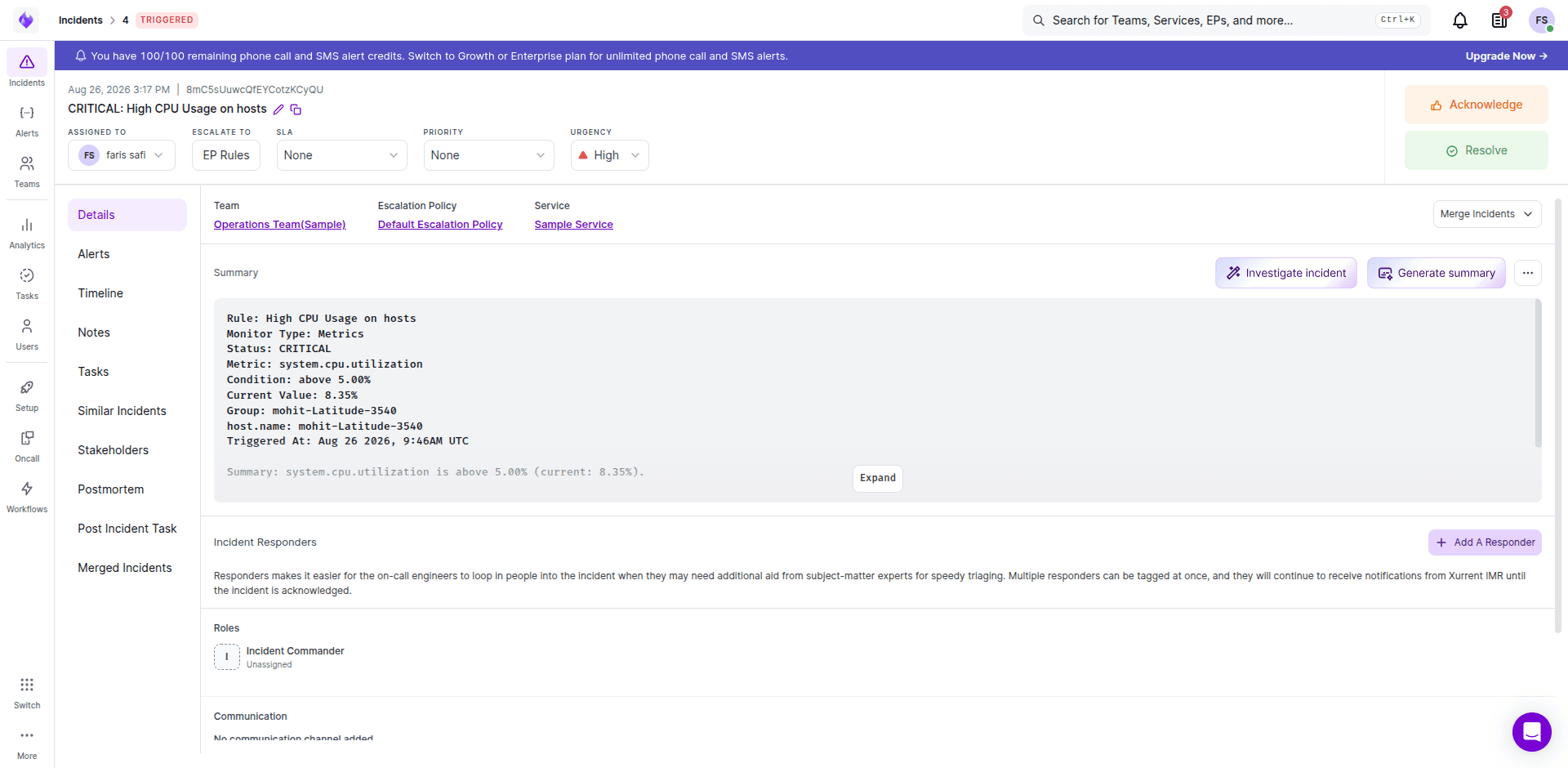
When "Notify on Resolve" is enabled on the alert rule and the alert condition recovers, Middleware sends a resolve event with the same dedup key, which automatically resolves the incident in Zenduty.
Verify the Integration#
- Trigger a test alert condition that targets a rule where Zenduty is selected.
- In Zenduty, check Incidents under the chosen Service and confirm the incident appears with your alert's title and details.
- If "Notify on Resolve" is enabled, confirm the incident is automatically resolved when the alert recovers.
Troubleshooting#
- Invalid URL on install: The URL must be a Generic Integration URL in the format
https://events.zenduty.com/integration/.../generic/.../. The legacy Zenduty/api/events/endpoint is not supported. - Test connection fails with 404: The integration key may be invalid or the integration was deleted in Zenduty. Re-create the Generic Integration and use the new URL.
- No services listed: No services have been added yet in Middleware. Follow the setup steps above to add at least one.
- Alert didn't trigger in Zenduty: Edit the alert rule and confirm Zenduty is selected as a notification medium and the correct Service is chosen.
- Was working, now failing: The Generic Integration may have been deleted or disabled in Zenduty. Check the integration status in Zenduty and re-add if needed.
Need assistance or want to learn more about Middleware? Get in touch with us via our Contact Us or join our Slack channel.