OpsAI Skills
A skill is a set of instructions that tells OpsAI how to handle one kind of task, such as investigating a slow endpoint, triaging failed payments, or creating an alert. Each skill has a name, a description, and step-by-step instructions written in Markdown.
OpsAI doesn't follow every skill on every request. It reads the description of each enabled skill and loads only the ones that match the task in front of it. This means you can add skills for all of your team's runbooks without cluttering unrelated chats and investigations.
There are two types of skills:
- Middleware: Built-in skills maintained by Middleware. They cover common work such as logs, traces, Kubernetes, databases, alerts, and dashboards.
- Custom: Skills your team writes, such as runbooks, triage steps, and escalation procedures specific to your stack.
Skills are saved per project, so each project has its own custom skills and its own set of enabled Middleware skills.
Open the Skills Tab#
Go to Settings → OpsAI Settings and select the Skills tab.
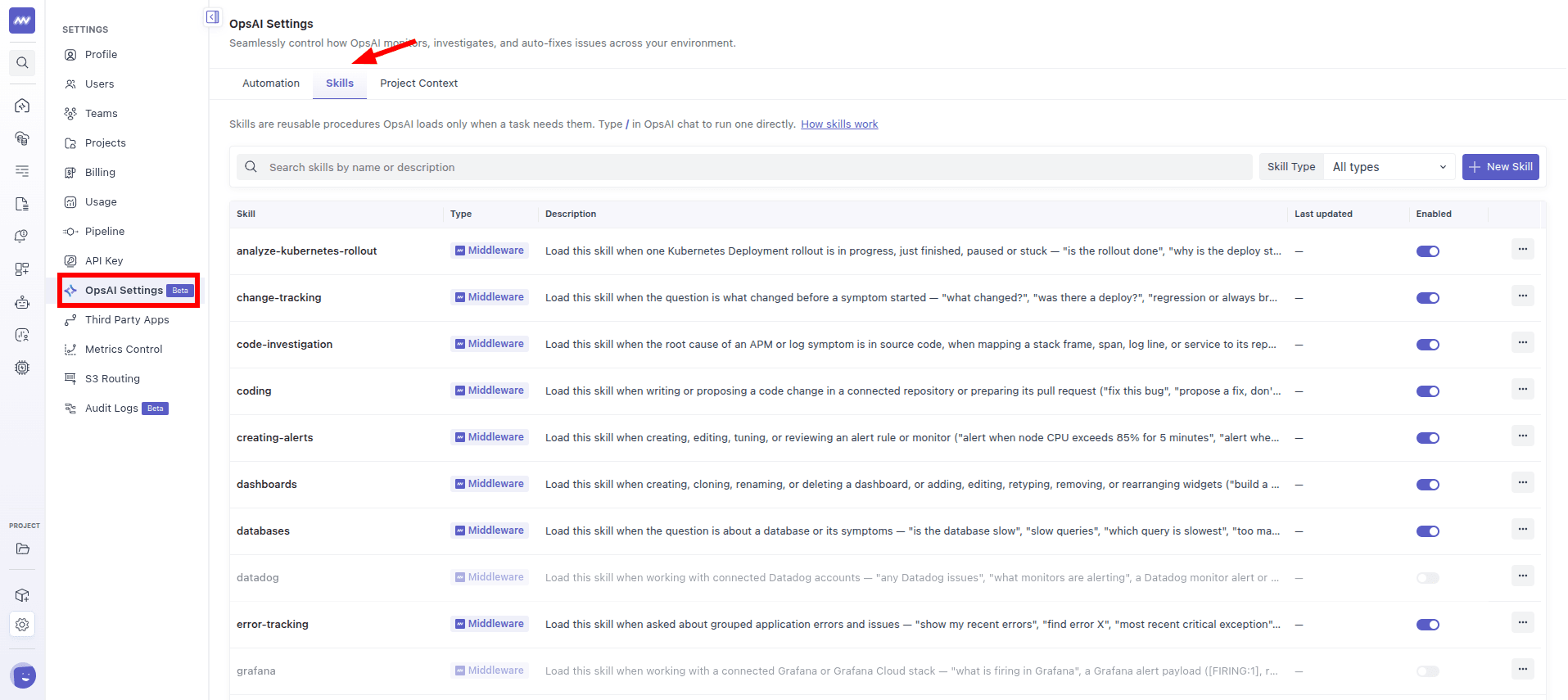
The table lists every skill in the current project:
- Skill: The skill name. This is also what you type after
/in OpsAI chat. - Type: Middleware or Custom.
- Description: When OpsAI should use the skill.
- Last updated: When a custom skill was last changed.
- Enabled: Whether OpsAI can use the skill in this project. Disabled skills appear greyed out.
Use the search box to find a skill by name, and the Skill Type filter to show All types, Middleware, or Custom skills.
Enable or Disable a Skill#
Use the Enabled toggle on a row to turn a skill on or off for the current project. OpsAI never uses a disabled skill, even if someone picks it with /.
Create a Custom Skill#
Click New Skill in the top-right corner of the Skills tab.
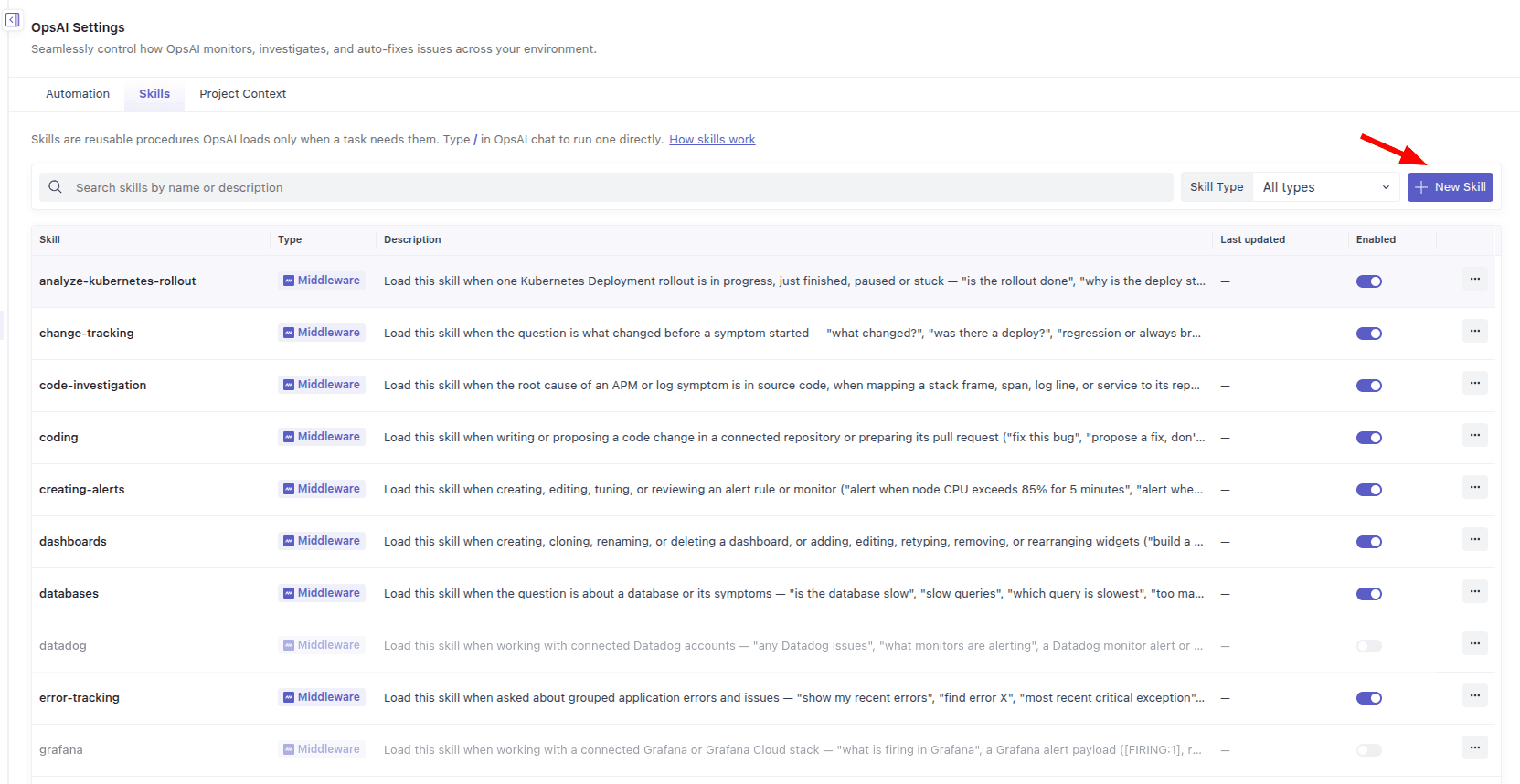
You can write the skill in the editor, upload an existing SKILL.md file, or ask OpsAI to draft it for you.
Write a Skill in the Editor#
The New Skill form has three sections.
1. Define the skill
- Name: Lowercase letters, numbers, and single hyphens, up to 64 characters, for example
checkout-latency-runbook. The name must be unique in the project and can't match a Middleware skill name. You can't rename a skill after you create it. - Description: Up to 1,024 characters. OpsAI reads the description to decide when to load the skill, so say when to use it, not only what it does.
2. How OpsAI uses it
- Auto-use: OpsAI loads the skill on its own when the description matches the task. Turn this off if the skill should run only when someone picks it with
/. - Show in / menu: People can pick the skill by typing
/in OpsAI chat.
Both options are on by default.
3. Instructions
Write the steps OpsAI should follow, in Markdown, up to 20,000 characters. Switch to Preview to see how the instructions render. If the editor is empty, click Insert template to start from this outline:
## Purpose
What this skill does, in one line.

## When to use
- The alert or question that should bring this in

## When not to use
- The lookalike cases it should stay out of

## Steps
1. First thing to check, and where
2. What to do with the answer

## Output
- Status: healthy | degraded | down
- Evidence: a few bullets, each with a link
When you're done, click Create skill. To keep working on it later, click Save as draft instead.
Drafts are saved disabled, so OpsAI won't use them yet. When the skill is ready, turn on its Enabled toggle in the Skills table.
Write a Description OpsAI Can Match#
The description decides whether OpsAI picks up your skill, so make it specific. Name the symptoms, alerts, or questions that should trigger it, and the lookalike cases it should stay out of.
| Description | |
|---|---|
| Too vague | Stripe payments. |
| Better | Use when checkout payments fail or the payment success rate drops: declined charges, failed Stripe webhooks, or errors in checkout-service. Not for refunds or billing questions. |
Example Custom Skill#
Here's what a complete custom skill can look like:
- Name:
stripe-payment-failure-triage - Description: Use when checkout payments fail or the payment success rate drops: declined charges, failed Stripe webhooks, or errors in checkout-service. Not for refunds or billing questions.
- Instructions:
## Purpose
Find out why payments are failing and whether the cause is on our side or Stripe's.

## Steps
1. Check the error rate and p95 latency of `checkout-service` and `payment-gateway` for the last hour, and compare them with the same window yesterday.
2. Search the `payment-gateway` logs for `card_declined`, `rate_limit`, and `api_connection_error`, and count each one.
3. If most failures are `card_declined`, the problem is likely on the customer side. Report it and stop.
4. If the errors started after a deploy, name the deploy and the commit.
5. If webhooks are failing, check the `/webhooks/stripe` endpoint for 4xx and 5xx responses.

## Output
- Status: healthy | degraded | down
- Likely cause, with links to the traces and logs you used
- Escalate to #payments-oncall if the failure rate is above 5% for more than 10 minutes
Upload a SKILL.md File#
If you already keep runbooks as Markdown, upload one at the top of the New Skill form. Drag a .md or .markdown file (up to 5 MB) onto the upload area, or click to browse.
If the file starts with front matter containing name and description, OpsAI fills those fields in and uses the rest of the file as the instructions:
---
name: stripe-payment-failure-triage
description: Use when checkout payments fail or the payment success rate drops. Not for refunds or billing questions.
---

## Steps
1. ...
Without front matter, the name comes from the file name and the whole file becomes the instructions. Add a description before you save.
Review the filled-in form, then click Review & create.
Create a Skill with OpsAI#
When you open the New Skill form, the Ask OpsAI panel opens next to it with starter prompts such as:
- Write a skill for triaging Stripe payment failures
- Turn our checkout latency runbook into a skill
- Write a skill for investigating Kubernetes pod restarts
- Turn our on-call escalation steps into a skill
Describe the procedure or paste in your runbook, and OpsAI drafts the skill and saves it to the project. You can also ask OpsAI to update an existing custom skill, or to save the steps from a conversation as a new skill, for example, "Save what we just did as a skill".
When OpsAI saves a skill, a card appears in the chat with the skill name and a View in OpsAI Settings link. Skills saved from chat are enabled right away.
Run a Skill from OpsAI Chat#
To make OpsAI follow a specific skill, pick it with /:
- In OpsAI chat, type
/at the start of the message or after a space. The skills menu opens, with your custom skills under Your skills and built-in ones under Middleware. - Keep typing to filter skills by name. Use the ↑ and ↓ keys to move, Enter to select, and Esc to close the menu.
- The selected skill appears as a chip in the message box. Click ✕ on the chip to remove it.
- Type your question and send the message.
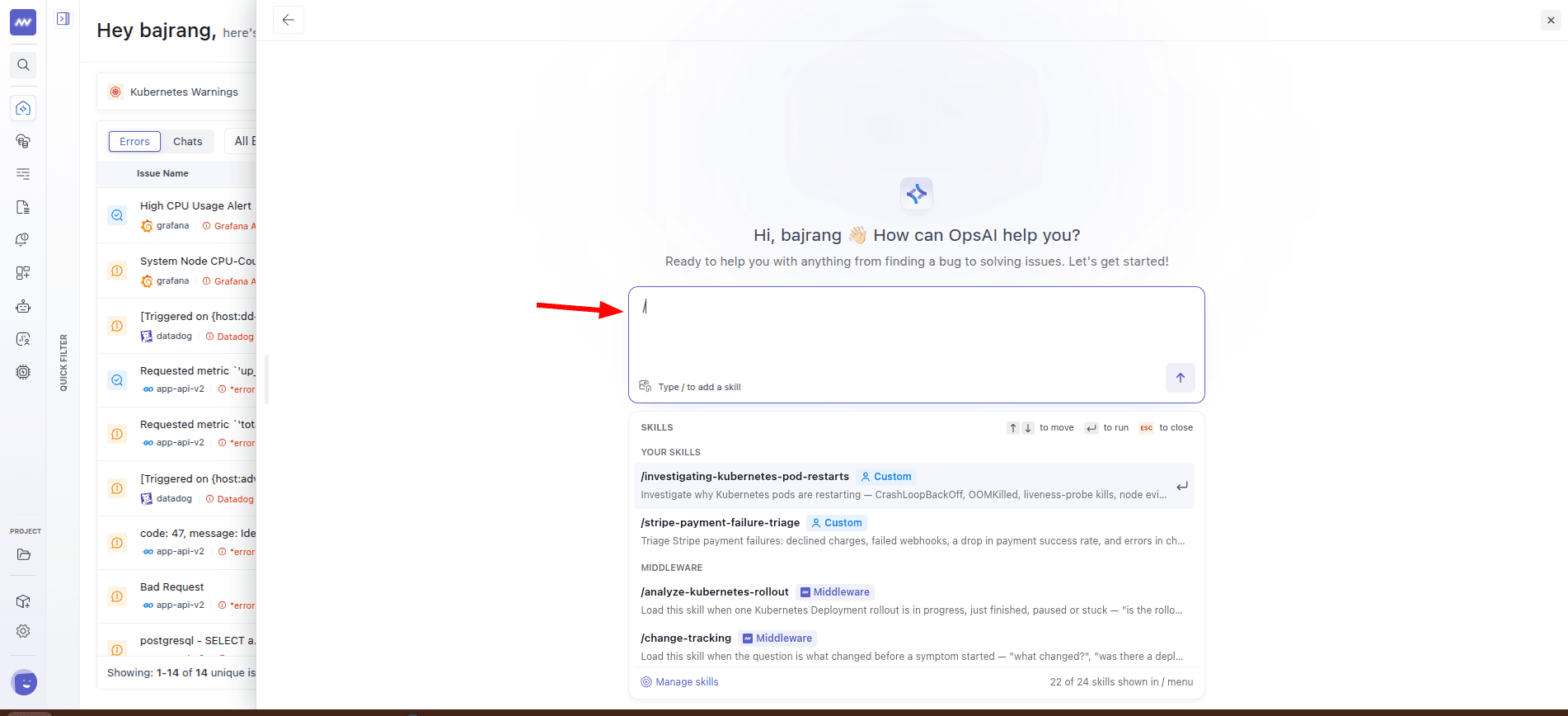
OpsAI loads the skills you pick before it starts on your request, even if their Auto-use option is off. If you send a message with only a skill and no text, OpsAI simply follows that skill.
A few things to keep in mind:
- You can pick up to five skills per message.
- The menu shows only skills that are enabled and have Show in / menu turned on. The footer shows how many of the project's skills are in the menu, for example 22 of 24 skills shown in / menu.
- Click Manage skills at the bottom of the menu to open the Skills tab.
See Which Skills OpsAI Used#
Under each completed OpsAI response, Skills used lists the skills OpsAI followed for that answer, for example /investigating-latency.
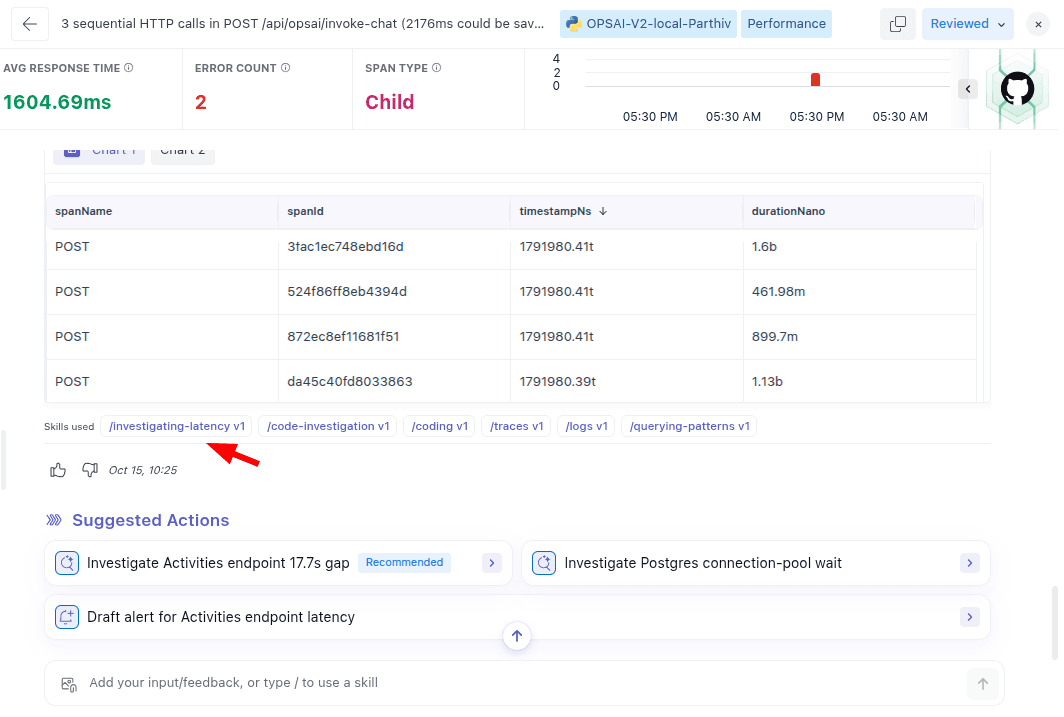
- Hover over a chip to see whether it's a Middleware skill or one of yours, and whether you picked it with
/or OpsAI loaded it on its own. - Click a chip to open the skill in a new tab. A Middleware skill opens in a read-only view, and a custom skill opens in the editor.
Use this list to check that OpsAI followed the right procedure. If OpsAI skipped a skill you expected, make that skill's description more specific about when to use it. If it loaded a skill it shouldn't have, add a "not for" line to that skill's description.
Edit, Duplicate, Download, or Delete a Skill #
Click ⋯ at the end of a skill's row to see its actions.
For custom skills:
- Edit: Change the description, options, or instructions. The name can't be changed. Changes take effect from OpsAI's next chat or investigation.
- Duplicate: Open a new skill form pre-filled with this skill's content. Give the copy a new name before you save it.
- Download SKILL.md: Save the instructions as
<skill-name>-SKILL.md. - Auto-use and Show in / menu: Turn these options on or off without opening the editor.
- Delete: Remove the skill from the project. OpsAI stops using it right away, and this can't be undone.
For Middleware skills:
- View: Read the description and full instructions.
- Duplicate: Create a custom copy that you can edit.
- Download SKILL.md: Save the instructions as a Markdown file.
A downloaded SKILL.md contains only the instructions. If you upload it again, add the description in the form, or add front matter to the file first.
Skills and Project Context#
Skills work alongside Project Context, the third tab in OpsAI Settings. Use each one for a different kind of information:
| Project Context | Skills | |
|---|---|---|
| When OpsAI reads it | Before every chat, investigation, and skill run | Only when the task matches the skill, or when someone picks it with / |
| What to put in it | Facts OpsAI should always assume: naming conventions, environments, critical services, escalation paths | Procedures that apply only in certain situations: runbooks, triage steps, how to build a specific alert |
Permissions#
To create, edit, duplicate, delete, enable, or disable skills, your role needs the OpsAI permission to take actions on OpsAI errors. The default Administrator role has it. See Roles & Permissions to manage roles.
Without this permission, you can still view skills, download them, and use them in OpsAI chat.
Limits#
| Item | Limit |
|---|---|
| Skill name | Up to 64 characters: lowercase letters, numbers, and single hyphens. Can't contain "claude" or "anthropic" |
| Description | 1 to 1,024 characters. Can't contain < or > |
| Instructions | 1 to 20,000 characters |
| Uploaded file | .md or .markdown, up to 5 MB |
Skills picked with / | Up to 5 per message |
Tips and Troubleshooting#
- OpsAI didn't use my skill: Check that the skill is Enabled and Auto-use is on, and that its description says when to use it. To make sure OpsAI follows it, pick the skill with
/. - A skill is missing from the / menu: Turn on both Enabled and Show in / menu for that skill.
- A saved draft isn't being used: Drafts are saved disabled. Turn on the Enabled toggle in the Skills table.
- I can't edit a Middleware skill: Middleware skills are read-only. Duplicate the skill and edit the copy.
- New Skill, Edit, or the toggles are disabled: Your role doesn't have permission to change skills. Ask an administrator.
Need assistance or want to learn more about Middleware? Get in touch with us via our Contact Us or join our Slack channel.
What did you think of this content?