Grafana
The Grafana integration in Middleware lets you connect your Grafana instance and ingest alerts via webhook so that whenever an alert fires in Grafana, its details are sent to Middleware and displayed in the OpsAI alerts listing. Each alert includes context such as title, status, state, message, receiver, commonLabels (e.g. alertname, rulename, grafana_folder), generatorURL, and silenceURL, so you can see full context and jump back to Grafana.
The integration has two tabs: Configuration (where you set the connection and capabilities) and Alert Ingestion (where you follow steps to configure the webhook in Grafana). Once alerts are flowing, you can open any alert in a detailed side panel and start an OpsAI investigation, Middleware uses your Grafana integration and enabled capabilities to fetch metrics, logs, dashboards, and more, then produces a report and suggested fixes.
Prerequisites#
Before connecting Grafana to Middleware, ensure you meet the following requirement:
1 Grafana Account#
You must have an active Grafana account. The integration uses a Grafana service account token to securely access dashboards, metrics, logs, and other data needed for OpsAI investigation.
Setup#
The Grafana integration in Middleware has two tabs: Configuration and Alert Ingestion. Configure the connection and capabilities first, then set up the webhook in Grafana so alerts are sent to Middleware.
Configuration tab#
Use this tab to connect Middleware to your Grafana instance and choose which capabilities OpsAI can use.
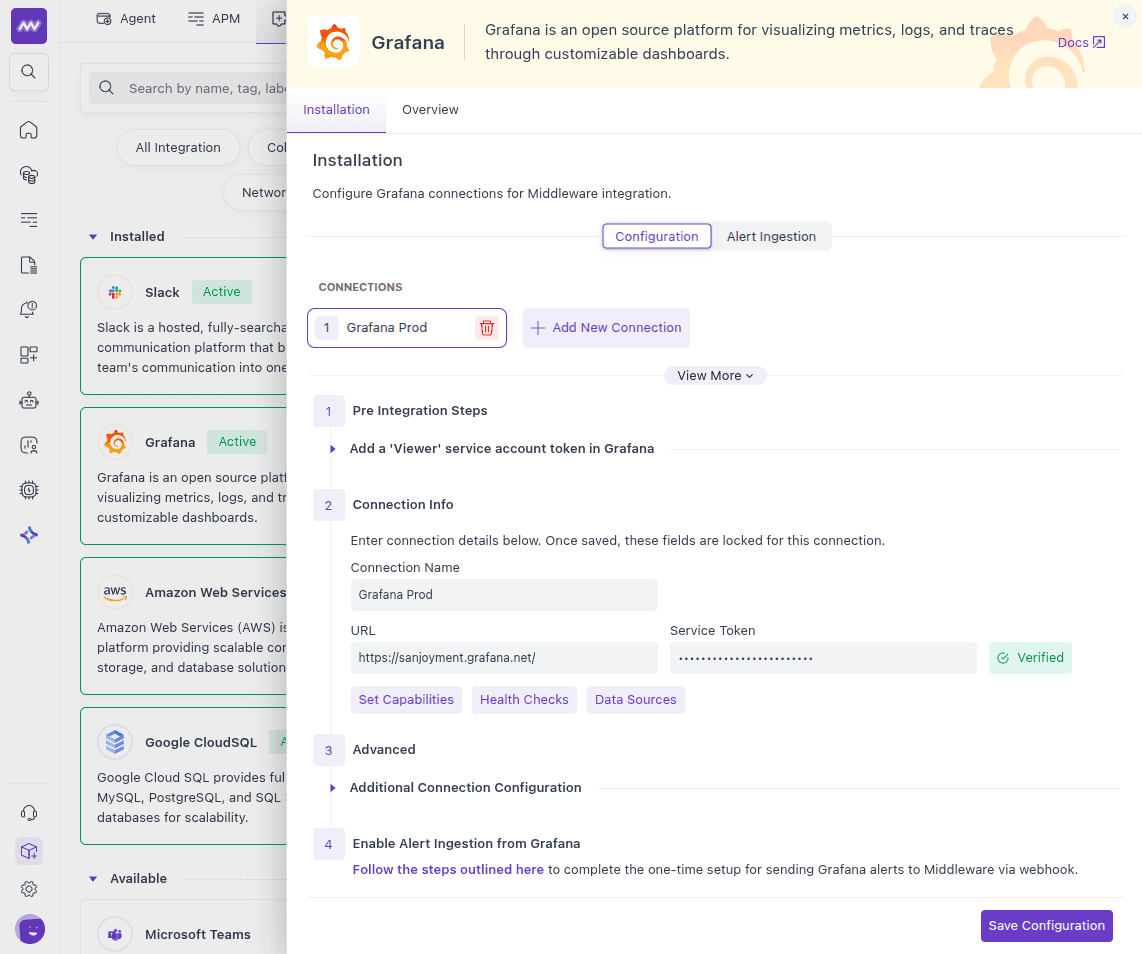
1 Connection details#
- Navigate to Installation > Integration > Grafana Integration within the Middleware platform.
- Open the Configuration tab and click Add New Connection.
- Enter a Connection name for this integration.
- Enter your Grafana URL (e.g.
https://my-company.grafana.netor your self-hosted URL). - For Service token, create a service account in Grafana with the Viewer role and use its token (see step 2 below).
2 Create a service account and token in Grafana#
To obtain the Service token for the connection:
- Open the Service Accounts page in Grafana (e.g.
https://my-company.grafana.net/org/serviceaccounts). - Select an existing Viewer service account, or create a new one with the Viewer role.
- Click Add service account token.
- Click Generate token.
- Click Copy to clipboard and paste the value into the Service token field in Middleware.
Save the connection after pasting the token.
3 Modify Capabilities#
You can enable or disable the following capabilities for OpsAI:
- Scrape - When enabled, Middleware lists incoming webhook alerts in the OpsAI alerts listing so you can run investigations. Alert ingestion itself is configured via the Alert Ingestion tab (webhook), not by automatic polling.
- Dashboards
- Events
- Webhooks
- Logs
- Metrics
- Metrics Cardinality
Based on the capabilities you enable, OpsAI will use the Grafana integration to fetch the corresponding data during investigation and analysis of alert issues.
Alert Ingestion tab#
This tab shows read-only instructions for configuring Grafana so that alerts are sent to Middleware via webhook. After you complete these steps in Grafana, new alerts will fire the webhook, Middleware will receive them, and they will appear in the OpsAI alerts listing.
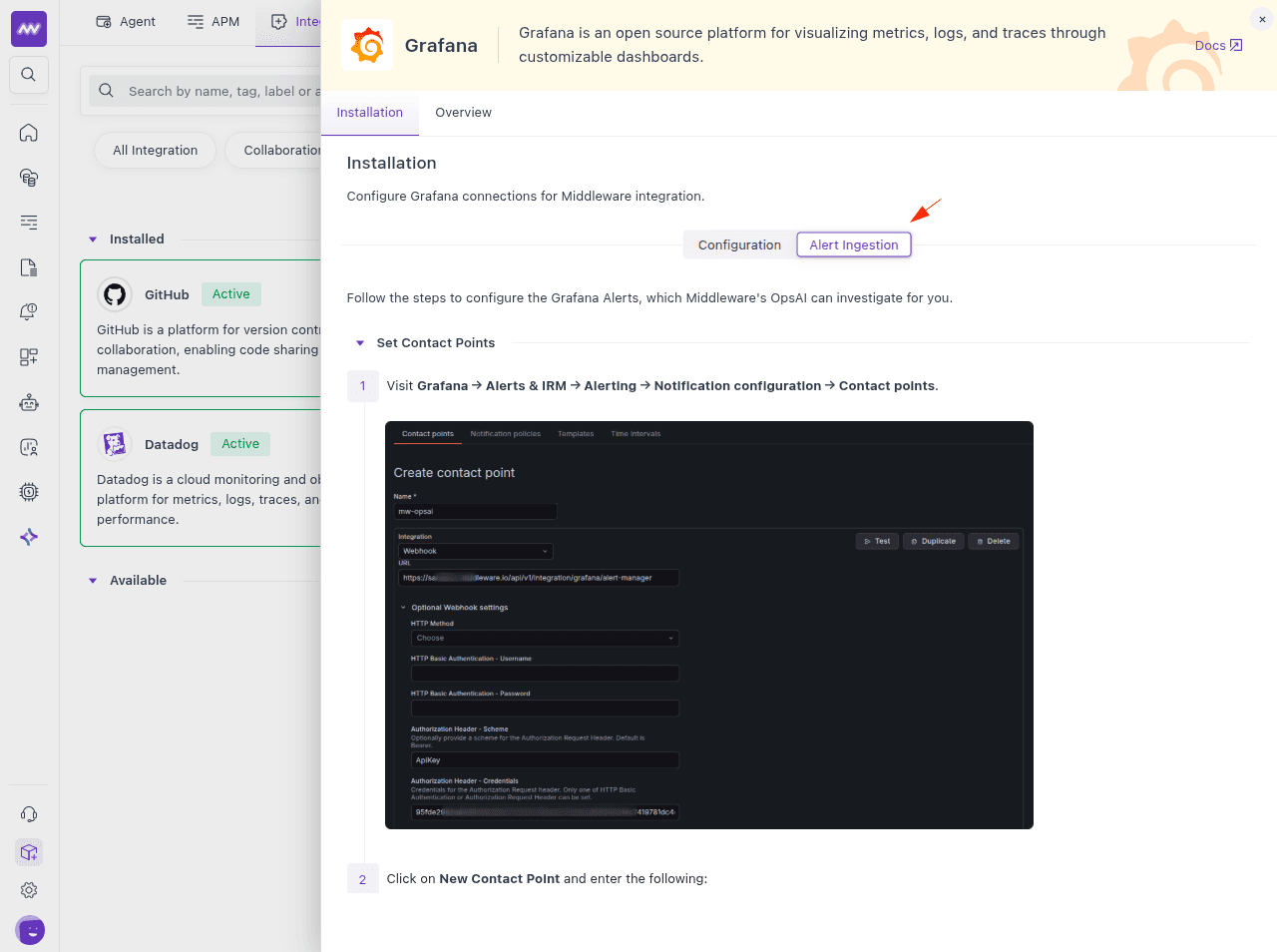
1 Set Contact Points#
- In Grafana, go to Alerts & IRM > Alerting > Notification configuration > Contact points.
- Click New Contact Point and set:
- Name:
mw-opsai - Integration: Webhook
- URL: <Copy from the Alert Ingestion tab>
- Name:
- Under Optional Webhook Settings:
- Authorization Header - Scheme: ApiKey
- Authorization Header - Credentials: <Copy from the Alert Ingestion tab>
- Click Save Contact Point.
2 Set Notification policies#
- In Grafana, go to Alerts & IRM > Alerting > Notification configuration > Notification policies.
- Click Add route, or click on Add sibling above/below, and configure:
- Matching Labels: Leave empty (click the bin icon to clear if needed).
- Contact Point:
mw-opsai - Continue matching subsequent sibling nodes: Enabled
- Override grouping: Enabled
- Group by:
alertnameonly (remove any other values). - Override general timings: Enabled
- Group wait and Group interval:
5s - Repeat interval: Leave empty.
- Click Add route.
After saving, Grafana will send alert notifications to the Middleware webhook using the mw-opsai contact point.
Post-Installation#
Once the Configuration is saved and the Alert Ingestion steps are done in Grafana, alerts that match your notification policy will be sent to Middleware via webhook and listed in the OpsAI alerts view. Click any alert to open a detailed view in the side panel. From there you can see full alert context and start an OpsAI investigation.
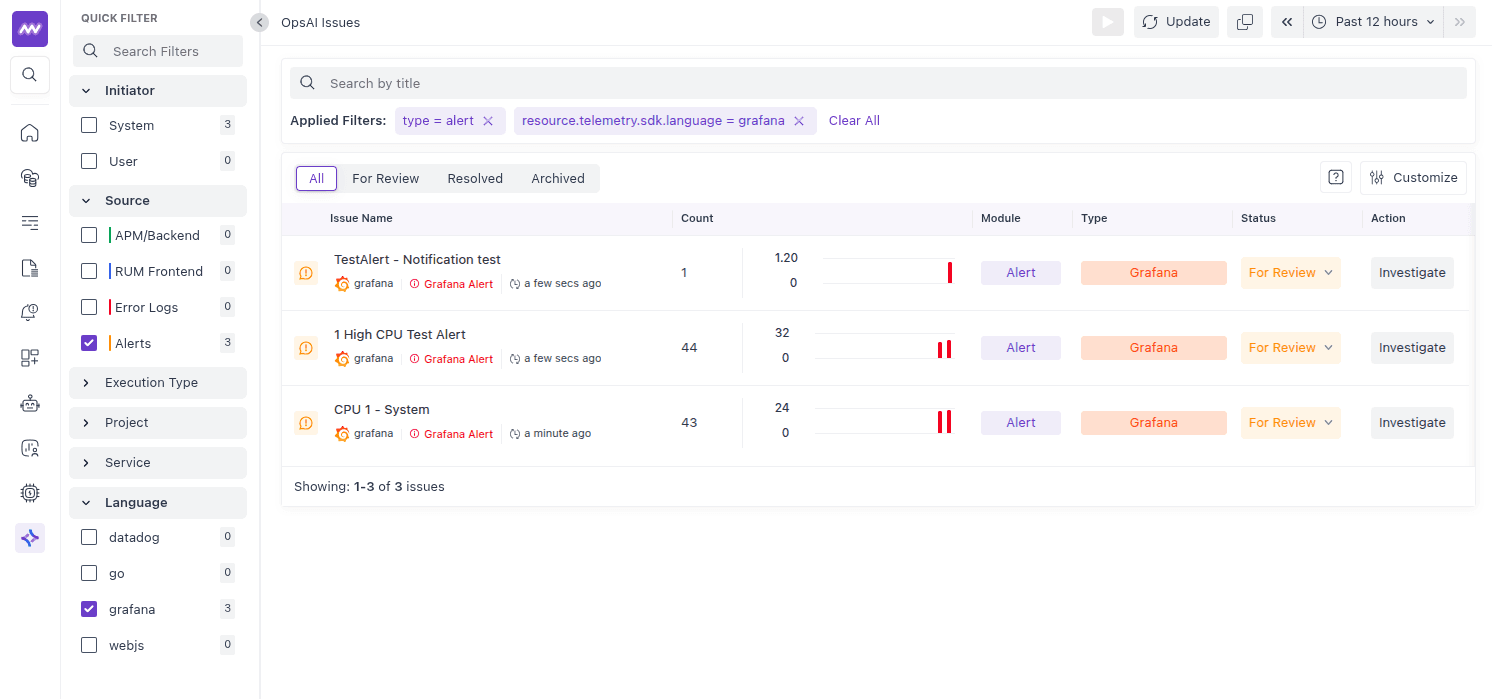
Alert object#
Each Grafana alert displayed in OpsAI includes payload fields similar to the following (among others):
| Key | Description |
|---|---|
title | Alert title (e.g. [FIRING:1] DatasourceNoData ...). |
status | Firing state (e.g. firing). |
state | Alert state (e.g. alerting). |
message | Full message body with labels and links (e.g. to source, silence). |
receiver | Contact point that received the alert (e.g. mw-opsai). |
externalURL | Base URL of your Grafana instance. |
commonLabels | Labels shared by all alerts (e.g. alertname, rulename, grafana_folder, datasource_uid, ref_id). |
groupLabels | Labels used for grouping (e.g. alertname, grafana_folder). |
groupKey | Key identifying the alert group. |
alerts | Array of individual alert objects, each with labels, annotations, startsAt, endsAt, generatorURL, silenceURL, ruleUID, fingerprint, status, valueString. |
orgId | Grafana organization ID. |
version | Payload version. |
These fields are available in the alert side panel and are used by OpsAI during investigation to fetch context and link back to Grafana (e.g. via generatorURL, silenceURL).
OpsAI Investigation#
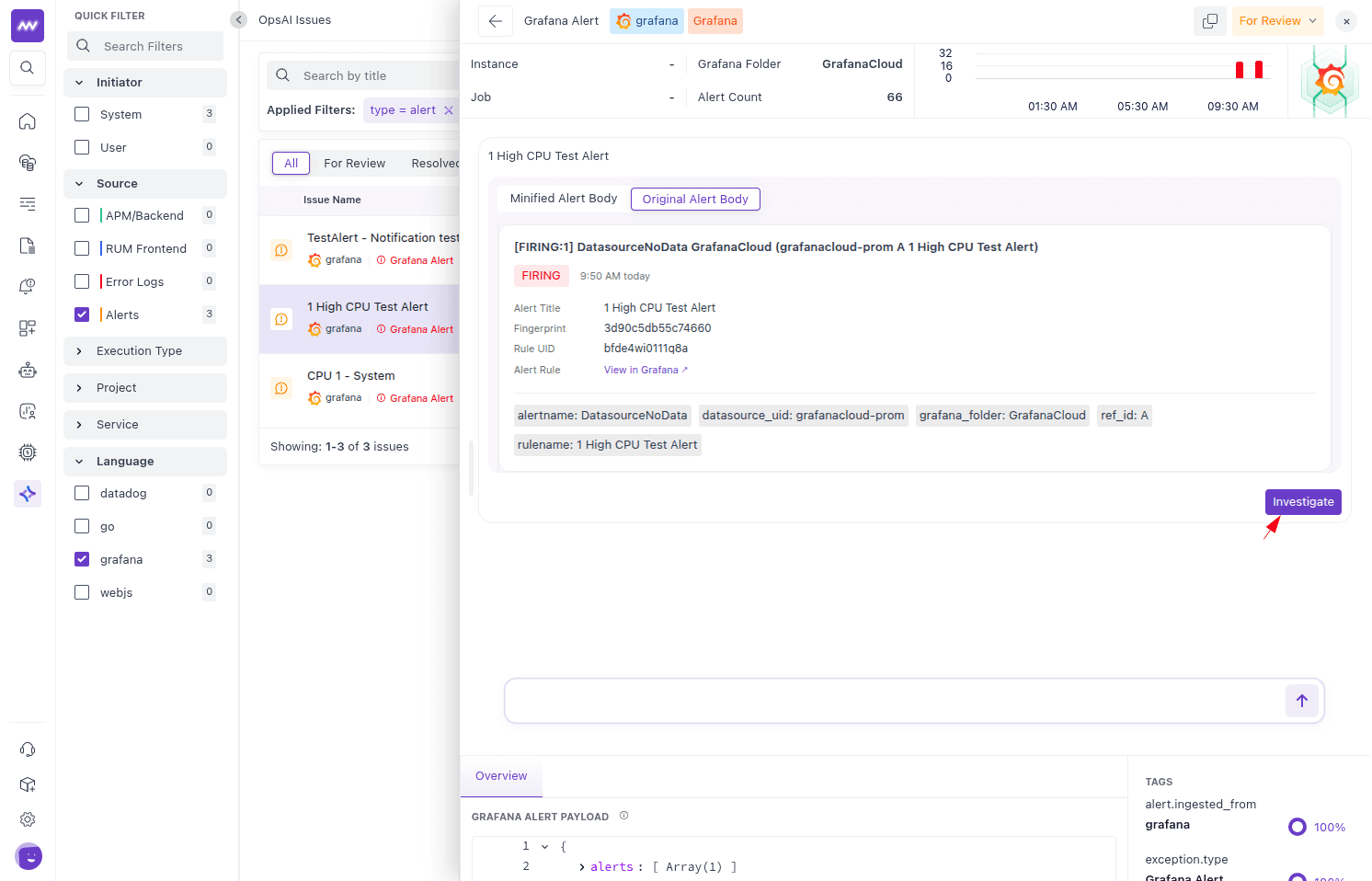
From the alert side panel, you can start an investigation on that alert. OpsAI uses the received alert payload and your Grafana integration configuration (including enabled capabilities) to query Grafana for metrics, logs, dashboards, and events. It then analyzes the situation, identifies the root cause, and presents a detailed report with findings and suggested remediation. You can also start a new OpsAI chat; OpsAI will use the Grafana integration to give contextual answers, insights, and guided resolutions.
Need assistance or want to learn more about Middleware? Get in touch with us via our Contact Us or join our Slack channel.